Marketing – Product tab
The Products tab is the section of Nimo that an organisations products are setup and added to the Nimo system. The products all have specifications that determine how they interact with a form.
Last updated: 5 August 2026
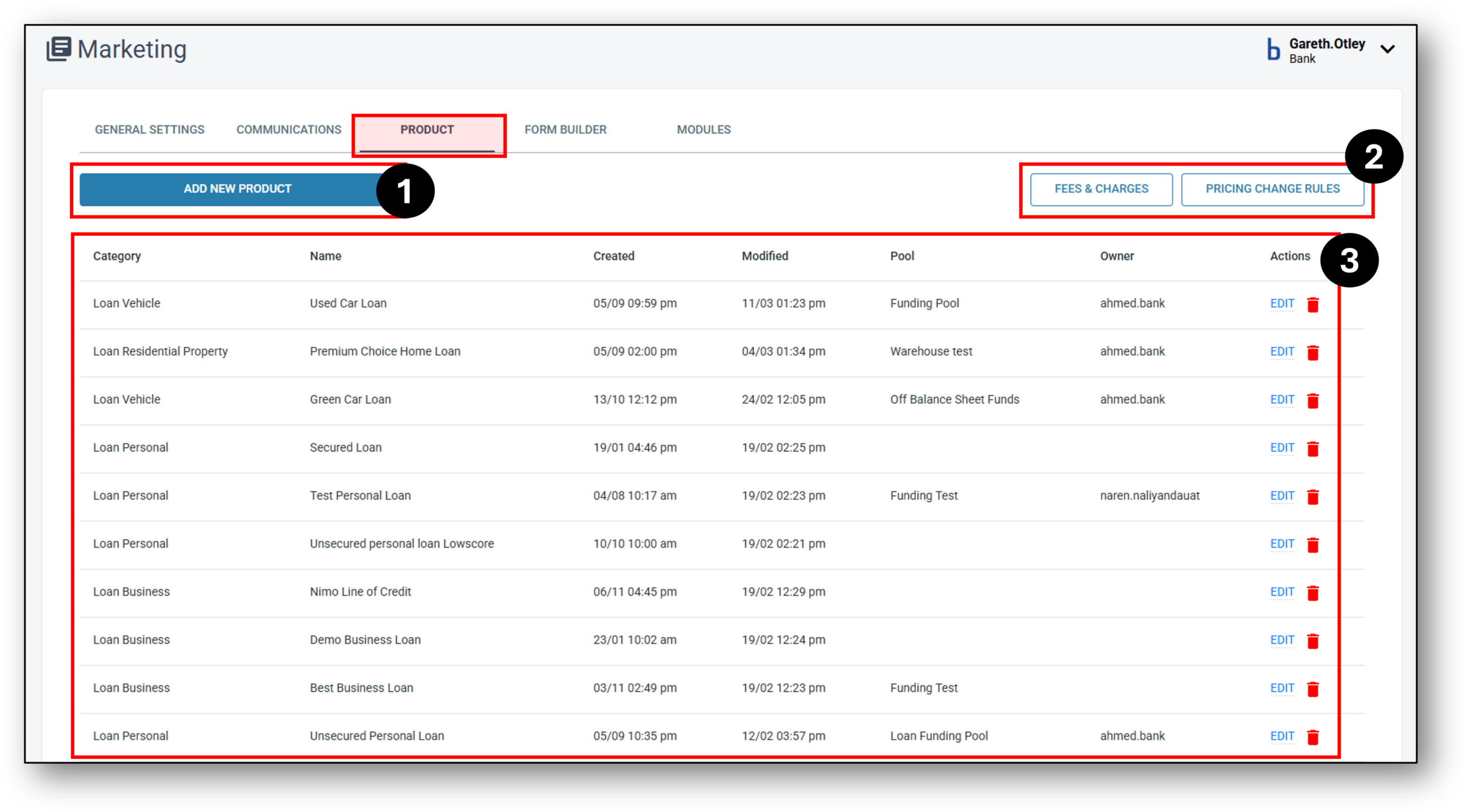
1. Add New Product
Setting up a product is an important step in the process of Nimo. When we onboard you initially, we ask you which products you would like to start with, and then Nimo sets those products up in the system.
Below is the process for setting up a new product in the system. As an example for these instructions we have used a generic ‘Out-Of-The-Box’ Residential Home Loan product to illsutrate the steps.
NOTE: It’s best practice to setup the fees & charges table prior to creating a product or adding any new associated fees in for the product that you are about to create. The fees and charges table act at an organisational level and can then be linked to the relevant product. This way, if you need to apply the same fees and charges across multiple Home Loan products you can do so via the ‘Fees and Charges’ table.
Firstly, navigate to: Marketing → Product → Add New Product

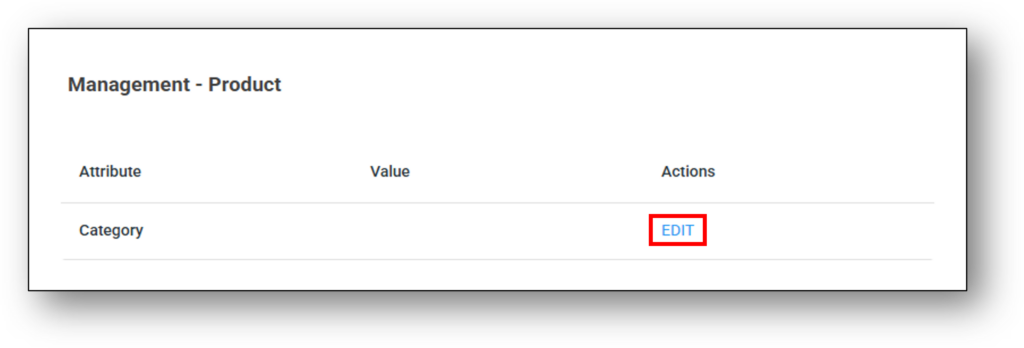
The click “Edit” button to choose the category of the product
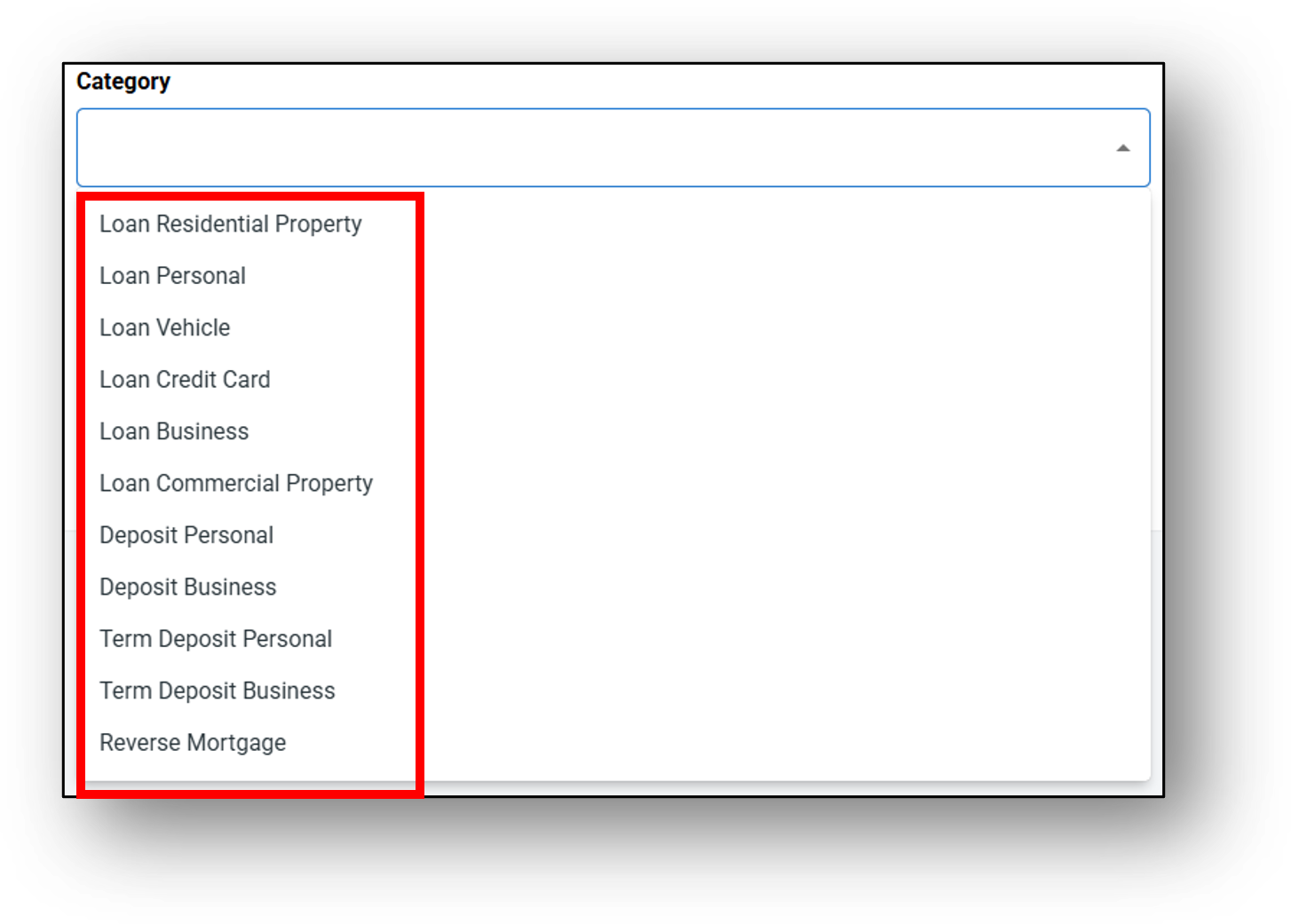
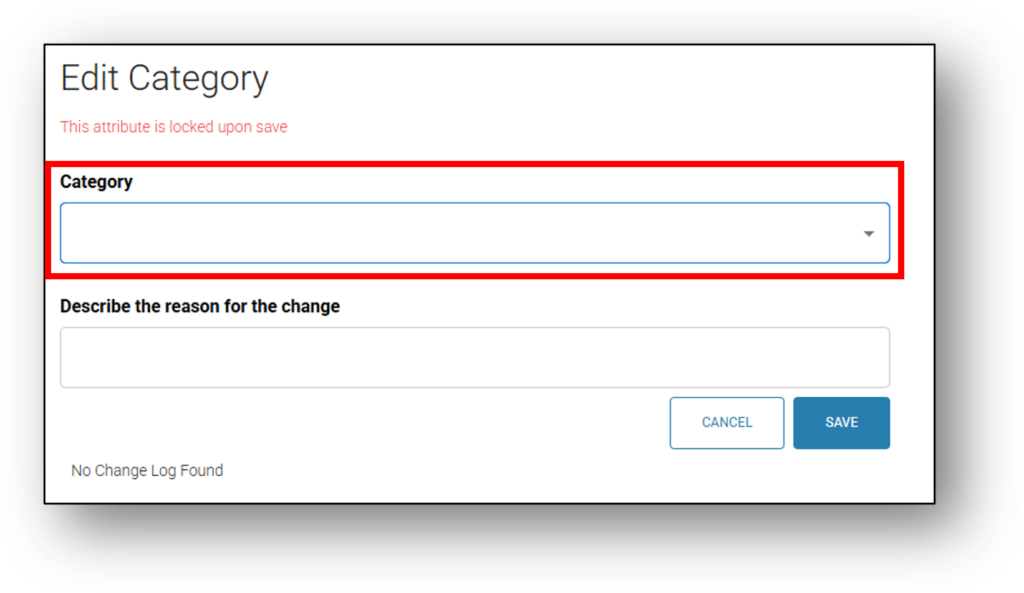
From the drop down category list, select the matched product type from the list and select tthe reason for the change (E.g. setting up a new product)
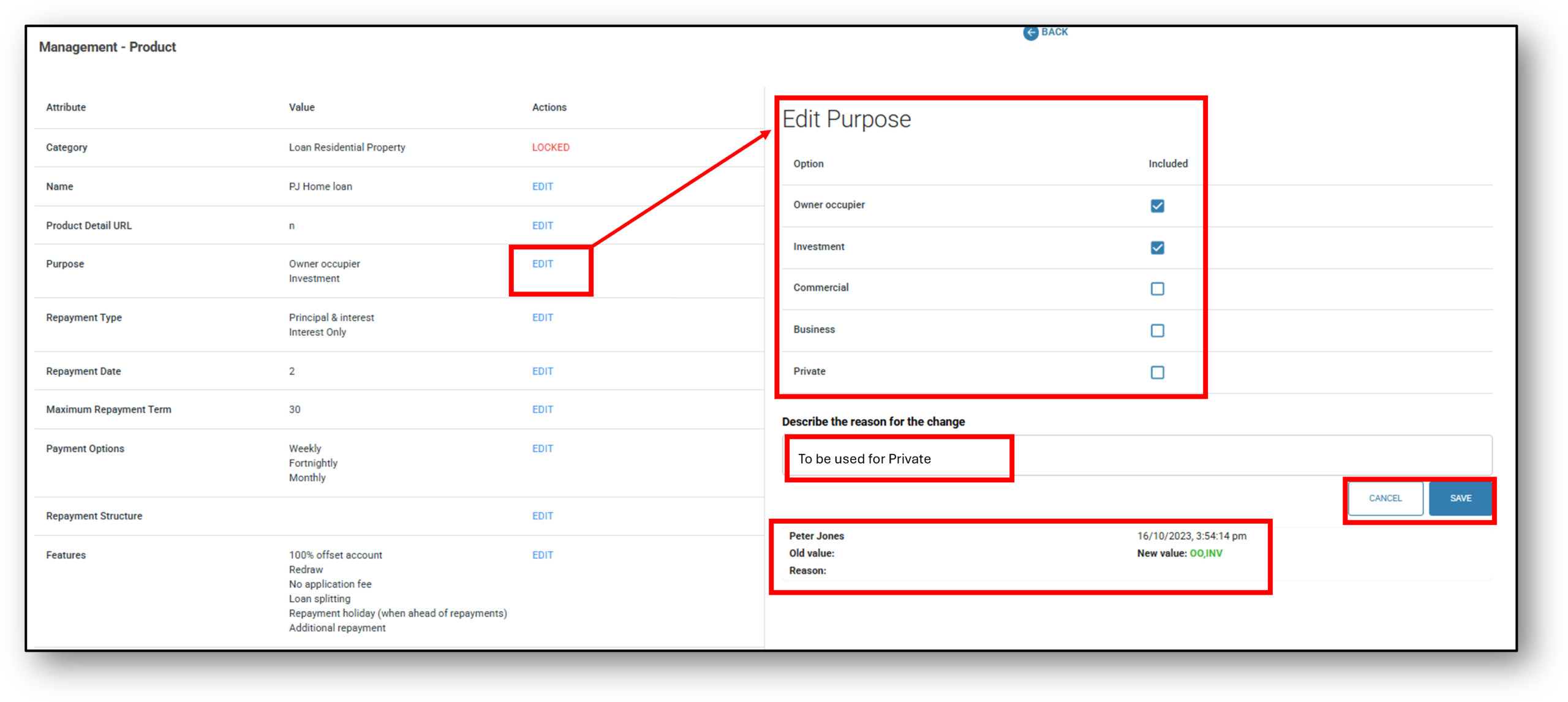
On the new screen that appears (Management – Product) after selecting and saving the ‘Product Category‘, you can add or select the following attributes by clicking the “edit” button next to each one (the below image is demonstrating editing the purpose of the ‘Residential Property Loan’ product):
NOTE: To see the different attributes for each individual product type, select from the respective accordions under this one.
- Category: The category of the product you are setting up (Locked) – You can not edit this later
- Name: The name of the loan product as it will appear in the Nimo platform and on any lender-facing or customer-facing interfaces. E.g. “Premium Home Loan” or “Green Home Loan”
- Product Detail URL: This is an option for the lender to have a link that offers the customer further detail about the product. It may be a section of their website that compares all the loans of the same type or it may be an option for the customer to click on “More Info”, showing the product terms & conditions of that product.
- *Purpose: Defines the intended use or eligible purposes of the loan. This enables the lender to configure the loan product for specific purposes while preventing it from appearing in application forms where it is not relevant: E.g. Owner occupied or Investment
- Repayment Type: Defines the structure of repayments for the product. E.g. Principal & Interest or Interest Only.
- Repayment Date: Indicates the scheduled date for when repayments are due (the nominated date the repayment will be taken from the account). Select from Day 1 – 28
- Maximum Repayment Term: The maximum length of the loan in years that the customer will be able to select from. E.g. 30 years
- Payment Options: Payment frequency. Select to include from: Weekly, Fortnightly, Monthly, Quarterly, Biannually, Annually, No Repayment
- Repayment Structure: Specifies how repayments are calculated and applied for the loan. The repayment structures available are:
- Minimum Repayment – The borrower must make at least the minimum repayment amount each repayment period, regardless of any prior overpayments.
- Flat Schedule – The borrower’s repayment obligation is reduced or paused if they have already paid ahead of schedule.
- Features: A summary of notable product features that can be configured for the loan or account. E.g. 100% offset account or redraw,
- *Interest Rate & Fee: A table defining the applicable interest rate(s), fee structure, and any associated charges for the product. Lenders can configure multiple interest rate combinations for a product in line with their requirements and policies. See below for further explanation.
- Offset: Indicates whether the loan supports an offset account feature to reduce interest payable. E.g. Yes or No
- Contract Method: Method of signing loan contracts to formalise the loan agreement. If ‘Nimo Sign’ is selected, the application uses the contract template set up on the platform, automatically pre-populates the required details, and emails the contract to the borrower for signature. If a ‘Solicitor’ is selected, the application is sent to the solicitor via API for contract preparation and processing. E.g. DocuSign, Nimo sign, solicitor.
- Contract Template: Predefined document format that lenders can upload and reuse for generating loan contracts within the Nimo platform. If DocuSign or Nimo Sign is selected, upload the loan contract template for electronic signature.
- Disable staff portal signature pad: Selecting ‘Yes’ removes the signing requirement for staff and brokers (NimoSign only).
- Disable customer portal signature pad: Selecting ‘Yes’ removes the signing requirement for customers (NimoSign only).
- Conditional Approval: States whether the product allows conditional approvals, where an approval is granted subject to additional conditions being met. E.g. Applicant must upload “Sale of Contract”
- Conditional Approval Template: The predefined format or wording used when issuing conditional approval documents to customers.
- Delinquency Rule: Defines the criteria for classifying an account as delinquent. The lender can select from the predefined delinquency rules configured in the ‘Delinquency‘ tab of the ‘Risk’ layer.
- Funding Pool: Identifies the funding source or pool associated with the product, used for treasury and portfolio tracking. The lender can select from the predefined funding pools configured in the ‘Treasury‘ tab of the ‘Risk‘ layer.
- Security Type: Indicates the security or collateral type applicable to the loan. E.g. no security, vehicle, property.
- Minimum Vehicle Age: The minimum allowable age for a vehicle to qualify for the product (if applicable).
- Maximum Vehicle Age: The maximum allowable age for a vehicle to qualify for the product (if applicable).
- Campaign: Yes or No
- Risk Pricing: Select from any pre-determined risk-based pricing rules setup Risk > Risk Pricing. This allows lenders to allow adjustments (discount or add) to base interest rates depending on the applicant meeting predefined criteria.
- Assessment Pipeline: Defines the assessment process the application will follow when applying for this product. The lender can select from the predefined assessment pipelines configured in the assessment section of the risk layer. Alternatively the lender can setup a new assessment pipeline.
- Owner: The lender owner or department responsible for managing this product within the Nimo platform.

*Purpose
Purpose should match the customer use case captured by the form or module, this is one of the values used to determine which products are eligible to be shown in Needs Analysis and Product Selection.
Business should be ticked when the form or module is for a business lending scenario. The reason is the product needs to align to the customer’s stated purpose. If the customer is applying through a business loan journey, the product should carry Business as an allowed purpose so it can be matched correctly.
Commercial is different. Commercial is generally used where the lending scenario is tied to commercial property or a commercial mortgage style product, not general business lending. Nimo material separates Business Loan and Commercial Mortgage as different use cases, which is the clearest indicator they are not the same purpose bucket.
Private should be used for personal or consumer lending scenarios that do not fall under owner occupier, investment, business, or commercial. This would normally cover personal use lending rather than business or property investment use.
Purpose Example:
Commercial property loan form = tick Commercial
Residential owner occupied form = tick Owner occupier
Residential investment form = tick Investment
Personal or consumer form = tick Private
*Interest Rate & Fee (Table)
Step 1 – To create an interest rate table, click on the “View” link.
Step 2 – To add components to the table, click on the “Add Item” button.
Step 3 – Once you have completed the field entries for the table, click on the “Add” link on the righ-hand side to set that row of the table and move onto the next row, continuing to compile the full table as per the product (if there are more entries to add).
Step 4 – Save the table, which will return you back to the product screen
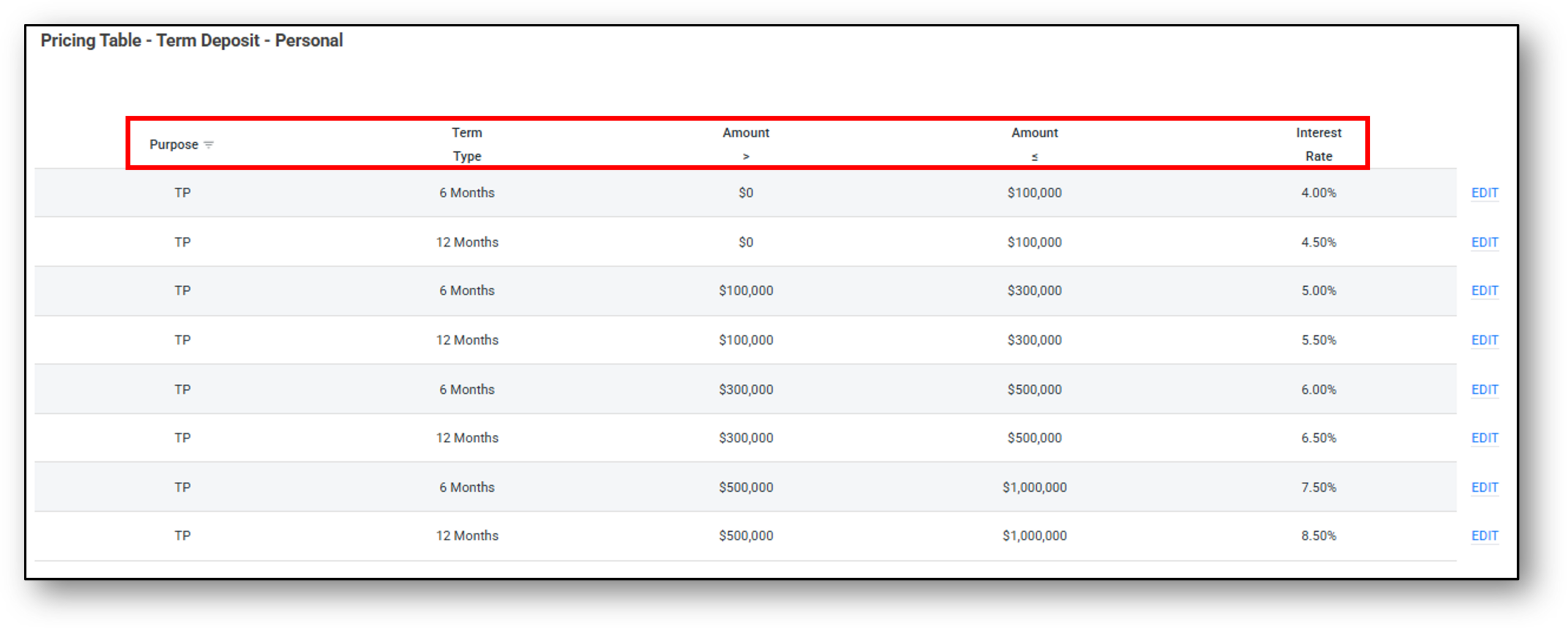
The below image shows a Term Deposit Interest rate table and the multiple rows that have been added. When the customer is choosing their term duration and their amount, the form is connecting with this part of the product to return the matched interest rate.
NOTE: Some products such as deposit accounts won’t have a need for an interest rate table but rather a single attributed interest rate.
2. Fees & Charges
Overview
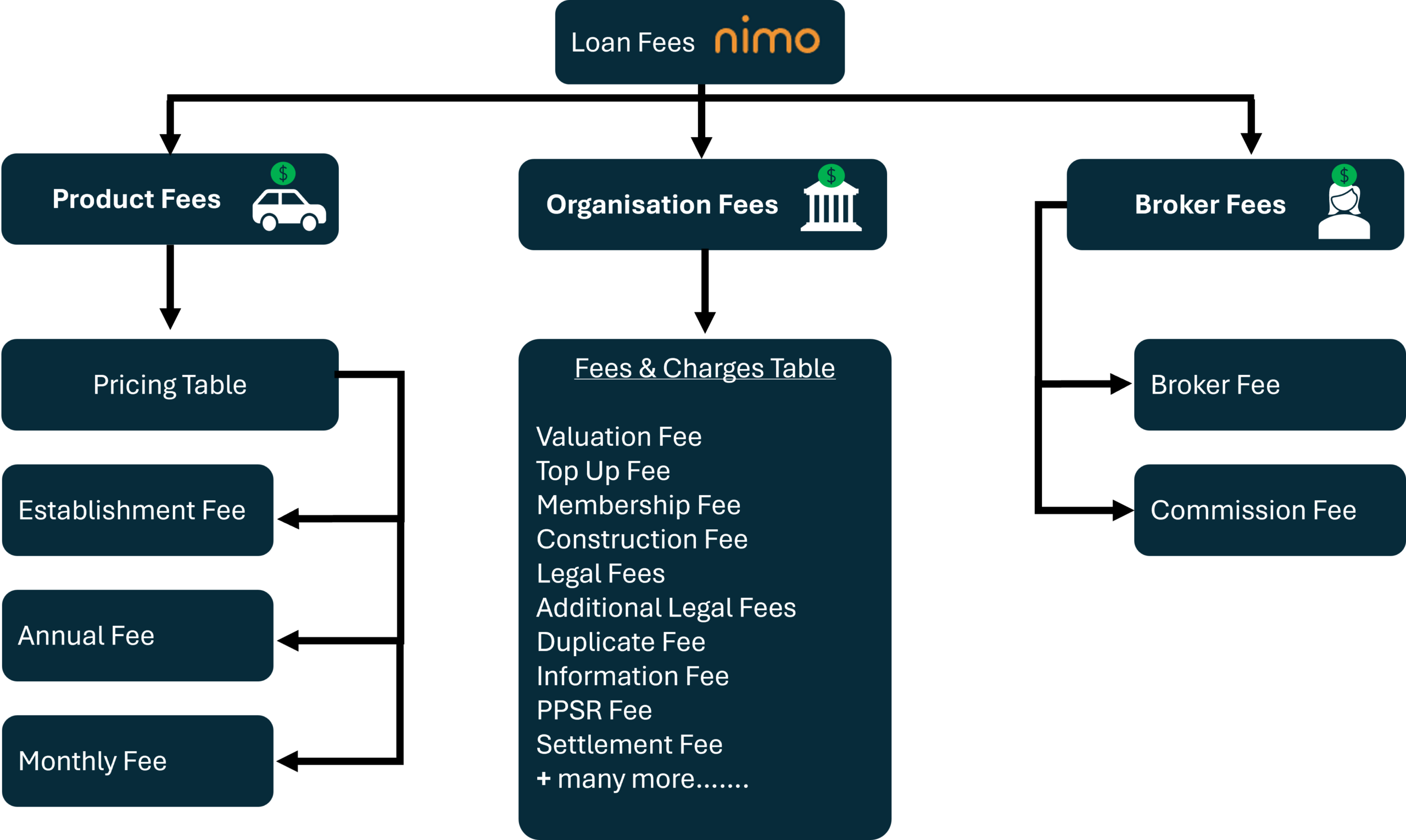
This page outlines how loan fees are structured, categorized, and applied within Nimo. Nimo classifies loan-related charges under three distinct types:
- Product-Based Fees,
- Organisational Fees, and
- Broker Fees.
Each fee type has a specific role in defining the end-to-end cost structure for a loan product.
What Are Loan Fees?
Loan fees are financial charges associated with originating, maintaining, or distributing a loan. These fees can apply at the start of the loan (e.g., establishment), on an ongoing basis (e.g., monthly/annual), or as determined by the lender or broker.
In Nimo, loan fees are not part of a single, rigid structure. Instead, they are modular and configurable, allowing flexibility based on the product setup, lender organisation, and intermediary involvement.
1. Product-Based Fees
Product-based fees refer to charges that are specifically tied to individual loan products. These fees allow for tailored pricing structures, enabling different products to have unique cost components such as one-time fees or ongoing service charges. They are defined and managed at the product level and offer flexibility in how fees are calculated and applied.
These fees are designed to reflect the cost structure specific to each product and include the following three core components: Establishment Fee, Monthly Fee, and Annual Fee. Each product created within Nimo maintains its own dedicated pricing table for this purpose.
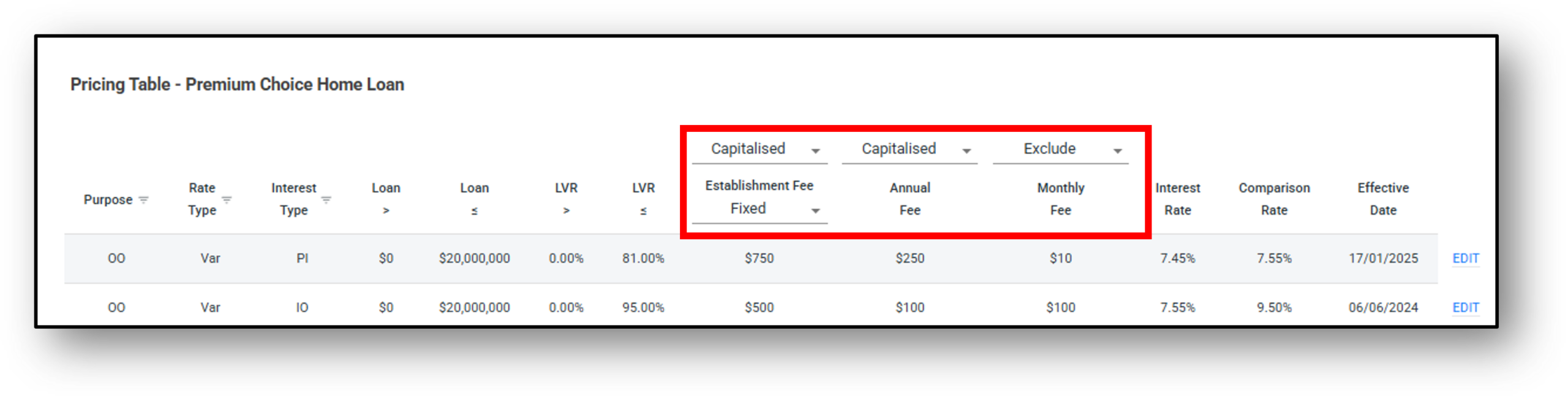
Before any product-based fees are applied, an authorised administrator is responsible for setting up the standard fees and charges table at the organisational level. Once this setup is completed, staff with the appropriate permissions can proceed to create individual products and associate them with their respective pricing tables.
The pricing table is accessible from the Interest Rate and Fee field within the product creation, typically listed alongside other core configuration fields. Selecting the ‘View’ option opens the pricing table interface, where fee details can be configured. Access to this feature is restricted to users with appropriate administrative permissions.
The pricing table permits configuration of the following fee types:
-
Establishment Fee – A one time fee applied at the time of loan settlement. This functions as an application or initiation fee, commonly referred to as an application fee to initiate processing the loan. It may be configured as either a fixed dollar amount or a percentage of the loan amount.
-
Monthly Fee – A recurring operational fee charged at the end of each month. This fee is never capitalised; it does not get added to the loan balance. Instead, it is applied on top of regular repayments.
-
Annual Fee – A hybrid recurring fee. The first annual fee is charged upfront (and capitalised into the loan). It is then charged again at each annual anniversary of the loan or end of year, depending on the setup. Repayments will reflect this inclusion accordingly.
Each of these fees can be set to either:
-
Capitalised – added to the principal loan amount
-
Deducted – subtracted from the loan disbursement amount
-
Waive – Optional to waive at lender discretion
- Included – Monthly repayment increases to cover fee
Note: The Waive & Included options are not available within the pricing table interface.
It is important to note that even products belonging to the same category must have their pricing tables configured independently. Updates to fee configurations can be made at any time by reopening the relevant product and modifying the values within the pricing table.
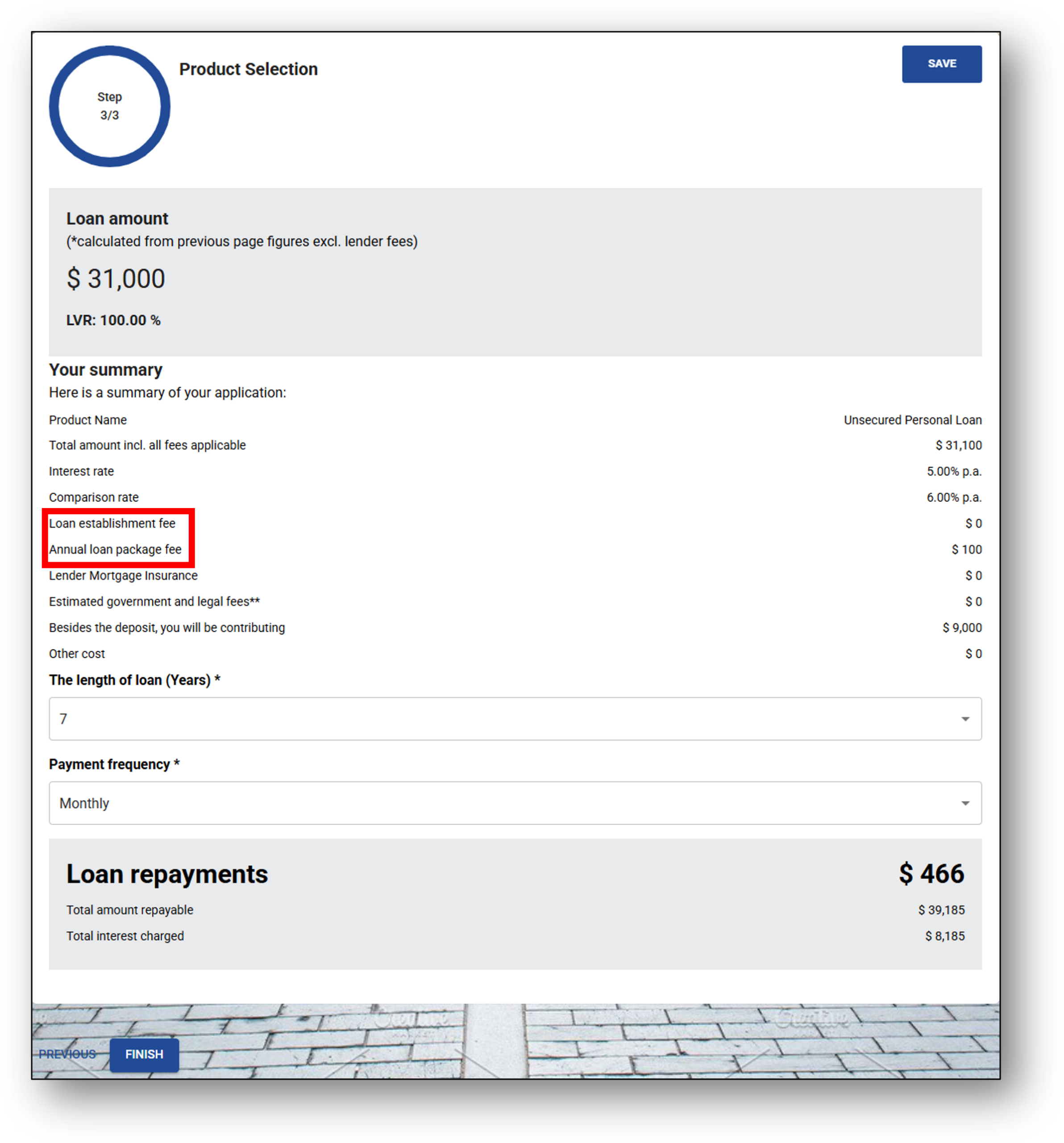
During the application process, once an applicant reaches the Product Selection step, the summary displayed on screen will be populated using values retrieved from the configured pricing table.
2. Organisational Fees
Organisational fees are standard charges set by financial institutions to cover institution-wide costs such as administration, compliance, and legal processing. They are not linked to individual products but apply across all relevant loan categories to ensure consistency.
In Nimo, the configuration and application of organisational fees are managed through a centralised structure known as the ‘Fees and Charges Table’. The ‘Fees and Charges Table’ includes a range of predefined fees as well as a list of loan categories. Once configured, the table applies universally to all products created under the organisation.
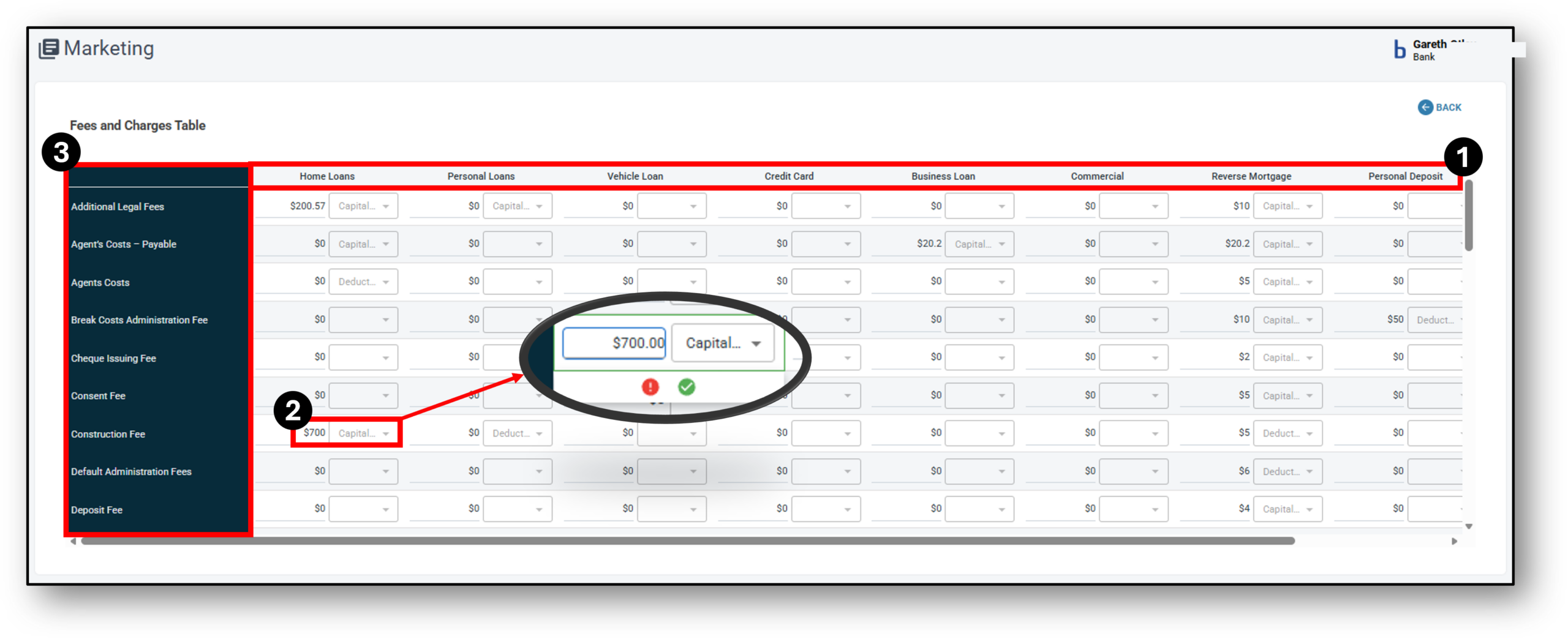
- Product Category – Values are configured per loan category and apply globally to all products within the organisation.
- Fee Structure – Each fee entry allows selection of:
- Capitalised – The fee is added to the total loan amount. The borrower repays the fee over time as part of their scheduled repayments. Increases the overall loan principal.)
- Deducted – The fee is subtracted from the disbursed loan amount. The borrower receives slightly less upfront, but repays the full loan amount.
- Fee Type – The type of fee applicable to each product category. Lenders can choose from setting up a range of automatic fees that form part of the base level product.
These settings are fixed at the organisational level and are not configurable per individual product.
When an application is submitted by a customer, organisational fees are not immediately applied or visible. These values are retrieved only when a staff member, with appropriate access permissions opens the application and navigates to the Product Tab. At that point, the system fetches and displays the applicable fees based on the ‘Fees and Charges Table’.
⚠️ The following categories are excluded and do not trigger fee logic:
-
-
Credit Card
-
Personal Deposit
-
Business Deposit
-
⚠️ These fee types directly affect core loan calculations:
-
-
Loan Amount Including Fees: Capitalised fees increase the total loan amount being borrowed
-
Loan Disbursement Amount: Deducted fees reduce the amount disbursed to the customer
-
Repayment Schedule: Any fees (whether capitalised or deducted) are factored into monthly repayment projections to prevent underpayment or arrears
-
| List of Fees Available Under Loan Categories |
| Additional Legal Fees |
| Agent’s Costs – Payable |
| Agents Costs |
| Break Costs Administration Fee |
| Cheque Issuing Fee |
| Consent Fee |
| Construction Fee |
| Default Administration Fees |
| Deposit Fee |
| Discharge Administration Fee |
| Discharge Of Mortgage Registration Fee |
| Duplicate Fee |
| Duplicate Statement Fee |
| External Dishonour Fee |
| First Title Insurance Premium |
| Foreign Exchange Fee |
| Information Fee |
| Internal Dishonour Fee |
| Late Payment Fee |
| Legal Fees |
| Membership Fee |
| Mortgage Fees |
| Mortgage Variation Fee |
| On-Line Agency Fee |
| Origination Fee |
| Overdraft Fee |
| PPSR Fee |
| Production Fee |
| Progress Inspection Fee |
| Progress Payment Fee |
| Quantity Surveyor Fee |
| Quantity Surveyors Fees |
| Redraw Fee |
| Renegotiation Fee |
| Risk Fee |
| Rollover Fee |
| Security Guarantee Fee |
| Security Substitution Fee |
| Settlement Fee |
| Switching Fee |
| Title Search Fee |
| Top Up Fee |
| Transfer/Conveyance Registration Fee |
| Transfer Fee |
| Valuation Fee |
3. Broker Fees
Broker fees in Nimo are divided into two distinct types:
1. Broker Fees (Disbursement-Level)
-
-
These are fees that appear within the contract disbursement section.
-
Common examples include handling fees or third-party charges that the broker applies directly and may deduct from the loan disbursement.
-
2. Broker Commissions (Upfront & Trail)
-
-
These are performance-based commissions paid by the lender to the broker.
-
Upfront Commission: Paid once upon loan settlement.
-
Trail Commission: Paid over time, based on loan balance or duration.
-
These values will reflect in the loan contract, as they affect the financial agreement between lender and broker.
-
Repayments
To accommodate different repayment policies across lenders, Nimo offers multiple repayment calculation frameworks designed for consistency and operational flexibility.
Universal Repayment (Platform Default)
The Universal formula in Nimo follows a standard amortisation model commonly used across the financial industry. It ensures consistency and predictable repayment schedules. The repayment amount is calculated as follows:
Repayment = [Principal + Capitalised Fees] amortised over [Term] at [Interest Rate] + Monthly Fees (if applicable)
Key considerations:
-
Principal includes the original loan amount plus any capitalised fees (e.g., establishment fee, annual fee).
-
Interest is applied on the total repayable balance.
-
Monthly Fees, if not capitalised, are added on top of each calculated repayment.
-
Supports variable frequencies, based on product setup.
This ensures repayments cover both principal and interest and prevents underpayment even when fees are applied.
Ultracs Repayment (Optional)
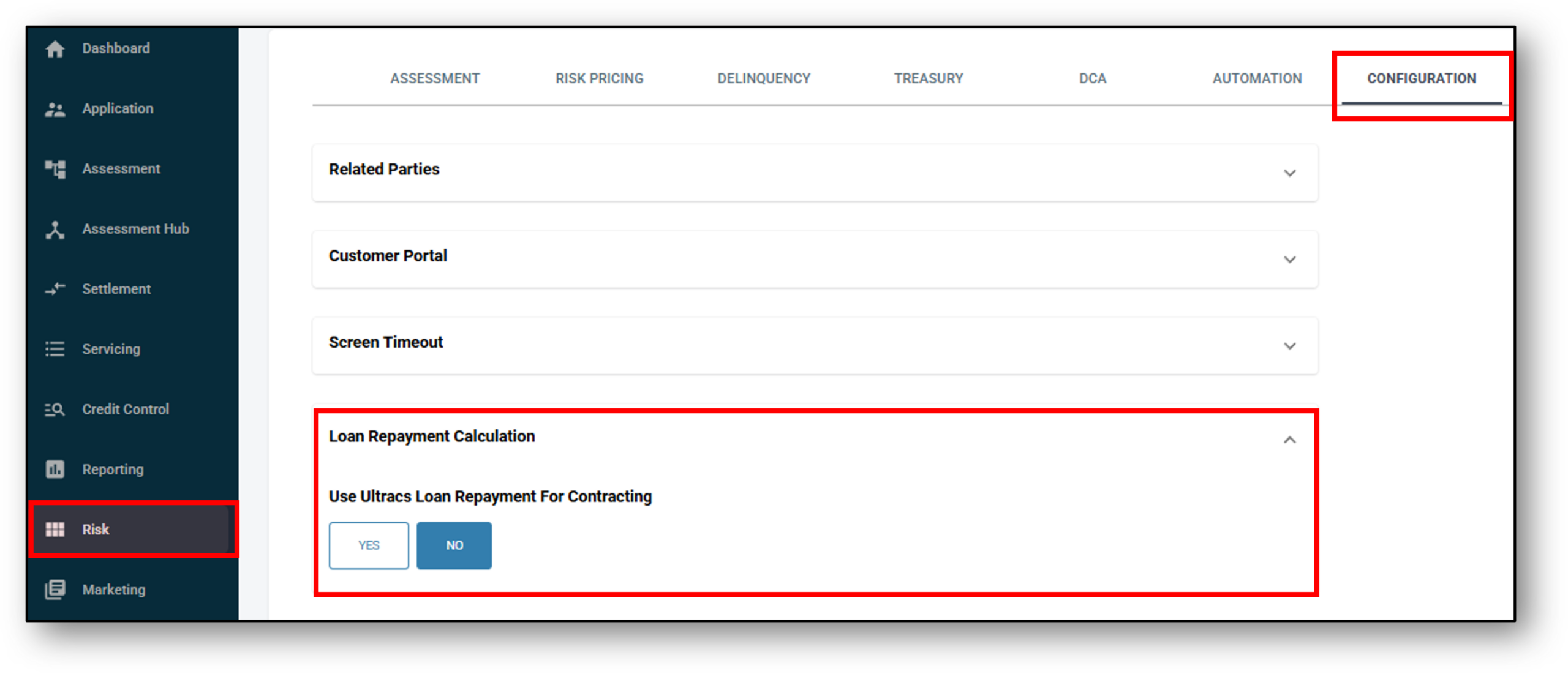
The Ultracs repayment engine is an optional integration that overrides the Universal model if toggled on.
Key differences:
-
Only supports monthly repayments (fixed frequency).
-
Uses Ultracs’s own internal amortisation formula.
-
Capitalised fees and interest are still factored in, but the way repayments are distributed over time may differ.
-
Repayments initiated on or after the 27th of a month may reflect slight variations due to Ultracs end-of-month interest logic.
-
Enabled via a switch at the Risk Configuration in Nimo.
3. Editable Product List
From time to time it may be necessary to change the details of a product, this can be done through the edit menu of any of the products (when necessary, products could be deleted and reloaded as a new product, NOTE: this would change any current and past applciations in the system linked to this product type. If this is the course of action that must be taken, please speak to Nimo first).
If it’s a matter of amending a product attribute/s then this can be completed by clicking ‘Edit’ next to the product. An example of this may be (not an exhaustive list):
- interest rates changes,
- older product is retired,
- updated regulations/laws force a product amendment,
- a product is rebranded, updated or changed the way it operates,
- the product repayment structure is modified
When you edit a component of the product it will open up on the right-hand side. Each attribute being edited will require you to “Describe the reason for the change“, and then an audit log will be left after the change is made (see the image below demonstrating changes made to a product)

Product Management
Below is a list of all the available Products that can be setup in Nimo (excluding the variations of each product e.g. Secured Personal Loan or Unsecured Personal Loan). Within each product listed, the associated attributes that can be set are detailed.
Residential Home Loan
Attributes:
- Category: Loan Residential Property (Locked) – You can’t edit this later
- Name: The name of the product. E.g. “Premium Home Loan” or “Green Home Loan”
- Product Detail URL: This is an option for the lender to have a link that offers the customer further detail about the product.
- Purpose: Defines the intended use or eligible purposes of the loan – Owner occupied, Investment, Private.
- Repayment Type: Defines the structure of repayments for the product. Choose between Principal & Interest, Interest In Advance or Interest Only.
- Repayment Date: Indicates the scheduled date for when repayments are due Select from Day 1 – 28
- Maximum Repayment Term: The maximum length of the loan in years that the customer will be able to select from.
- Payment Options: Payment frequency. Select to include from: Weekly, Fortnightly, Monthly, Quarterly, Biannually, Annually, No Repayment
- Repayment Structure: The repayment structures available are:
- Minimum Repayment
- Flat Schedule
- Features: Select to include from offering: 100% offset account, redraw, no application fee, loan splitting, repayment holiday (when ahead of repayments), additional repayment, line of credit or an overdraft
- *Interest Rate & Fee: A table defining the applicable interest rate(s), fee structure, and any associated charges for the product. Lenders can configure multiple interest rate combinations for a product in line with their requirements and policies. See below for further explanation.
- Offset: Yes or No – Enabling the ability to offset the actual balance of the loan.
- Contract Method: Method of signing loan contracts – DocuSign, Nimo sign, solicitor.
- Contract Template: Upload the loan contract template for electronic signature (This field will only appear if DocuSign or NimoSign is selected).
- Disable staff portal signature pad: No/Yes – (This field will only appear if NimoSign is selected).
- Disable customer portal signature pad: No/Yes – (This field will only appear if NimoSign is selected).
- Conditional Approval: No/Yes – States whether the product allows conditional approvals, where an approval is granted subject to additional conditions being met. E.g. Applicant must upload “Contract of Sale”.
- Conditional Approval Template: The predefined format or wording used when issuing conditional approval documents to customers.
- Delinquency Rule: Link to the delinquency rule (Delinquency rules are first created through the Risk Layer > Delinquency tab).
- Funding Pool: Link to a Funding Pool (Funding pools are first created through the Risk Layer > Treasury tab). A funding pool is the pool of money that a lender uses to make loans. Rather than matching each loan to a specific investor or source of funds, the lender combines capital from one or more sources into a single pool and lends from that pool.
- Statement Frequency: Select from:
- No statement
- Monthly
- Quarterly
- Biannually
- Annually
- Default Margin Rate (DMR): Type in the margin you wish to set in the following format 0.00%. DMR is the additional interest rate (margin) that a lender can apply to a loan above a reference or base rate when no specific negotiated margin has been agreed, or when a borrower falls into a category where the standard/default pricing applies. Can be used when a customer qualifies for preferential pricing.
- Product Code: Assign a product code to this product I.e ‘HL01’
- *Security Type: Acceptable securities for this product – property, vehicle, PPSR, no security.
- Assessment Pipeline: Link to the Assessment rule set applied to this product by your credit management team (Assessment Pipelines are first created through the Risk Layer > Assessment tab). The Assessment Pipeline is essentially the lender’s workflow for evaluating risk, verifying information, and making a credit decision.
- Owner: Assign a manager / Owner for the product.
*Security Type:
- Vehicle
- PPSR
- No Security
- Property
-
- Apartment/Unit
- Townhouse/Villa
- Residential Vacant Land <= 1500 sqm
- House
- Commercial Property
-
*Interest Rate & Fee (Table)
Step 1 – To create an interest rate table, click on the “View” link.
Step 2 – To add components to the table, click on the “Add Item” button.
Step 3 – Once you have completed the field entries for the table, click on the “Add” link on the righ-hand side to set that row of the table and move onto the next row, continuing to compile the full table as per the product (if there are more entries to add).
Step 4 – Save the table, which will return you back to the product screen
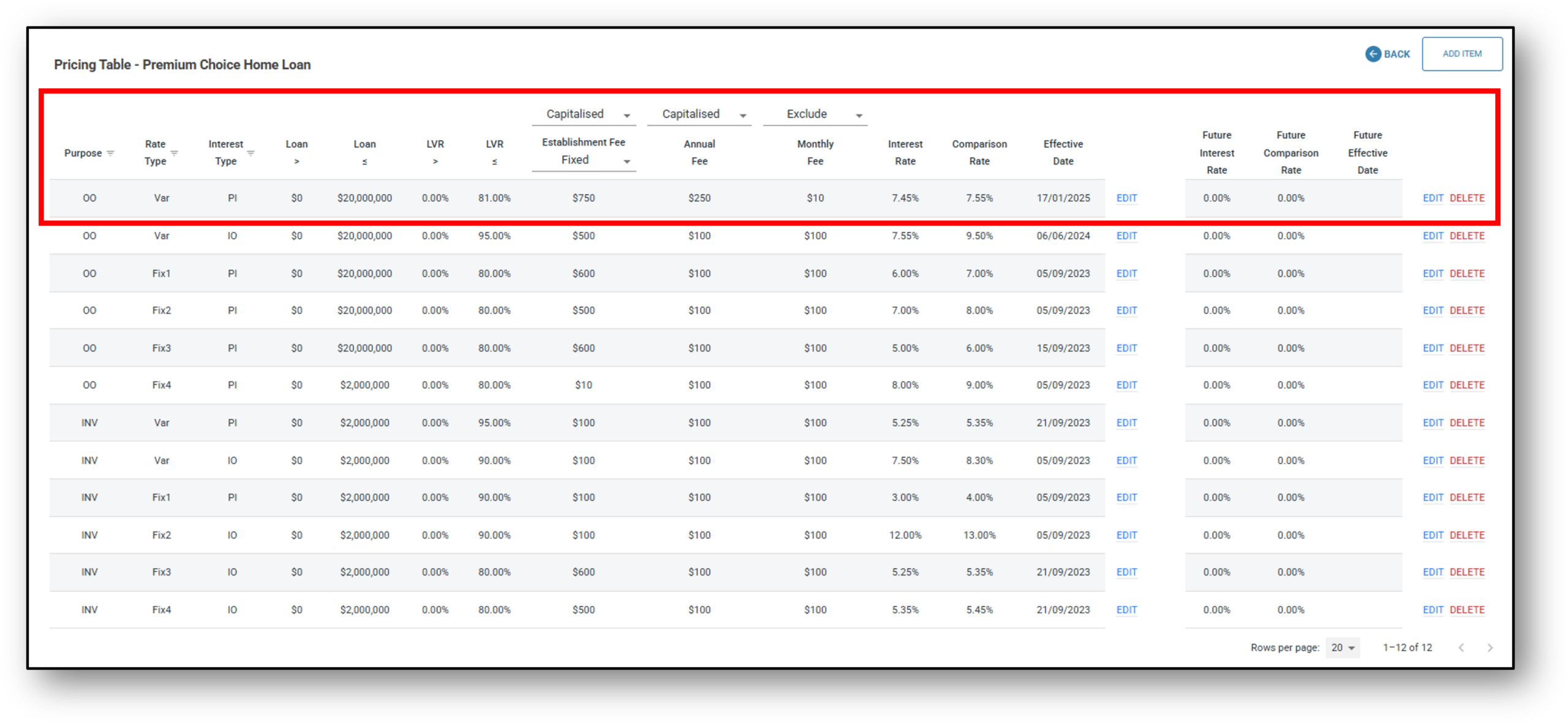
For variable interest rate loans, the lender can schedule a future interest rate to take effect on a specified date. Once triggered, this rate becomes the current interest rate, and the lender can set another new rate for a later date if required. This can be used when your organisation has agreed on a rate change ahead of time.
Deleted rows will remain at the bottom as part of the Interest rate audit log.
TIP: If you have more that 5 rows on the table, you can change the view on the bottom right of the table to display more rows per page.
NOTE: Some products won’t have a need for an interest rate table but rather a single attributed interest rate.
Personal Loan
Attributes:
- Category: Personal Loan (Locked) – You can not edit this later
- Name: The name of the product. E.g. “Premium Personal Loan” or “Unsecured Personal Loan”
- Product Detail URL: This is an option for the lender to have a link that offers the customer further detail about the product. It may be a section of their website that compares all the loans of the same type or it may be an option for the customer to click on “More Info”, showing the product terms & conditions of that product.
- Purpose: Defines the intended use or eligible purposes of the loan. Select from: Owner occupied, Investment, Commercial, Business or Private.
- Repayment Type: Select between Principal & Interest, Interest In Advance or Interest Only.
- Repayment Date: Indicates the scheduled date for when repayments are due. Select from Day 1 – 28
- Maximum Repayment Term: The maximum length of the loan in years that the customer will be able to select from.
- Payment Options: Payment frequency. Select to include from: Weekly, Fortnightly, Monthly, Quarterly, Biannually, Annually or No Repayment
- Repayment Structure: Minimum Repayment or Flat Schedule.
- Features: Select to include from offering: 100% offset account, redraw, no application fee, loan splitting, repayment holiday (when ahead of repayments), additional repayment, line of credit or an overdraft
- *Interest Rate & Fee: A table defining the applicable interest rate(s), fee structure, and any associated charges for the product. See below for further explanation.
- Offset: Yes or No – Enabling the ability to offset the actual balance of the loan.
- Contract Method: Method of signing loan contracts. Select from: DocuSign, Nimo sign, solicitor, Solicitor (manual contract).
- Contract Template: If DocuSign or Nimo Sign is selected, upload the loan contract template for electronic signature.
- Disable staff portal signature pad: Selecting ‘Yes’ removes the signing requirement for staff and brokers (NimoSign only).
- Disable customer portal signature pad: Selecting ‘Yes’ removes the signing requirement for customers (NimoSign only).
- Conditional Approval: Yes /No – States whether the product allows conditional approvals, where an approval is granted subject to additional conditions being met. E.g. Applicant must upload “Roadworthy certificate”
- Conditional Approval Template: The predefined format or wording used when issuing conditional approval documents to customers.
- Settlement Letter: Yes /No – Option only available if you are using NimoSign.
- Settlement Letter Template: Upload a settlement letter template which can be parameterised for efficient automation for internal settlement process internally.
- Delinquency Rule: Link to the delinquency rule (Delinquency rules are first created through the Risk Layer > Delinquency tab).
- Funding Pool: Link to a Funding Pool (Funding pools are first created through the Risk Layer > Treasury tab). A funding pool is the pool of money that a lender uses to make loans. Rather than matching each loan to a specific investor or source of funds, the lender combines capital from one or more sources into a single pool and lends from that pool.
- Statement Frequency: Select from:
- No statement
- Monthly
- Quarterly
- Biannually
- Annually
- Default Margin Rate (DMR): Type in the margin you wish to set in the following format 0.00%. DMR is the additional interest rate (margin) that a lender can apply to a loan above a reference or base rate when no specific negotiated margin has been agreed, or when a borrower falls into a category where the standard/default pricing applies. Can be used when a customer qualifies for preferential pricing.
- Product Code: Assign a product code to this product I.e ‘HL01’
- *Security Type: Select the Security type that the loan can be securitised to
- Assessment Pipeline: Link to the Assessment rule set applied to this product by your credit management team (Assessment Pipelines are first created through the Risk Layer > Assessment tab). The Assessment Pipeline is essentially the lender’s workflow for evaluating risk, verifying information, and making a credit decision.
- Owner: Assign a manager / Owner for the product.
*Security Type:
- Vehicle
- PPSR
- No Security
- Property
-
- Apartment/Unit
- Townhouse/Villa
- Residential Vacant Land <= 1500 sqm
- House
- Commercial Property
-
*Interest Rate & Fee (Table)
Step 1 – To create an interest rate table, click on the “View” link.
Step 2 – To add components to the table, click on the “Add Item” button.
Step 3 – Once you have completed the field entries for the table, click on the “Add” link on the right-hand side to set that row of the table and move onto the next row, continuing to compile the full table as per the product (if there are more entries to add).
Step 4 – Save the table, which will return you back to the product screen
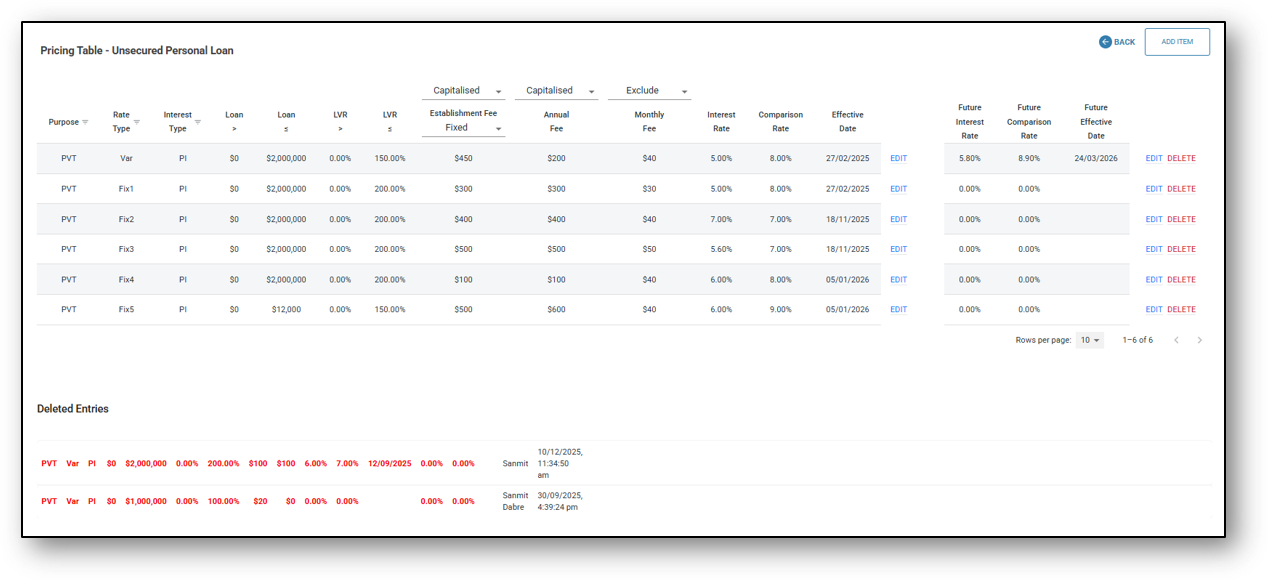
The lender can schedule a future interest rate to take effect on a specified date. Once triggered, this rate becomes the current interest rate, and the lender can set another new rate for a later date if required. This can be used when your organisation has agreed on a rate change ahead of time.
Deleted rows will remain at the bottom as part of the Interest rate audit log.
TIP: If you have more that 5 rows on the table, you can change the view on the bottom right of the table to display more rows per page.
Vehicle Loan
Attributes:
- Category: Loan Vehicle (Locked) – You can not edit this later
- Name: The name of the product. E.g. “Used Car loan” or “New Car Loan”
- Product Detail URL: This is an option for the lender to have a link that offers the customer further detail about the product. It may be a section of their website that compares all the loans of the same type or it may be an option for the customer to click on “More Info”, showing the product terms & conditions of that product.
- Purpose: Defines the intended use or eligible purposes of the loan. Select from: Owner occupied, Investment, Commercial, Business or Private.
- Repayment Type: Select between Principal & Interest, Interest In Advance or Interest Only.
- Repayment Date: Indicates the scheduled date for when repayments are due. Select from Day 1 – 28
- Maximum Repayment Term: The maximum length of the loan in years that the customer will be able to select from.
- Payment Options: Payment frequency. Select to include from: Weekly, Fortnightly, Monthly, Quarterly, Biannually, Annually or No Repayment
- Repayment Structure: Minimum Repayment or Flat Schedule.
- Features: Select to include from offering: 100% offset account, redraw, no application fee, loan splitting, repayment holiday (when ahead of repayments), additional repayment, line of credit or an overdraft
- *Interest Rate & Fee: A table defining the applicable interest rate(s), fee structure, and any associated charges for the product. See below for further explanation.
- Offset: Yes or No – Enabling the ability to offset the actual balance of the loan.
- Contract Method: Method of signing loan contracts. Select from: DocuSign, Nimo sign, solicitor, Solicitor (manual contract).
- Contract Template: If DocuSign or Nimo Sign is selected, upload the loan contract template for electronic signature.
- Disable staff portal signature pad: Selecting ‘Yes’ removes the signing requirement for staff and brokers (NimoSign only).
- Disable customer portal signature pad: Selecting ‘Yes’ removes the signing requirement for customers (NimoSign only).
- Conditional Approval: Yes /No – States whether the product allows conditional approvals, where an approval is granted subject to additional conditions being met. E.g. Applicant must upload “Roadworthy certificate”
- Conditional Approval Template: The predefined format or wording used when issuing conditional approval documents to customers.
- Settlement Letter: Yes /No – Option only available if you are using NimoSign.
- Settlement Letter Template: Upload a settlement letter template which can be parameterised for efficient automation for internal settlement process internally.
- Delinquency Rule: Link to the delinquency rule (Delinquency rules are first created through the Risk Layer > Delinquencytab).
- Funding Pool: Link to a Funding Pool (Funding pools are first created through the Risk Layer > Treasury tab). A funding pool is the pool of money that a lender uses to make loans. Rather than matching each loan to a specific investor or source of funds, the lender combines capital from one or more sources into a single pool and lends from that pool.
- Statement Frequency: Select from:
- No statement
- Monthly
- Quarterly
- Biannually
- Annually
- Default Margin Rate (DMR): Type in the margin you wish to set in the following format 0.00%. DMR is the additional interest rate (margin) that a lender can apply to a loan above a reference or base rate when no specific negotiated margin has been agreed, or when a borrower falls into a category where the standard/default pricing applies. Can be used when a customer qualifies for preferential pricing.
- Security Type: Acceptable securities for this product – property, vehicle, PPSR, deposit no security.
- Minimum Vehicle Age: The minimum allowable age for a vehicle to qualify for the product (if applicable).
- Maximum Vehicle Age: The maximum allowable age for a vehicle to qualify for the product (if applicable).
- Campaign: Yes or No – Select whether this product needs the ability to be promoted through a campaign.
- Risk Pricing: Select the Risk-based pricing once they have been created through the Risk layer. For further guidance please see the release notes update on ‘Risk-based pricing (business) User Guide’.
- Assessment Pipeline: Link to the Assessment rule set applied to this product by the credit management team (Assessment Pipelines are first created through the Risk Layer > Assessment tab). The Assessment Pipeline is essentially the lender’s workflow for evaluating risk, verifying information, and making a credit decision.
- Owner: Assign a manager / Owner for the product
*Interest Rate & Fee (Table)
Step 1 – To create an interest rate table, click on the “View” link.
Step 2 – To add components to the table, click on the “Add Item” button.
Step 3 – Once you have completed the field entries for the table, click on the “Add” link on the righ-hand side to set that row of the table and move onto the next row, continuing to compile the full table as per the product (if there are more entries to add).
Step 4 – Save the table, which will return you back to the product screen
Reverse Mortgage
Attributes:
- Category: Reverse Mortgage (Locked) – You can not edit this later
- Name: The name of the product. E.g. “Premium Reverse Mortgage” or “Retirement Mortgage”
- Product Detail URL: This is an option for the lender to have a link that offers the customer further detail about the product.
- Purpose: Defines the intended use or eligible purposes of the loan – Owner occupied, Investment, Private.
- Repayment Type: Defines the structure of repayments for the product. Choose between Principal & Interest, Interest In Advance or Interest Only.
- Repayment Date: Not required
- Maximum Repayment Term: Can be set to zero.
- Payment Options: Select No Repayment
- Features: Not required
- *Interest Rate & Fee: A table defining the applicable interest rate(s), fee structure, and any associated charges for the product. Lenders can configure multiple interest rate combinations for a product in line with their requirements and policies. See below for further explanation.
- Contract Method: Method of signing loan contracts – DocuSign, Nimo sign, solicitor, solicitor manual.
- Contract Template: Upload the loan contract template for electronic signature (This field will only appear if DocuSign or NimoSign is selected).
- Disable staff portal signature pad: No/Yes – (This field will only appear if NimoSign is selected).
- Disable customer portal signature pad: No/Yes – (This field will only appear if NimoSign is selected).
- Conditional Approval: No/Yes – States whether the product allows conditional approvals, where an approval is granted subject to additional conditions being met. E.g. Applicant must upload “Contract of Sale”.
- Conditional Approval Template: The predefined format or wording used when issuing conditional approval documents to customers.
- Delinquency Rule: Not required traditionally.
- Funding Pool: Link to a Funding Pool (Funding pools are first created through the Risk Layer > Treasury tab). A funding pool is the pool of money that a lender uses to make loans. Rather than matching each loan to a specific investor or source of funds, the lender combines capital from one or more sources into a single pool and lends from that pool.
- Statement Frequency: Select ‘No statement’.
- Default Margin Rate (DMR): Type in the margin you wish to set in the following format 0.00%. DMR is the additional interest rate (margin) that a lender can apply to a loan above a reference or base rate when no specific negotiated margin has been agreed, or when a borrower falls into a category where the standard/default pricing applies. Can be used when a customer qualifies for preferential pricing.
- Security Type: Select ‘property’.
- Assessment Pipeline: Link to the Assessment rule set applied to this product by your credit management team (Assessment Pipelines are first created through the Risk Layer > Assessment tab). The Assessment Pipeline is essentially the lender’s workflow for evaluating risk, verifying information, and making a credit decision.
- Owner: Assign a manager / Owner for the product.
- Product Code: Assign a product code to this product I.e ‘HL01’
*Security Type:
- Vehicle
- PPSR
- No Security
- Property
-
- Apartment/Unit
- Townhouse/Villa
- Residential Vacant Land <= 1500 sqm
- House
- Commercial Property
-
*Interest Rate & Fee (Table)
Step 1 – To create an interest rate table, click on the “View” link.
Step 2 – To add components to the table, click on the “Add Item” button.
Step 3 – Once you have completed the field entries for the table, click on the “Add” link on the righ-hand side to set that row of the table and move onto the next row, continuing to compile the full table as per the product (if there are more entries to add).
Step 4 – Save the table, which will return you back to the product screen
Credit Card
Attributes:
- Category: Credit Card (Locked) – You can not edit this later
- Name: The name of the product. E.g. “Nimo No Fee mastercard” or “Nimo Platinum Points“
- Product Detail URL: This is an option for the lender to have a link that offers the customer further detail about the product. It may be a section of their website that compares all the loans of the same type or it may be an option for the customer to click on “More Info”, showing the product terms & conditions of that product.
- Purpose: Defines the intended use or eligible purposes of the credit card. Can select from: Personal, Commercial, Business.
- Repayment Type: Interest Only.
- Minimum Credit Card Limit: Dollar value input
- Minimum Repayment %: Percentage input
- Interest Rate %: Base interest rate of the card for purchases
- Cash Advance Rate %: Interest rate attributed to the card when cash advances are made with the card.
- Interest Free Period (Days): The period in time that the card has an interest free period. Interest will be calculated in the background and charged if the customer doesn’t meet their repayment requirement.
- Annual Fee: The annual Fee attached to the product.
- Establishment Fee: If there is a fee associated with the establishment for a credit card
- Establishment Fee Type: The way in which the fee is charged. Select from Fixed or Percentage.
- Payment Options: Payment frequency. Monthly
- Balance Transfer: Yes or No – If the product allows a balance transfer to be cpompleted to and fromthe card
- Balance Transfer %: The percentage that will apply to the product during the balance transfer term. After this period lapses, the card will transition to the specified interest rate.
- Balance Transfer Term – Specified in months, how long the balance transfer interest rate will apply to the product.
- Rewards:Yes or No – If the product is attached to any type of rewards points system.
- Contract Method: Not Required.
- Conditional Approval: No
- Delinquency Rule: Link to the associated Credit Card Delinquency Rule setup in the Risk layer. (Core banking)
- Funding Pool: Link to the associated funding pool if your organisation uses funding pools.
- Security Type: No Security
- Assessment Pipeline: Defines the assessment process the application will follow when applying for this product. Link to the relevant pipeline
- Owner: Assign a product owner.
Business Loan
Attributes:
- Category: Loan Business (Locked) – You can’t edit this later
- Name: The name of the product. E.g. “Line of Credit” or “Business Overdraft”
- Product Detail URL: This is an option for the lender to have a link that offers the customer further detail about the product.
- Purpose: Defines the intended use or eligible purposes of the loan – Owner Occupied, Investment, Commercial, Business, Private.
- Repayment Type: Defines the structure of repayments for the product. Choose between Principal & Interest or Interest Only.
- Repayment Date: Indicates the scheduled date for when repayments are due Select from Day 1 – 28
- Maximum Repayment Term: The maximum length of the loan in years that the customer will be able to select from.
- *Payment Options: Payment frequency. Select to include from: Weekly, Fortnightly, Monthly, Quarterly, Biannually, Annually, No Repayment, Split Repayment (allows payment options to be split).
- Repayment Structure: The repayment structures available are:
- Minimum Repayment
- Flat Schedule
- Features: Select to include from offering: 100% offset account, redraw, no application fee, loan splitting, repayment holiday (when ahead of repayments), additional repayment
- *Interest Rate & Fee: A table defining the applicable interest rate(s), fee structure, and any associated charges for the product. Lenders can configure multiple interest rate combinations for a product in line with their requirements and policies. See below for further explanation.
- Offset: Yes or No – Enabling the ability to offset the actual balance of the loan.
- Contract Method: Method of signing loan contracts – DocuSign, Nimo sign, solicitor.
- Contract Template: If DocuSign or Nimo Sign is selected, upload the loan contract template for electronic signature.
- Disable staff portal signature pad: No/Yes – (This field will only appear if NimoSign is selected).
- Disable customer portal signature pad: No/Yes – (This field will only appear if NimoSign is selected).
- Conditional Approval: No/Yes – States whether the product allows conditional approvals, where an approval is granted subject to additional conditions being met. E.g. Applicant must upload “Contract of Sale”.
- Conditional Approval Template: The predefined format or wording used when issuing conditional approval documents to customers.
- Delinquency Rule: Link to the delinquency rule (Delinquency rules are first created through the Risk Layer > Delinquency tab).
- Funding Pool: Link to a Funding Pool (Funding pools are first created through the Risk Layer > Treasury tab). A funding pool is the pool of money that a lender uses to make loans. Rather than matching each loan to a specific investor or source of funds, the lender combines capital from one or more sources into a single pool and lends from that pool.
- Statement Frequency: Select from:
- No statement
- Monthly
- Quarterly
- Biannually
- Annually
- Default Margin Rate (DMR): Type in the margin you wish to set in the following format 0.00%. DMR is the additional interest rate (margin) that a lender can apply to a loan above a reference or base rate when no specific negotiated margin has been agreed, or when a borrower falls into a category where the standard/default pricing applies. Can be used when a customer qualifies for preferential pricing.
- Product Code: Assign a product code to this product I.e ‘HL01’
- Invoice Service Fee %: Enter the default invoice service fee if applicable. Select the fee type from: Simple Service Fee, Complex Service Fee or No Service Fee. Next select the fee calculation method from either a service fee % or as a flat fee displayed as a dollar amount. Lastly, select whether the fee should have GST applied as a ‘Yes’ or ‘No‘ value.
- *Security Type: Acceptable securities for this product – property, vehicle, PPSR, no security.
- Risk Pricing: Select the Risk-based pricing once they have been created through the Risk layer. For further guidance please see the release notes update on ‘Risk-based pricing (business) User Guide’.
- Assessment Pipeline: Link to the Assessment rule set applied to this product by your credit management team (Assessment Pipelines are first created through the Risk Layer > Assessment tab). The Assessment Pipeline is essentially the lender’s workflow for evaluating risk, verifying information, and making a credit decision.
- Owner: Assign a manager / Owner for the product.
*Payment Options:
‘Split Repayment’ allows a business to distribute their repayments by either:
- Month by Month, or
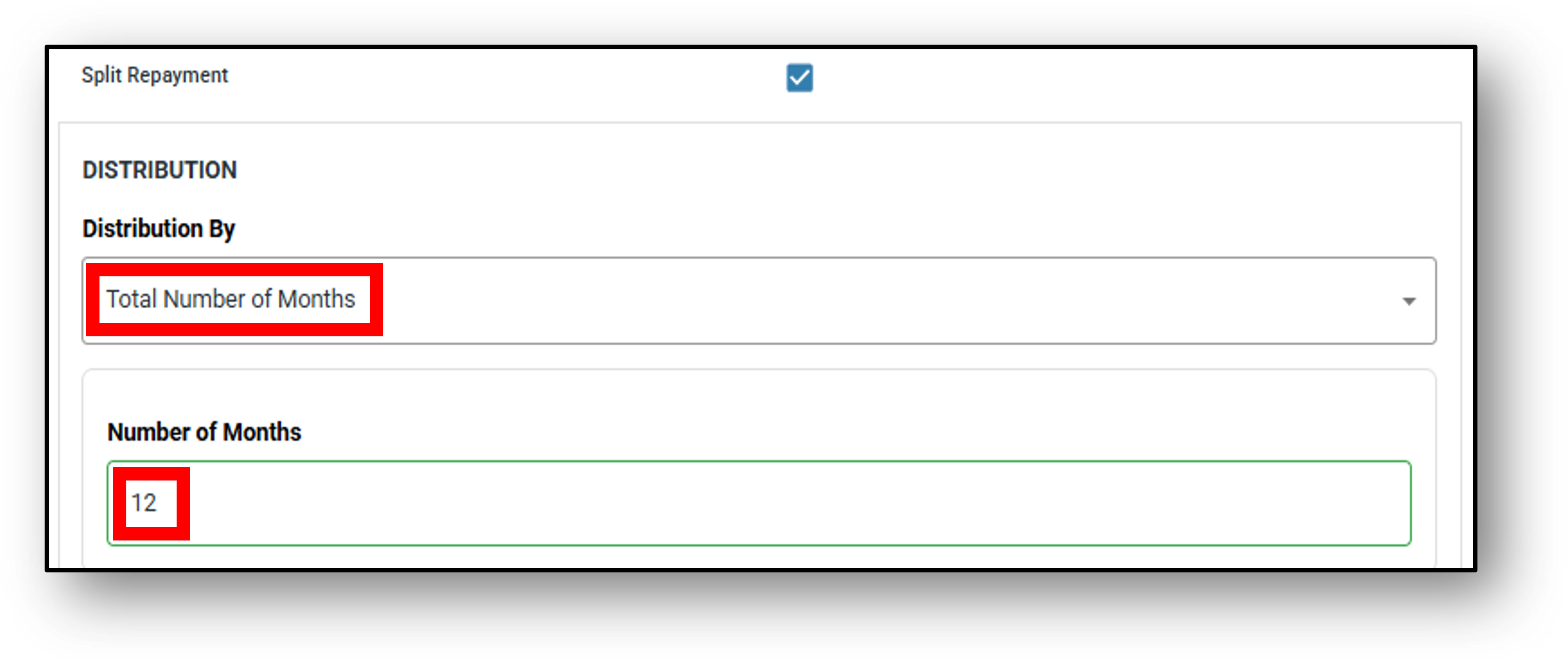
- Total Number of Months
Selecting ‘Month by Month’ distribution:
STEP 1 – Work out how many months you wish to distribute the repayments across and add the matching amount of months.
STEP 2 – Calculate the percentage breakdown per month and input it into each of the fields ensuring the all the fields add up to 100% (The total field will calculate and readjust after each entry, then turn green once it’s at 100%)
e.g. If distribution is to occur across 12 months, Month 1-8 could be set to 8.33%, Month 9-12 set at 8.34%
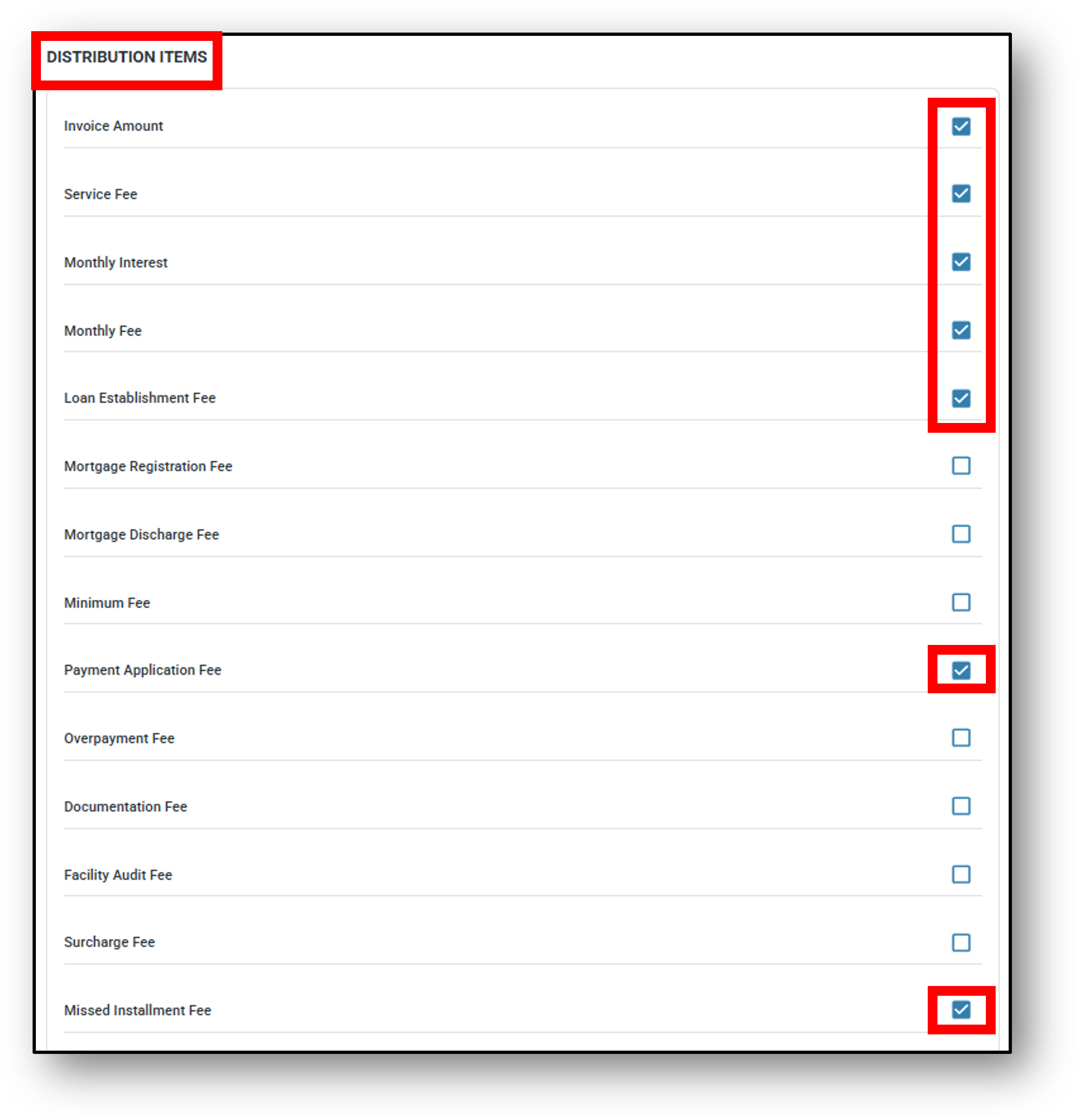
STEP 3 – Select from the list of Distribution items that you wish to be captured in the split repayment (Bottom image).
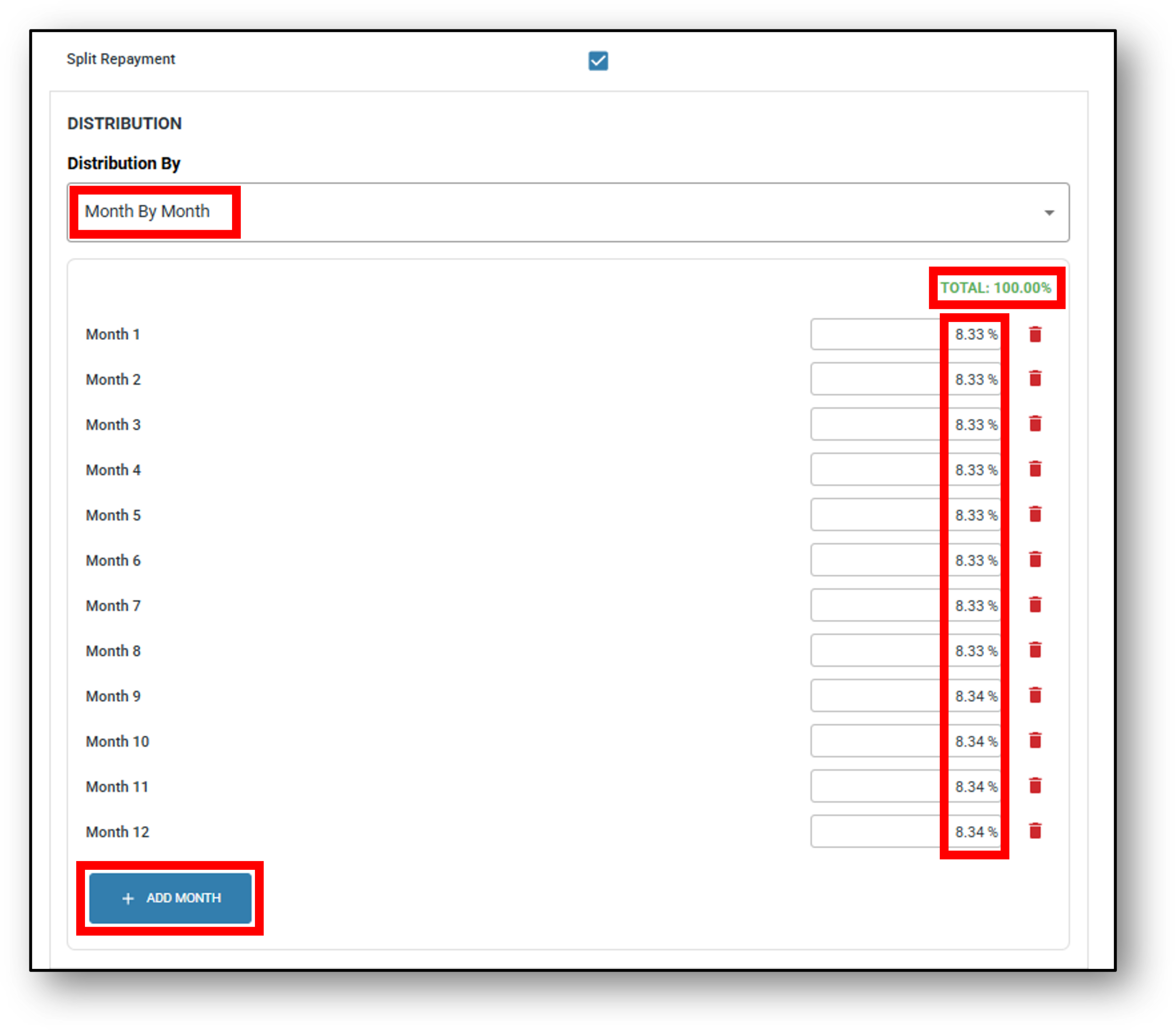
Selecting ‘Total number of Month’ distribution,
STEP 1 – Work out how many months you wish to distribute the repayments across and select it from the drop-down.
STEP 2 – Select from the list of Distribution items that you wish to be captured in the split repayment (Bottom image).
Distribution Items (not all visible in image)
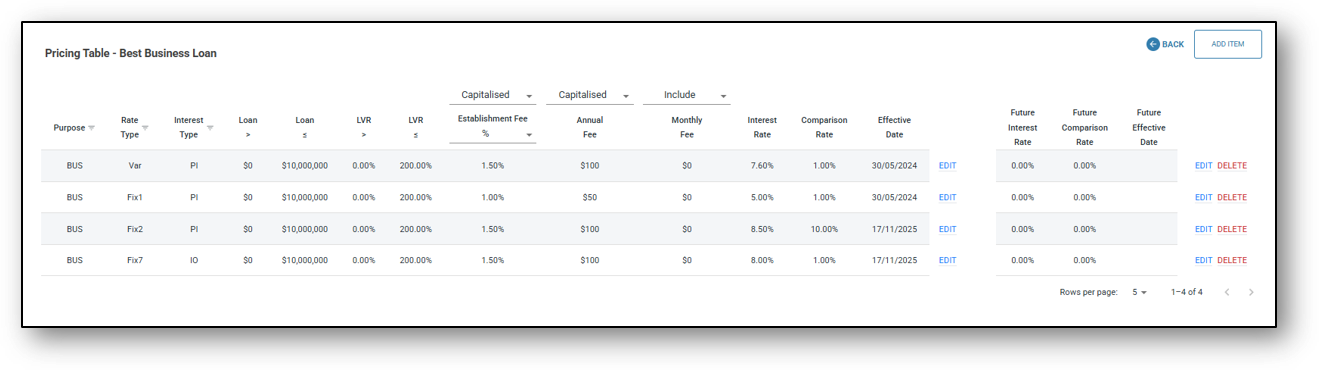
*Interest Rate & Fee (Table)
Step 1 – To create an interest rate table, click on the “View” link.
Step 2 – To add componen ts to the table, click on the “Add Item” button.
Step 3 – Once you have completed the field entries for the table, click on the “Add” link on the righ-hand side to set that row of the table and move onto the next row, continuing to compile the full table as per the product (if there are more entries to add).
Step 4 – Save the table, which will return you back to the product screen
Term Deposit (Personal)
Attributes:
- Category: Term Deposit Personal (Locked) – You can’t edit this later
- Name: The name of the product. E.g. “12-Month Term Deposit” or “Xmas Term Deposit”
- Product Detail URL: This is an option for the lender to have a link that offers the customer further detail about the product such as a product matrix.
- Interest Calculation & Payment Options: Payment frequency. Select to include from: Weekly, Fortnightly, Monthly, Quarterly, Biannually, Annually, No Repayment
- Prepayment Penalty Rate: The ability to set a penalty rate by percentage if the client wishes to break the maturity term earlier.
- Transactions: Allowing the client to transact on the Term Deposit account. Select either ‘Yes’ or ‘No’.
- *Interest Rate: A pricing table defining the applicable interest rate/s matched against attributes such as the amount of the deposit and length of the investment. See below for further explanation and image.
- Annual Fee: Setting an Annual Fee on a Term Deposit account
- Monthly Fee: Seting a monthly administration/service fee.
- Treasury Account: Nominating where the clients funds will be held
- Statement Frequency: Select from:
- No statement
- Monthly
- Quarterly
- Biannually
- Annually
- Default Margin Rate (DMR): Type in the margin you wish to set in the following format 0.00%. DMR is the additional interest rate (margin) that a lender can apply to a loan above a reference or base rate when no specific negotiated margin has been agreed, or when a borrower falls into a category where the standard/default pricing applies. Can be used when a customer qualifies for preferential pricing.
- Owner: Assign a manager for the product.
*Interest Rate (Table)
Step 1 – To create an interest rate table, click on the “View” link.
Step 2 – To add componen ts to the table, click on the “Add Item” button.
Step 3 – Once you have completed the field entries for the table, click on the “Add” link on the righ-hand side to set that row of the table and move onto the next row, continuing to compile the full table as per the product (if there are more entries to add).
Step 4 – Save the table, which will return you back to the product screen
Term Deposit (Business)
Attributes:
- Category: Term Deposit Personal (Locked) – You can’t edit this later
- Name: The name of the product. E.g. “12-Month Term Deposit” or “Xmas Term Deposit”
- Product Detail URL: This is an option for the lender to have a link that offers the customer further detail about the product such as a product matrix.
- Payment Options: Payment frequency. Select to include from: Weekly, Fortnightly, Monthly, Quarterly, Biannually, Annually, No Repayment
- Prepayment Penalty Rate: The ability to set a penalty rate by percentage if the client wishes to break the maturity term earlier.
- Transactions: Allowing the client to transact on the Term Deposit account. Select either ‘Yes’ or ‘No’.
- *Interest Rate: A pricing table defining the applicable interest rate/s matched against attributes such as the amount of the deposit and length of the investment. See below for further explanation and image.
- Annual Fee: Setting an Annual Fee on a Term Deposit account.
- Monthly Fee: Setting a monthly administration/service fee.
- Treasury Account: Nominating where the clients funds will be held
- Statement Frequency: Select from:
- No statement
- Monthly
- Quarterly
- Biannually
- Annually
- Default Margin Rate (DMR): Type in the margin you wish to set in the following format 0.00%. DMR is the additional interest rate (margin) that a lender can apply to a loan above a reference or base rate when no specific negotiated margin has been agreed, or when a borrower falls into a category where the standard/default pricing applies. Can be used when a customer qualifies for preferential pricing.
- Owner: Assign a manager for the product.
*Interest Rate & Fee (Table)
Step 1 – To create an interest rate table, click on the “View” link.
Step 2 – To add componen ts to the table, click on the “Add Item” button.
Step 3 – Once you have completed the field entries for the table, click on the “Add” link on the righ-hand side to set that row of the table and move onto the next row, continuing to compile the full table as per the product (if there are more entries to add).
Step 4 – Save the table, which will return you back to the product screen
For variable interest rate loans, the lender can schedule a future interest rate to take effect on a specified date. Once triggered, this rate becomes the current interest rate, and the lender can set another new rate for a later date if required.
Deposit (Personal)
Attributes:
- Category: Depoist Personal (Locked) – You can’t edit this later
- Name: The name of the product. E.g. “Savings account” or “I-Saver”
- Product Detail URL: This is an option for the lender to have a link that offers the customer further detail about the product.
- Payment Options: Payment frequency. Select to include from: Fortnightly, Monthly (end of month), Monthly (anniversary), Quarterly, Biannually, Annually, At maturity, Compounding
- Features: Select to include from offering: 100% offset account, redraw, no application fee
- Transactions: Yes or No. Selecting whether to allow transactions to be made on the account.
- Transaction limit: Enter what the limit of a single transaction should be set to.
- Offset: Yes or No – Enabling the account to be used as an offset account.
- Interest Rate: Base interest rate for the Deposit account. Percentage input
- Annual Fee: The ability to charge an Annual fee for the account. Dollar input amount.
- Monthly Fee: Administration/ service fee to be charged each month. Dollar input amount.
- Deposit Pool: Link to the associated Deposit funding pool once it’s been setup under the Risk layer > Treasury.
- Statement Frequency: Select from:
- No statement
- Monthly
- Quarterly
- Biannually
- Annually
- Default Margin Rate (DMR): Type in the margin you wish to set in the following format 0.00%. DMR is the additional interest rate (margin) that a lender can apply to a loan above a reference or base rate when no specific negotiated margin has been agreed, or when a borrower falls into a category where the standard/default pricing applies. Can be used when a customer qualifies for preferential pricing.
- Assessment Pipeline: N/A
- Owner: Assign a manager or owner for the product.
Deposit (Business)
Attributes:
- Category: Depoist Business (Locked) – You can’t edit this later
- Name: The name of the product. E.g. “Business Saver” or “Business Banker”
- Product Detail URL: This is an option for the lender to have a link that offers the customer further detail about the product.
- Payment Options: Payment frequency. Select to include from: Fortnightly, Monthly (end of month), Monthly (anniversary), Quarterly, Biannually, Annually, At maturity, Compounding
- Features: Select to include from offering: 100% offset account, redraw, no application fee, loan splitting, repayment holiday (when ahead of repayments), additional repayment.
- Transactions: Yes or No. Selecting whether to include transactions
- Transaction limit: TBC
- Offset: Yes or No – Enabling the account to be used as an offset account.
- Interest Rate: Base interest rate for the deposit account. Percentage input.
- Annual Fee: The ability to charge an annual fee for the account. Dollar input amount.
- Monthly Fee: Administration/ service fee to be charged each month.
- Deposit Pool: Link to the associated Deposit funding pool once it’s been setup under the Risk layer > Treasury.
- Statement Frequency: Select from:
- No statement
- Monthly
- Quarterly
- Biannually
- Annually
- Default Margin Rate (DMR): Type in the margin you wish to set in the following format 0.00%. DMR is the additional interest rate (margin) that a lender can apply to a loan above a reference or base rate when no specific negotiated margin has been agreed, or when a borrower falls into a category where the standard/default pricing applies. Can be used when a customer qualifies for preferential pricing.
- Assessment Pipeline: N/A
- Owner: Assign a manager for the product.
Commercial Property Loan
Attributes:
- Category: Construction loan (Locked) – You can not edit this later
- Name: The name of the product. E.g. “land & Build” or “Build Loan”
- Product Detail URL: This is an option for the lender to have a link that offers the customer further detail about the product. It may be a section of their website that compares all the loans of the same type or it may be an option for the customer to click on “More Info”, showing the product terms & conditions of that product.
- Purpose: Defines the intended use or eligible purposes of the loan. Owner occupied, Investment, Commercial, Business
- Repayment Type: Defines the structure of repayments for the product. Choose between Principal & Interest or Interest Only.
- Repayment Date: Indicates the scheduled date for when repayments will be taken from the account. Select from Day 1 – 28
- Maximum Repayment Term: The maximum length of the loan in years that the customer will be able to select from.
- Payment Options: Payment frequency. Select to include from: Weekly, Fortnightly, Monthly, Quarterly, Biannually, Annually, No Repayment
- Repayment Structure: Flat Schedule or Minimum Repayment
- Features: A summary of notable product features that can be configured for the loan. Select to include from offering: 100% offset account, redraw, no application fee, loan splitting, repayment holiday (when ahead of repayments), additional repayment.
- *Interest Rate & Fee: Create the interest rate table for the Commercial Property loan.
- Offset: Yes or No – Enabling the account to use an offset account.
- Contract Method: Method of signing loan contracts (DocuSign, NimoSign, solicitor, Solicitor – Manual Contract).
- Disable staff portal signature pad: No/Yes – (This field will only appear if NimoSign is selected).
- Disable customer portal signature pad: No/Yes – (This field will only appear if NimoSign is selected).
- Contract Template: If DocuSign or NimoSign is selected, upload the loan contract template for electronic signature.
- Conditional Approval: Yes or No for using conditional approval
- Conditional Approval Template: Where you upload your template for conditional approval.
- Settlement Letter: Yes /No (Option only available if you are using NimoSign).
- Settlement Letter Template: Upload a settlement letter template which can be parameterised for efficient automation for internal settlement process internally (Option only available if you are using NimoSign).
- Delinquency Rule: Link to the delinquency rule (Delinquency rules are first created through the Risk Layer > Delinquency tab).
- Funding Pool: Link to a Funding Pool (Funding pools are first created through the Risk Layer > Treasury tab). A funding pool is the pool of money that a lender uses to make loans. Rather than matching each loan to a specific investor or source of funds, the lender combines capital from one or more sources into a single pool and lends from that pool.
- Statement Frequency: Select from:
- No statement
- Monthly
- Quarterly
- Biannually
- Annually
- Default Margin Rate (DMR): Type in the margin you wish to set in the following format 0.00%. DMR is the additional interest rate (margin) that a lender can apply to a loan above a reference or base rate when no specific negotiated margin has been agreed, or when a borrower falls into a category where the standard/default pricing applies. Can be used when a customer qualifies for preferential pricing.
- Security Type: Select the Security type that the loan can be securitised to. In this case it would be Property – Commercial.
- Owner: Assign a manager for the product.
- Assessment Pipeline: Link to the Assessment rule set applied to this product by your credit management team (Assessment Pipelines are first created through the Risk Layer > Assessment tab). The Assessment Pipeline is essentially the lender’s workflow for evaluating risk, verifying information, and making a credit decision.
- Owner: Assign a manager or owner for the product.
*Interest Rate & Fee (Table)
Step 1 – To create an interest rate table, click on the “View” link.
Step 2 – To add components to the table, click on the “Add Item” button.
Step 3 – Once you have completed the field entries for the table, click on the “Add” link on the righ-hand side to set that row of the table and move onto the next row, continuing to compile the full table as per the product (if there are more entries to add).
Step 4 – Save the table, which will return you back to the product screen
Frequenty Asked Questions
Do all the fields need to be answered in the product setup?
Short answer is no, although there are some fields under each product setup which are vital for the product to work properly and some options that are only applicable to some product types.
Example 1 – A Home Loan product relies of having the following attributes for it to pull the product information dynamically into the form:
- an interest rate table,
- purpose selected
- repayment type, term, structure, payment options & structure,
- selected product features,
- contract method & template,
- security type, and
- Matched home loan assessment pipeline
Example 2 – A Vehicle Loan product relies of having the following attributes for it to pull the product information dynamically into the form:
- an interest rate table,
- purpose = private / business
- repayment type, term, structure & payment options,
- product features,
- contract method type and/or associated template,
- security type = vehicle (if used)
- Vehicle Pipeline for assessment