Marketing – Communications tab
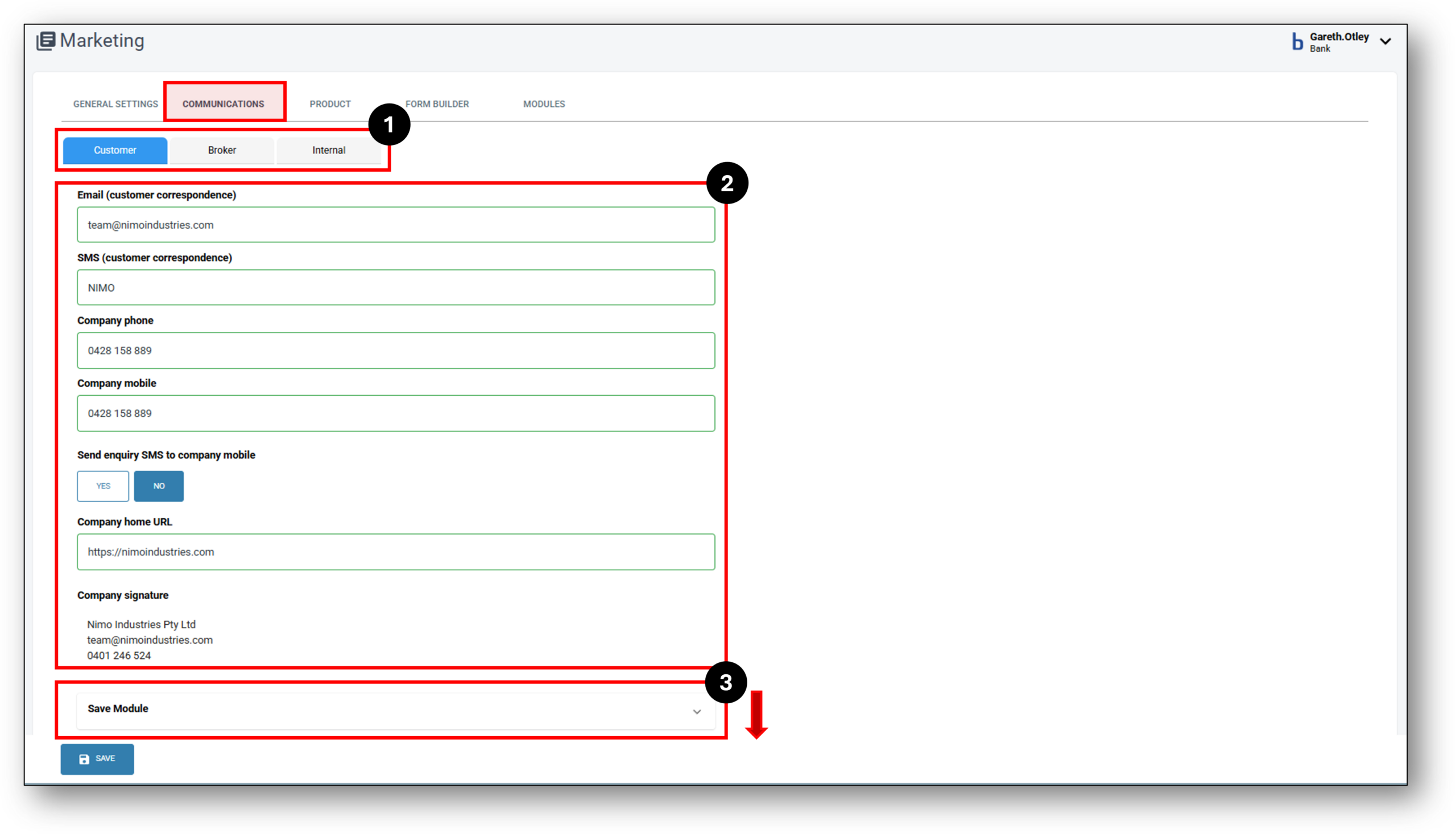
The Communications tab within the Marketing layer is where the lender inputs their organisations automated correspondence between staff, customers and brokers. Each communication scenario, can host both an SMS template and email template.
Last updated: 03 September 2026

Overview
The communications tab plays host to all your automated and preset communications across all of your channels (Customer portal, lender portal, and broker). Most of the preset functions offer both SMS and email responses and either can be turned on or off and any given time.
The SMS responses can be written in plain language with some inclusion of parameters to help personalise the communications. The same can be achieved with the email templates but with some added ability to improve the aesthetics by manipulating the HTML coding. As a good starting point if you are looking at further personalisation, we’ve put together this Marketing tip sheet which expands on the communications and guides users on the best practice when looking to experiment.
Parameters
Adding in parameters to the Auto-templated communications allows organisations to tailor and personalise the communications that otherwise would appear generic by nature. To do this, try adding a paramaeter into the relevant position of the email. It’s recommended that when you want to add these into your communications, that you test them in your dedicated UAT environment first.
| Parameter | Formula or Mapping |
| {Additional Applicant Name} | Name of the second applicant |
| {Main Applicant Name} | Name of the primary applicant |
| {Application URL} | Application URL |
| {Product Name} | Name of the product |
| {Interest Rate Type} | Interest rate type – Fixed/ Variable |
| {Repayment Type} | Repayment type – Interest only/ Principal |
| {Estimated Property Value} | Property value estimate |
| {Loan to Value Ratio} | LVR for the loan application |
| {Release Equity Reason} | Reason for equity release |
| {Broker Company Name} | Company Name of broker |
| {Borrower Name} | Borrower Name from Company Details module |
| {Loan Term In Months} | loan length in months |
| {Disbursal Amount Net Of Fees And Prepaid Interest} | Loan Amount excluding lender fees |
| {Loan Amount} | Loan Amount |
| {Repayment Type} | Repayment Type support (Principle and Interest , Interest Only and Interest In Advance) |
| {Guarantor 1} {Guarantor 2} {Guarantor 3} … |
Guarantor Name associated with the security |
| {Security Address Business 1} {Security Address Business 2} {Security Address Business 3} …. |
security business addresses |
| {Receiver Name} | Name of the person receiving the email Can be used for customer, staff, broker comms, value will populate accordingly |
| {Main Applicant Name} | Name of the 1st applicant |
| {Additional Applicant Name} | Name of the 2st applicant |
| {Related Party Name 1} . . upto 5 related pariies |
Name of the related parties |
1. Auto Templated Communications for: Customer / Broker / Internal
Communications for: Customer / Broker /Internal
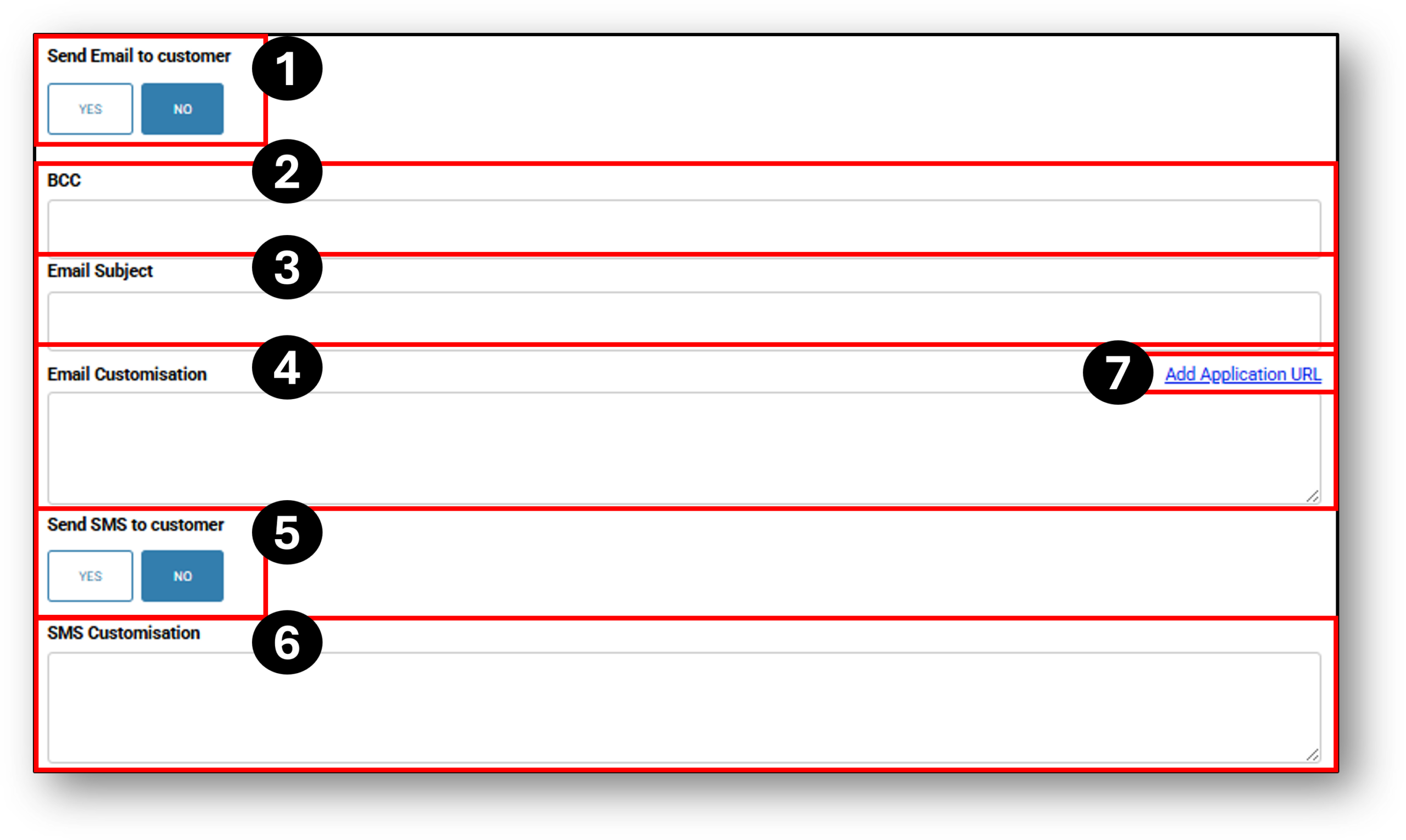
Under each of the tabs, there are multiple options for setting up templated communications for both email and SMS text messages. The templates can be used to facilitate and automate customer contact across the different stages of the loan origination lifecycle, as well as during servicing for core banking.
- Send Email – The on/off button for that type of communication. Select ‘YES‘ to turn
- BCC (Not Mandatory) – Blind Carbon Copy. This allows the organisation to send a copy of each email to a dedicate email service for record keeping purposes.
- Email Subject – The subject of the correspondance E.g. “Congratulations your Applicaton has moved into the Assessment stage”
- Email Customisation (HTML format) – To write the customer emails into this section, it can be easier to copy an existing template and then make changes accordingly. Alternatively, a really good option is using a word-to-html converter such as WordHTML.
- Send SMS to customer – Select yes to send a SMS to the customers mobile.
- SMS Customisation – The SMS customisation can be written in plain text without the html coding.
- Add Application URL – adding in this parameter, means that you will add in the hyperlink to the specific application of the person that the email is addressed to.
Some of the templates will also have associated controls for that particular comms trigger.
E.g. The ‘Customer Reminder’ communication has 3 templates which will be sent out to customers that have not finished their application. Each of the reminders can be set to trigger, once the application reaches a particular day count. This is a bespoke field that is required specifically for this communication type.
2. Communications Settings
Initially to set up the automatic templates there are some setting under the customer tab that need to be completed and enabled prior to the communications being sent out.
To ensure a good customer experience, It’s important to also test the communications first in your UAT environment to ensure the WYSIWIG principle is applied (What You See Is What You Get). This applies for any new communications that get set up.
Below are the seven requirements to set up prior to editing the templates
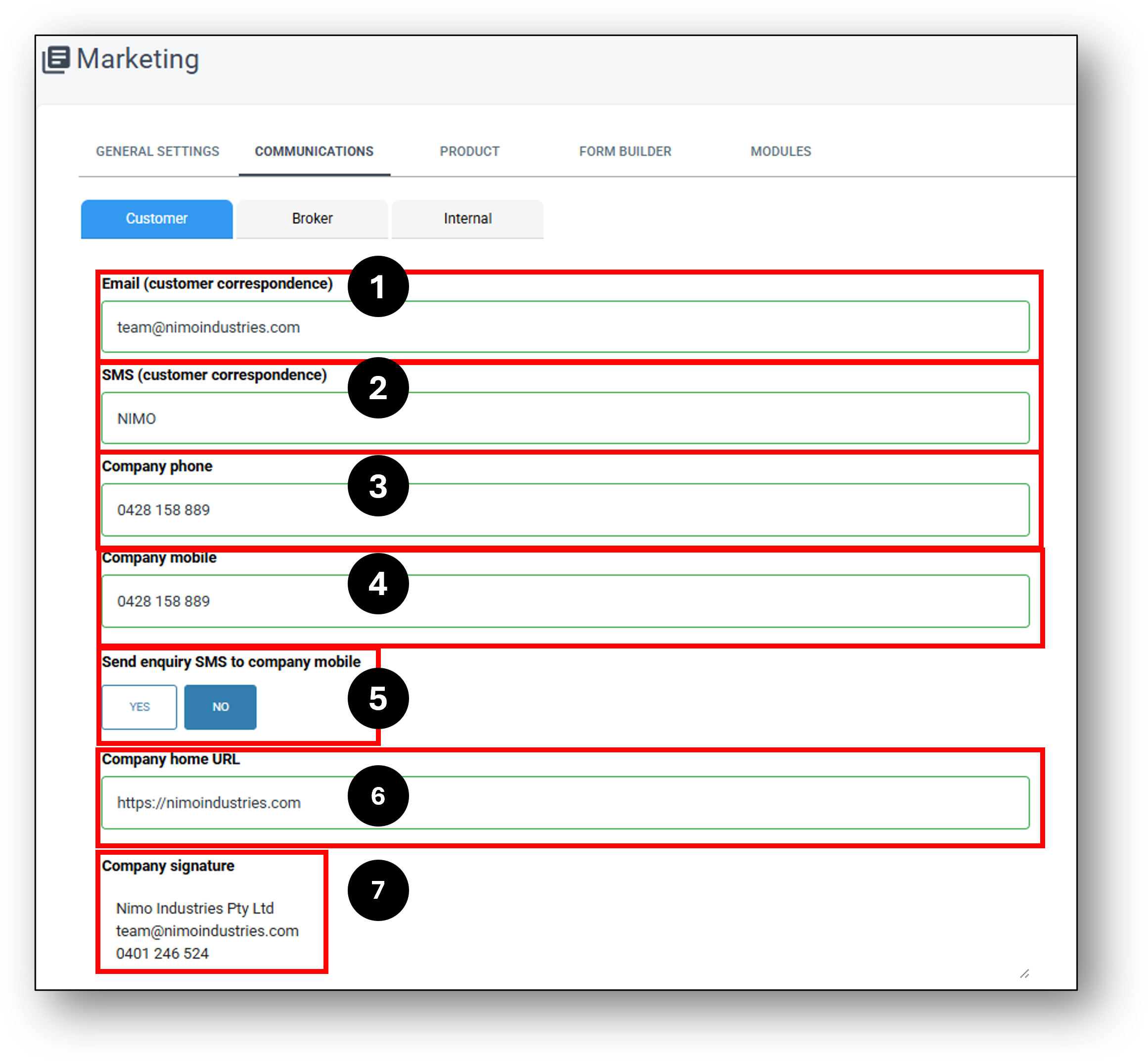
- Email (customer correspondence) – This is the email address that will be displayed as the sender of the email correspondence.
- SMS (customer correspondence) – This is the name of the SMS Sender that will be displayed as the sender of the email correspondence.
- Company Phone – This is the phone number that is the sender of the email correspondence.
- Company Mobile – This is the email address that will be displayed as the sender of the email correspondence.
- Send enquiry SMS to Company Mobile – This is the toggle to confirm if you would like a notification confirming when a new enquiry has been created to the company mobile.
- Company home URL – This is the default URL to revert to.
- Company Signature – This is the signature that will appear at the bottom of all email correspondence.
3. Templated Communications
See each of the sections below for a description of each communication ‘Type‘, it’s corresponding ‘Purpose‘ and how the communication is ‘Triggered‘.
Customer:
Communication Type |
Purpose & Trigger |
| Save Module | To send a courtesy email / SMS to the customer when the customer chooses to save the application. A retrieval link can embedded into the communication allowing the customer to continue the application at a more convenient time. This communication is triggered via the use of the SAVE button on all of the Customer application forms. |
| Application Submitted | To send a communication notifying the customer that your organisation has received their application and to advise of next steps. This communication is triggered when the customer finalises the application. |
| Request To Sign | If there is a second applicant, the request to sign communication will send the application to the second applicant requesting them to sign and consent. This communication is triggered by clicking send to second applicant |
| More Information Required | When an application has missing information that is still required, this communication can be sent to inform the customer that ‘more information’ is still required. This is triggered by clicking on the Notify Customer button in the Overview tab and under the Actions section. |
| More Information Required – Bank Statements | When an application is missing required bank statements, this communication can be sent to request the customer to upload the bank statements. This is triggered by clicking on the Bank Statement button in the Document tab > and under the Requested documents section. |
| Caller Required | This communication refers to Nimo’s Autocaller tool. This is the automated communication that is sent to the customers portal enabling them to start an AI auto call and complete a set of compliance questions. This is triggered by the lender in the Application portal under the ‘Caller’ tab. |
| Application To Assessment | A communication to notify the customer that their application has now moved from the Application stage and is now in the Assessment stage. This is triggered by the application moving to the Assessment stage. |
| Application Conditionall Approved | A communication to notify the customer that their application has moved from the Application stage and has been conditionally Approved. This is triggered by the application moving from to the Assessment stage and being conditionally approved. A conditional Approval letter can be provided to the customer. |
| Application Approved | A communication to notify the customer that their application has moved from the Assessment stage and has been approved. This is a good stage to congratulate you customer and advise them of what is happening next regarding loan contracts etc. This is triggered by the application moving from the Assessment stage and being formerly approved by the lender. |
| Credit Card Approved | A communication to notify the customer that their ‘Credit Card‘ application has moved from the Assessment stage and has been approved. This is a good stage to congratulate you customer and advise them of what is happening next regarding loan contracts etc. This is triggered by the application moving from the Assessment stage and being formerly approved by the lender. |
| Application Declined | A communication to notify the customer that their application has been formerly declined. This is triggered by the lender pressing the decline button in the Application layer under the Actions section. |
| Credit Score Declined Application | A specific communication to notify the customer that their application has been formerly declined due to their credit score. This is triggered based on the threshold set up in the Risk layer> Automation tab > Credit bureau in application layer. |
| Application Settled | A communication to both notify and positively inform the customer that their loan application with the lender has now been funded. This is triggered by the lender / Settlement team pressing the ‘Settle This Loan’ button in the Settlement layer > the Funding tab. |
| Submit to Document – Solicitor | For lenders using external Solicitors – This communication is to advise the customer of the next stage of the application requiring the customer to sign the contracts. If there is an external solicitor integration, then you would advise that in this communication. This is triggered when the user clicks the button “Submit To Documents” within the Assessment Layer > Contract Tab |
| Submit to Document – NimoSign | For lenders using NimoSign – This communication is to advise the customer of the next stage of the application requiring the customer to sign the contracts. You would also typically recommend that the customer seeks independant advice from a conveyancer or solicitor. This is triggered when the user clicks the button “Submit To Documents” within the Assessment Layer > Contract Tab |
| Payout | Servicing – Two variations of the same communications. the top section is for ‘Successful’ Payout and Close, and the bottom template for ‘Failed’ Payout and close attempts. This communication is triggered upon selecting the ‘Payout & Close’ button in the Servicing layer > Payments Tab. |
| Direct Debit | Servicing – This template is for auto communications upon ‘Failed’ Direct Debit attempts. This communication is triggered upon a failed Direct Debit attempt that had been setup either via the customer through Internet banking or via the user in the Servicing layer > Payments Tab. |
| Upcoming Direct Debit | Servicing – This template is for auto communications upon ‘Upcoming’ Direct Debit attempts that have been setup either via the customer through Internet banking or via the user in the Servicing layer > Payments Tab. This communication is triggered upon a separately labelled field called ‘Send Notification Days Before Payment Due’ and associated number of days input field. |
| Interest Rate Change | A configurable template that uses predefined parameters to notify customers of upcoming interest rate changes. The triggers can be found in the Marketing Layer > Product Tab > Pricing Change Rules. For further information see below in the FAQ section. |
| Customer Reminder | A configurable auto templated communication that can be set for sending out to customers at pre-defined time points. This is controlled by the field “Send after days from last update”. Customer reminders only run during the Application stage and are triggered when there are outstanding required items & documents which are denoted by the number in the blue bubble. They stop once the application moves to Assessment. Any update to the application, resets the “days since last update” counter, which also resets the reminder schedule. There are currently three pre-defined reminders that can be set for different time intervals. |
| Notifications To Staff | A communication notifying the staff member who is assigned as the sales person that the following Application has been updated by a staff member. Triggered by the user pressing the ‘Update Staff‘ button in the Lender portal. |
| Notification To Sales | A communication notifying the staff member who is assigned as the sales person that the following Application has been updated by a customer. Triggered by the customer pressing the ‘Update‘ button in the Customer portal. |
| Notification To Broker | A communication notifying the Broker who is assigned to the Application that there is a requirment outstanding. This is triggered by the user pressing the ‘Update Broker‘ button in the Lender portal within the Overview tab inside the Application layer. |
| Invoice Finance Customer Invoice | TBC |
| Servicing Customer Welcome | A welcome communication sent to a customer when they request Internet Banking access. This is triggered when the user pushes the ‘Send Customer Portal Invitation‘ button in the Customer Management tab in the Servicing Layer. |
| Servicing Customer Reset Password | a communication sent to a customer when they require a password reset. Triggered by the user pushing the ‘Reset Password’ button in the Customer Management tab in the Servicing Layer. |
| Servicing Customer MFA | TBC |
| Servicing Statements | A monthly notification to the customer advising htme that their statements are now ready and can be accessed through their Internet Banking. |
| Product Selection Quote | TBC |
| Servicing Term Deposit Rollover | TBC |
| Product Statement Footer | TBC |
| Large Transaction Notification | TBC |
| Low Balance Notification | TBC |
To be Updated Soon!
Broker:
The broker tab is quite simple to setup. Initially, you choose to turn the broker communications on and then it’s a matter of working through the different triggered events and completing the templates the same way in which you would do for the ‘Customer‘ tab.
| Application Submitted | To send a communication notifying the broker that your organisation has received their customers application and to advise of next steps. This communication is triggered when the customer finalises the application. |
| Application To Assessment | A communication to notify the broker that their customers application has now moved from the Application stage and is now in the Assessment stage. This is triggered by the application moving to the Assessment stage. |
| Application Conditionally Approved | A communication to notify the broker that their customers application has moved from the Application stage and has now been conditionally approved. This is triggered by the application moving from to the Assessment stage and being conditionally approved by the lender. A conditional approval letter can be provided to the customer by the broker by logging into the broker portal and clicking on the Application then entering the Conditional tab and clicking the paperclip next to Conditional Approval Dociument’. |
| Application Approved | A communication to notify the broker that their customers application has moved from the Application stage and has been approved. This is triggered by the application moving from to the Assessment stage and being approved by the lender. |
| Application Declined | A communication to notify the broker that their customers application has been formerly declined. This is triggered by the lender pressing the decline button in the Application layer under the Actions section. |
| Application Settled | A communication to notify the broker that their customers loan application with the lender has now been funded. This is triggered by the lender / Settlement team pressing the ‘Settle This Loan’ button in the Settlement layer > the Funding tab. |
| Customer NimoSign Submitted | A communication to notify the broker that their customer has now completed signing the NimoSign loan contract. This is triggered by the Customer signing the contract through the Customer portal. |
| Application Submitted, Direct To Customer | To send a communication notifying the customer that your organisation has received their application and to advise of next steps. This communication is triggered when the broker finalises the application. This communication is specifically designed to be a direct notification to the customer from the lender, bypassing the broker. |
Staff:
The staff tab…..
| Application To Assessment | |
| Application Conditionally Approved | |
| Application Approved | |
| Application Declined | |
| Application Settled | |
| Customer NimoSign Submitted | |
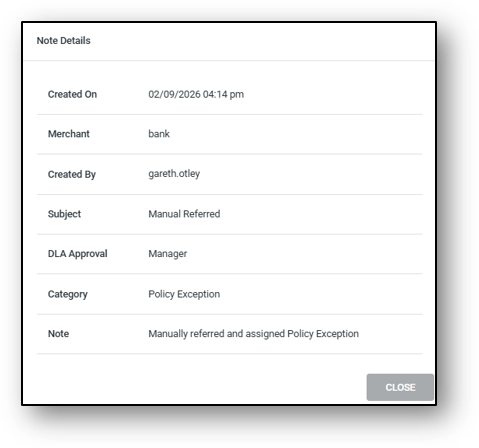
| *Policy Exemption | An Automatic communication issued to the staff member requested to complete a further review on an application. When a user presses the ‘Further Review’ button at the Assessment stage of the application. They will then need to assign the application to another staff member with sufficient DCA / DLA approval levels within Nimo |
*Policy Exemption: When an application is assigned through the ‘Further Review’ button, a note is automatically created in the ‘Overview tab’ of the ‘Assessment layer’ as part of the Audit trail. See the example below.
Broker - Examples

- Application Submitted
- Application to Assessment
- Application Conditionally Approved
- Application Approved
- Application Declined
- Application Settled
- Customer NimoSign Submitted
- Application Submitted, Direct to customer
Application Submitted
Subject: Thanks for applying, your application has been submitted to us
Dear {Broker Company Name},
We would like to say thank you for choosing The Bank to submit your customer’s application.
We will be in touch with you as soon as possible. In the meantime, to see the progress of your application and to check your details, you can view the progress through your broker portal by clicking on the below application link:
{Application URL}
If you have any questions along the way, please call us on (03) xxxx xxxx
The Bank Team
147 Cecil St, South Melbourne, 3205

Application to Assessment
Subject: We are excited to let you know that your application has now been submitted to assessment
Dear {Broker Company Name},
Just a quick email to let you know that your customer’s application has been submitted for assessment.
We will be in contact with you as soon as possible with further information.
If you have any questions along the way, please call us on (03) 9789 91xx.
To track your application:
{Application URL}
The Bank Team
147 Cecil St, South Melbourne, 3205
“Phone: (03) 9789 91xx” or “email: xxxxxx@bankteam.com.au”
Application Conditionally Approved
Subject: Conditional Approval – Application Update
Dear {Broker Company Name},
Thank you for your application.
We’re pleased to let you know that the Bank team has now completed a preliminary credit assessment, and your application has been conditionally approved. You can view your application here:
{Application URL}
Next steps:
This approval is subject to the outstanding conditions being met and receipt of the required signed documents. These conditions can be found under: Application Layer > Conditional Tab. In addition, we require:
- A completed Membership Application form
- A signed Direct Debit Request
What happens next:
Once we receive the above, we will:
- Finalise the assessment and issue the credit contract within 24 hours
- Contact the customer to arrange settlement within 24 hours of sending the contract
If you have any questions in the meantime, please don’t hesitate to reach out.
Kind regards,
The Bank Team
“Phone: (03) 9789 91xx” or “email: xxxxx@bankteam.com.au”
Application Approved
Subject: The Bank – Loan Approval Confirmation
Dear {Broker Company Name},
We’re pleased to confirm that your client’s loan application has been approved — congratulations!
The loan agreement will be sent shortly via email for review and acceptance. Please advise your client to check their inbox (and junk/spam folder if it does not arrive within a few hours).
If you or your client have any questions regarding the agreement, our team is available to assist. Please feel free to contact us.
You can also access the application here:
{Application URL}
Kind regards,
The Bank Team
📞 (03) 9789 91xx
✉️ xxxxxx@bankteam.com.au
Application Declined
Subject: The Bank – Application Outcome Update
Dear {Broker Company Name},
Following a thorough assessment, we regret to advise that we are unable to approve your client’s loan application at this time.
This decision has been made based on a comprehensive review of the application and the information provided, in line with our lending criteria.
If you would like to discuss the outcome or explore alternative options, please don’t hesitate to contact our Loans Team. We’re here to assist where possible.
Kind regards,
The Bank Team
📞 (03) 9789 91xx
✉️ xxxxxx@bankteam.com.au
Application Settled
Subject – Your loan is now funded!
Dear {Broker Company Name},
Great news! Your loan application with The Bank has now been funded.
The details of your customer’s regular repayments are within the loan offer we emailed to you.
One of our team will be in touch with your customer to see if they need a hand navigating life with their new loan. Or, the customer can call us on (03) 9789 91xx.
The Bank team.
This email was sent by The Bank Financial Services, ABN 13 637 513 154 | AFSL/Australian credit licence 123456.
Customer NimoSign Submitted
Subject: Great news! We have received your loan contract
Dear {Main Applicant Name},
Thank you for signing and submitting your loan contract! We can confirm we have received it and someone from our settlement team is now reviewing the contract.
Next steps:
You can still login to the application and print off or access the loan contract prior to it being signed by our Settlement Officer. In the meantime you can also, login to check the progress.
- Our Settlement Officer is now reviewing the loan contract and will let you know if we require anything further.
- Once the settlement officer signs the contract you will get a notification to advise that the contract has been signed by us.
- You will then be able to login and print off the completed and fully signed contract.
- We will settle the contract and you will receive a further notification to advise when has been completed.
Warm regards,
The Bank team.
This email was sent by The Bank Financial Services, ABN 13 637 513 154 | AFSL/Australian credit licence 123456.
Application Submitted, Direct to customer
Subject: Thanks for applying, your application has been submitted to us!
Dear {Main Applicant Name},
We would like to take a moment to introduce ourselves and say thank you for choosing The Bank.
We will be in touch with you as soon as possible. In the meantime, to see the progress of your application and to check your details, you can view the progress through your broker portal by clicking on the below application link:
{Application URL}
If you have any questions along the way, please call us on (03) xxxx xxxx
The Bank Team
Frequenty Asked Questions
1. Can I send out notification to customers about upcoming interest rate changes?
Yes, it’s a two step process.
STEP 1 – Go to the Marketing Layer > Product Tab > Pricing Change Rules and on the left you will see stages (1) that you can apply the changes to, On the right is where you will select your settings (2). NOTE: If in servicing, set the amount of days prior to the change that you want the notification to go out for.
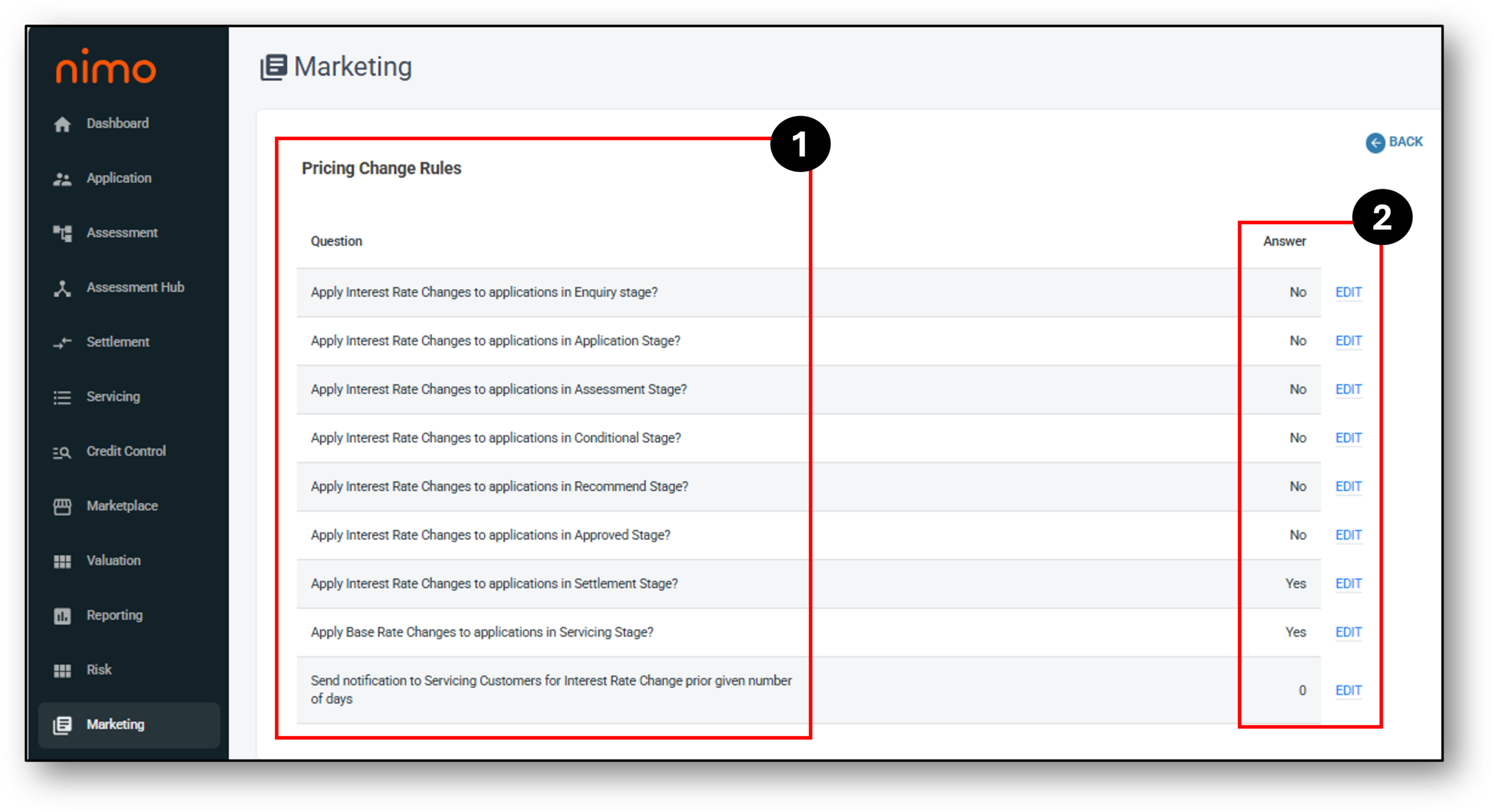
STEP 2 – Complete the ‘Interest rate change’ communication template by using the associated paramaters:
- {fname} = First name
- {date} = First date of new interest rate being applied
- {loan_number} = the customers loan number, or alternatively
- {Application URL} = The link to the customers application
- {current_rate} = the existing rate that it will be changing From
- {future_rate} = the new rate that it will be changing To
Example: Dear {fname}
Please be advised that from the {date} your interest rate on loan {loan_number} will change from {current_rate} to {future_rate}.
If you have any question please contact us on the contact details below