Application – Product tab
This section displays the product related questions from the application form and the applicant’s responses to the questions. It will also record the NCCP ‘Product Suitability’ questions in a separate tab.
Last updated: 12 May 2026
DISCLAIMER
The questions and values will reflect the application that the customer is applying for and will mirror the customer form.
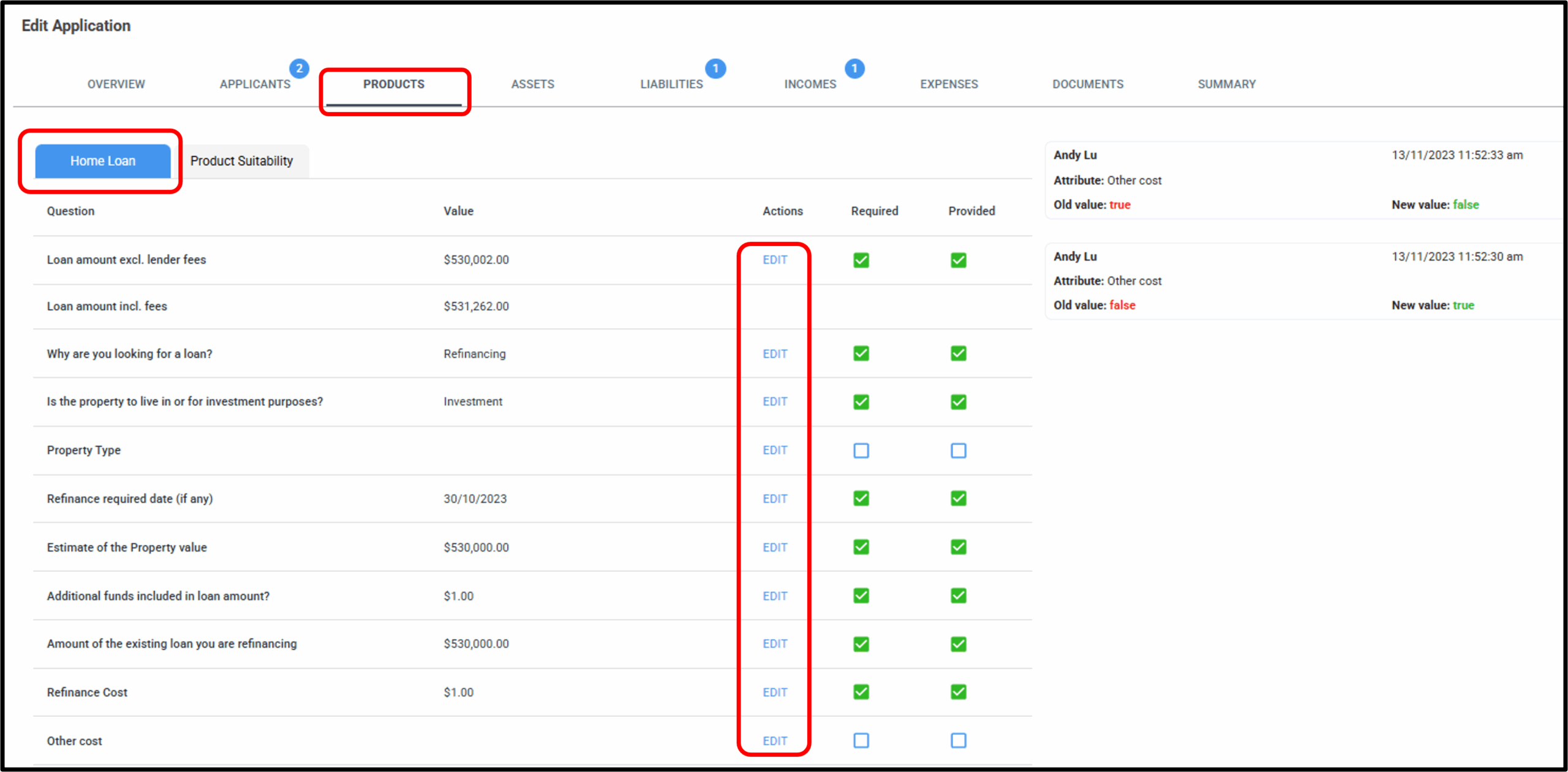
When you edit a question or value, a dialog box will appear that reflects the same layout you see in the customer form. The only difference is that staff members are required to provide a reason for the change, since it is not the customer making the update directly. This reason will be recorded in the Change Log, displayed at the top right of the screen.
NOTE: Nimo sets up a range of forms for your organisation during the onboarding stage. Customer forms between lenders may vary based on each organisations requirements. It’s important to note that variations can occur at a:
- Modular level;
- Inclusion – which modules/steps are included in each form,
- Structure – the ordering of the modules within the form (NOTE: Incorrectly structured forms can lead to form errors),
- Question level;
- Inclusion – which questions are being turned on/off within each module, which questions are hidden but still required,
- Parameters – which questions are made mandatory, optional, or expand to further related questions (E.g. Have you found the car? Yes, will exand to ask Model, Type, Registration etc),
- Integration level;
- Who – Depending on which integrations your organisation uses for different purposes may look differently.
The following loan types below will display questions sets for Nimo ‘Out-of-the-Box’ customer forms.
Note on Bridging Loans
Bridging loan requirements vary between lenders.
For example: One lender might require both the property purchase and the existing property sale to be unconditional. Another lender might require only one transaction to be unconditional, while others might accept neither transaction being unconditional.
Due to these differences, we would need to scope the global approach with the solution otherwise it would need to be a manual process.
1a. Home Loan
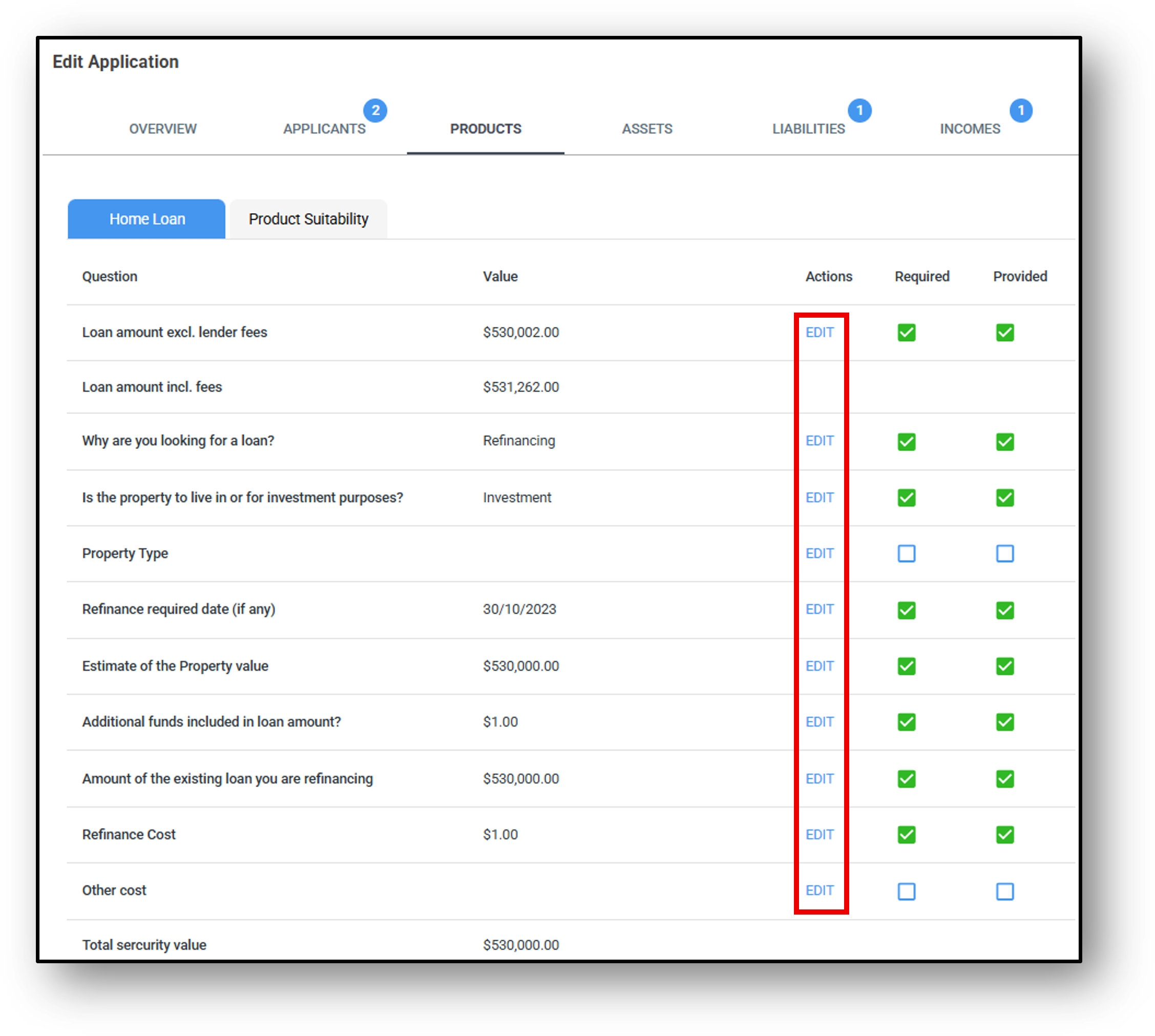
In the product menu, a user can edit the product application by choosing the ‘EDIT‘ option under the ‘Actions‘ column.
Overview:
Construction lending is supported through a standalone, purpose-built module. The module includes its own workflow and functionality designed specifically for construction loans.
Module Mapping:
In this section of the system, users can modify nearly all of the responses within the application. The editable fields of the ‘Purpose Home Loan’ module are:
- Loan amount excl. lender fees
- Product Selection – Select which products you want to include in the form type.
- NOTE: Only products selected will be selectable for the customer
- Why are you looking for a loan?
- Purchase
- Refinancing
- Are you looking to refinance a loan with another lender or increase with us?
- Other lender
- With Us
- Is the property to live in or for investment purposes?
- Live in
- Investment
- Are you a first home buyer?
- Yes
- No
- Is this a Bridging Loan?: Can be edited in the Products tab of the application
- Yes
- No
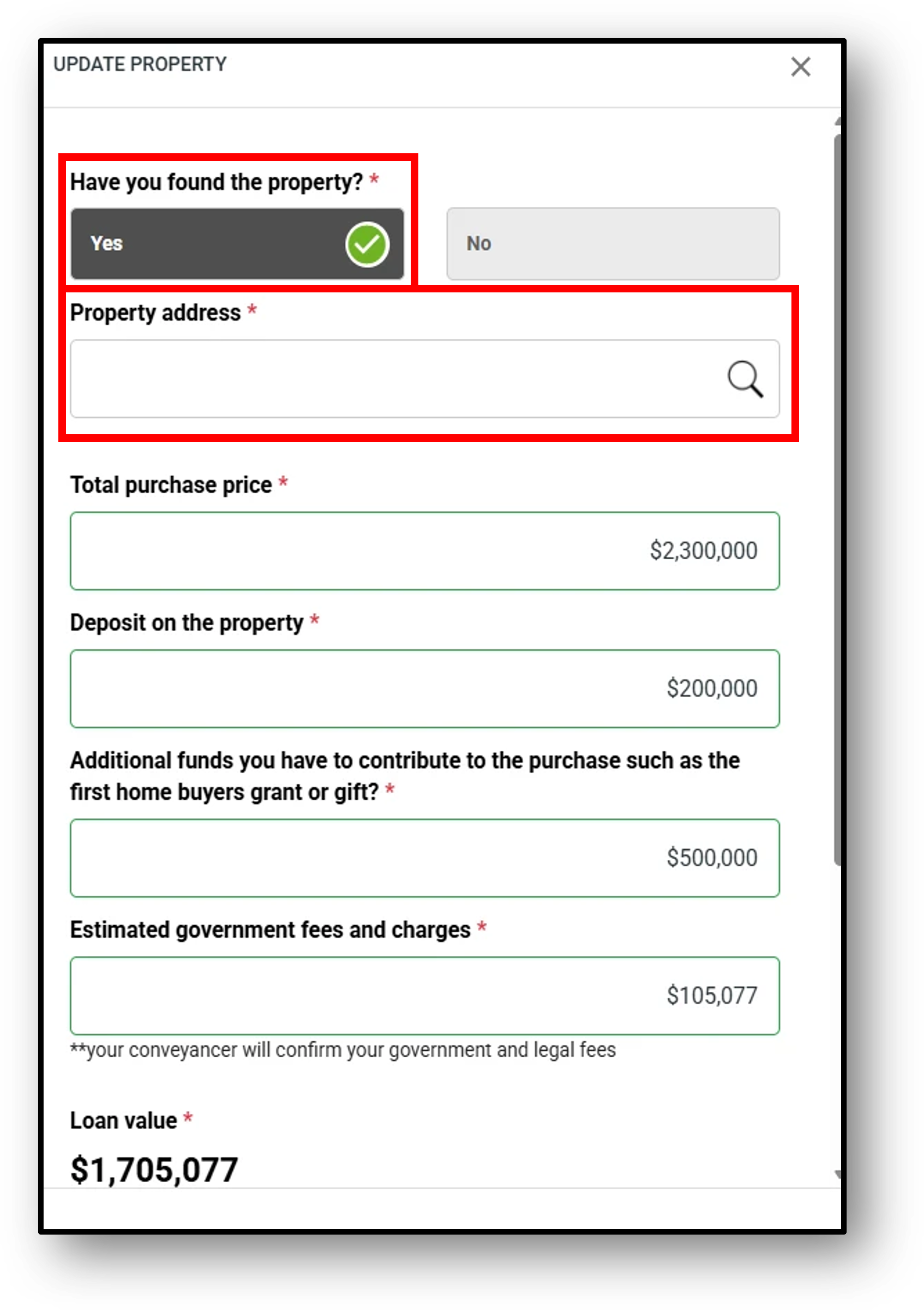
- Have you found the property?
- Yes
- No
- Property Address: Lookup field
- Security Category:
- Category 1
- Category 2
- Category 3
- Category 4
- Market estimated value: Returned value from the lookup API
- Your estimate of the property value: $ input field
- Property Type
- Apartment/Unit
- Townhouse/Villa
- Residential Vacant land <= 1500sqm
- House
- The state you are searching for a property in (question relates to primarily to 5% Deposit Scheme):
- Input field for State
- Total purchase price: $ input field
- Deposit on the property: $ input field
- Additional funds you have to contribute to the purchase such as the first home buyers grant or gift?: $ input field
- Date finance required / Purchase settlement date (estimated): Date Picker
- Amount of the existing loan you are refinancing: $ input field
- If any, what are your estimated cost to your existing lender as a result of refinancing (e.g. break costs, discharge fees): $ input field
- Additional funds required with refinancing (equity release): $ input field
- Estimated government fees and charges**
- Amount (Loan Value):
- Minimum
- Maximum
- Staff Member (Text): Text input
- Do you want to include Goverment fees for refinance (Configuration):
- Yes
- No
- Other Cost
- Capitalised
- Deducted
- Waive
- Product Name
- Any other suitable Home Loan product
- Mortgage Type
- First
- Second
- Do you wish to rate lock?
- Yes
- No
- Repayment Type
- Principle & Interest
- Interest only
- Rate Type
- Fixed
- Variable
- Fixed Rate Term (1-7 years)
- Interest Rate (Rate change type)
- Discount
- Increase
- Rate Change %
- Comparison Rate: Pulled from the pricing table which is input in the product setup screen
- Annual Fees (Process)
- Capitalised
- Deducted
- Waive
- Monthly Fees (Process)
- Include in Repayments
- Deducted
- Waive
- Establishment Fees (Process)
- Capitalised
- Deducted
- Waive
- Lenders Mortgage Insurance
- Estimated government fees and charges**: Pre-populated based on the customer selections
- Term of loan in years: 1-99. This is controlled at the product level (under Marketing > Product)
- Payment Frequency: This is controlled at the product level (under Marketing > Product)
- Weekly
- Fortnightly
- Monthly
1b. Personal Loan
In the product menu, a user can edit the Personal Loan application by choosing the ‘EDIT‘ option under the ‘Actions‘ column.
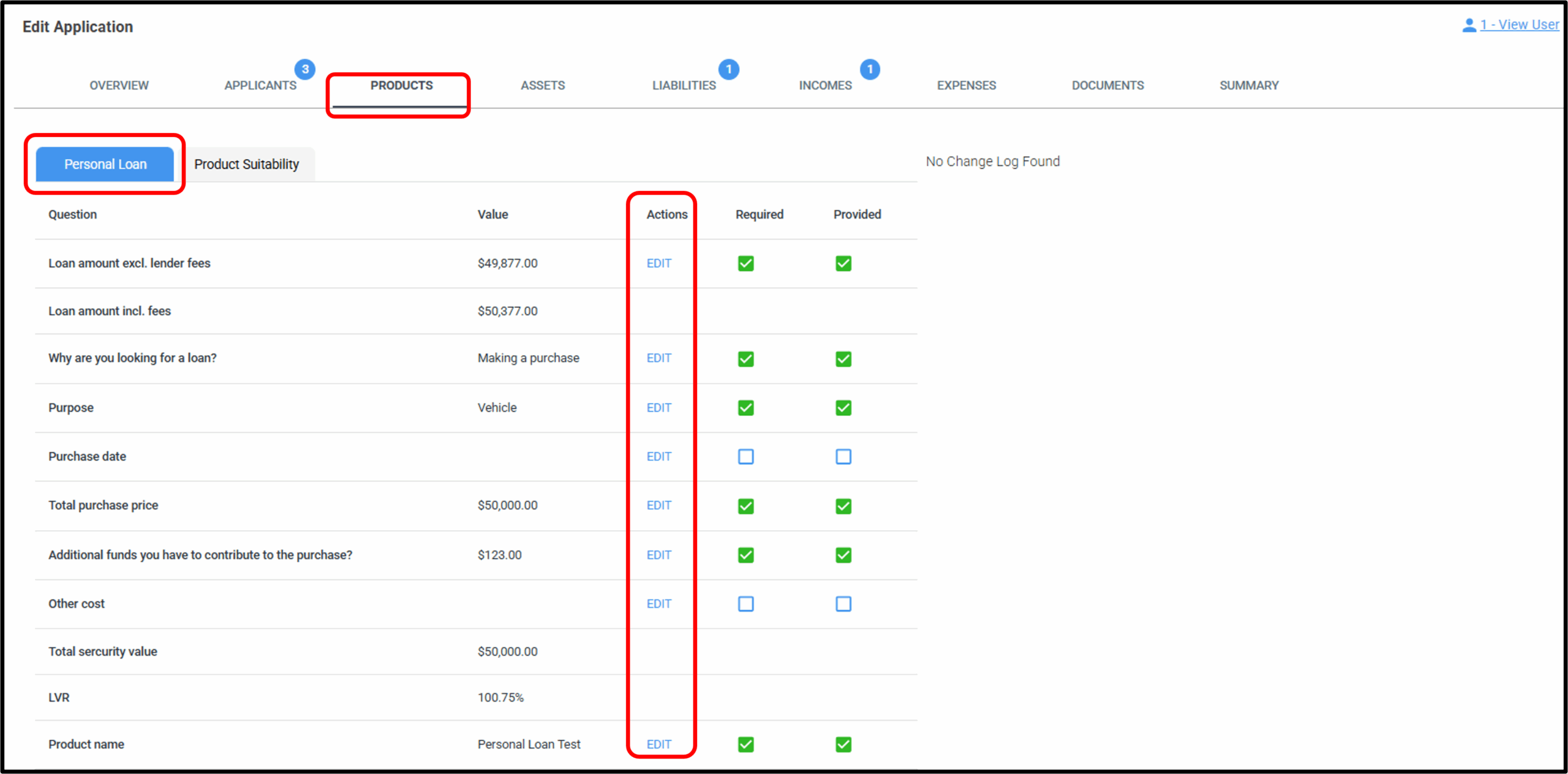
Example: After speaking with the customer, they may want to revise some of the options they previously selected. This part of the system allows users to update most of those responses directly within the application.
For the Personal Loan product, the following questions and response options can be edited by the user:
- Loan amount excl. lender fees
- Why are you looking for a loan?
- Purchase
- Refinancing
- Purpose
- Vehicle
- Holiday
- Wedding
- Home remodelling
- Home appliances
- Moving expenses
- Emergency expenses
- Debt consolidation
- Other
- Purchase & installation of solar power products
- Purchase & installation of external awnings or shutters Energy efficiency
- Purchase & installation of a grey water system
- Purchase & installation of double glazing to an existing property
- Solar and energy efficient products (not available for refinances)
- Purchase electric car
- Other green products
- Vehicle expenses
- Purchase Date
- Total purchase price
- Additional funds included in loan amount?
- Other Cost
- Capitalised
- Deducted
- Waive
- Product Name
- Any other suitable Personal Loan product
- Repayment Type
- Principle & Interest
- Rate Type
- Fixed
- Variable
- Interest Rate (Rate change type)
- Discount
- Increase
- Rate Change %
- Comparison Rate
- Annual Fees (Process)
- Capitalised
- Deducted
- Waive
- Monthly Fees (Process)
- Include in Repayments
- Deducted
- Waive
- Establishment Fees (Process)
- Capitalised
- Deducted
- Waive
- Term of loan in years (1-7)
- Payment Frequency
- Weekly
- Fortnightly
- Monthly
1c. Vehicle Loan
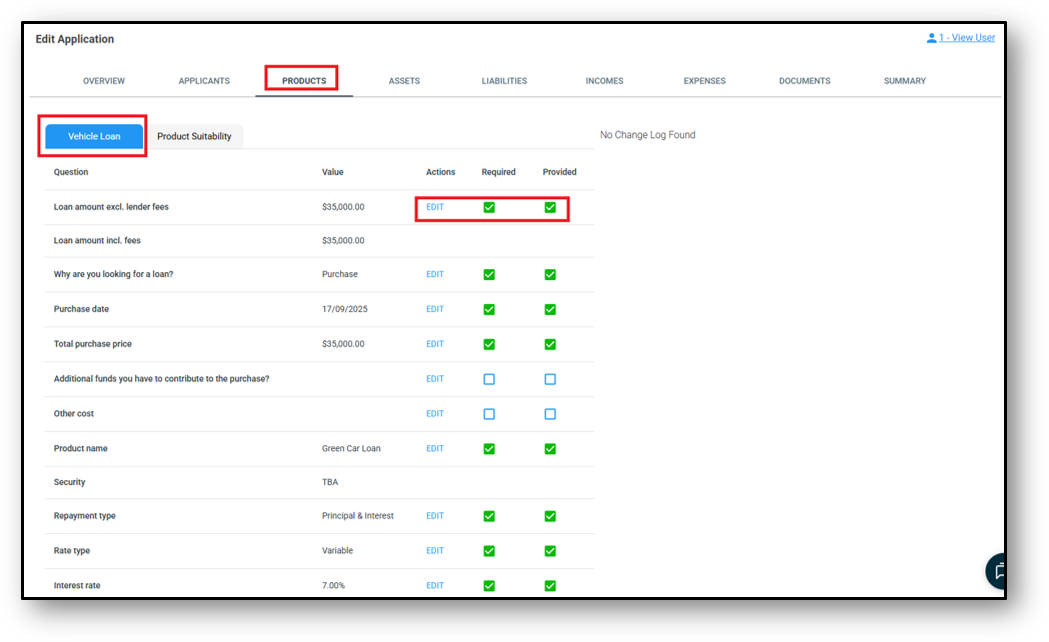
In the product menu, a user can edit the Vehicle Loan application by choosing the ‘EDIT‘ option under the ‘Actions‘ column.
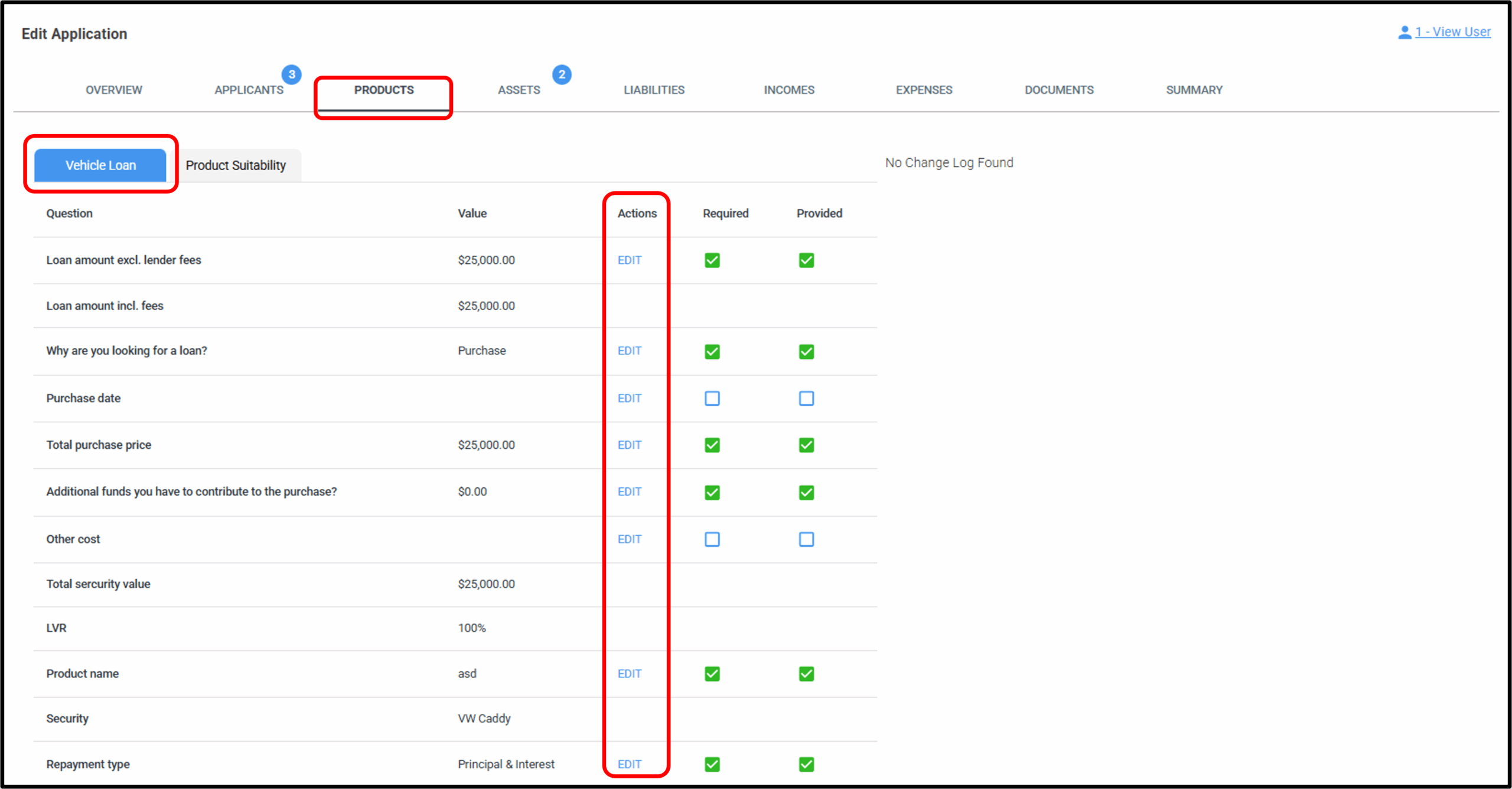
DISCLAIMER: The questions and values will reflect the application that the customer is applying for and will mirror the customer form. NOTE: Each lender may have their forms setup differently and may use different questions to what is displayed here.
Example: After speaking with the customer, they may want to revise some of the options on the application for the vehicle loan that they had previously selected. This part of the system allows users to update most of those responses directly within the application.
For the Vehicle Loan product, the following questions and response options can be edited by the user:
- Loan amount excl. lender fees
- Why are you looking for a loan?
- Purchase
- Refinancing
- Purchase Date
- Total purchase price
- Additional funds you have to contribute to the purchase?
- Other Cost
- Capitalised
- Deducted
- Waive
- Product Name
- Any other suitable Personal Loan product
- Repayment Type
- Principle & Interest
- Rate Type
- Fixed
- Variable
- Interest Rate (Rate change type)
- Discount
- Increase
- Rate Change %
- Comparison Rate
- Annual Fees (Process)
- Capitalised
- Deducted
- Waive
- Monthly Fees (Process)
- Include in Repayments
- Deducted
- Waive
- Establishment Fees (Process)
- Capitalised
- Deducted
- Waive
- Term of loan in years (1-5)
- Payment Frequency
- Monthly
- Residual Percentage
1d. Business Loan
In the Application menu, a user can edit the business loan application by choosing the ‘EDIT‘ option under the ‘Actions‘ column.
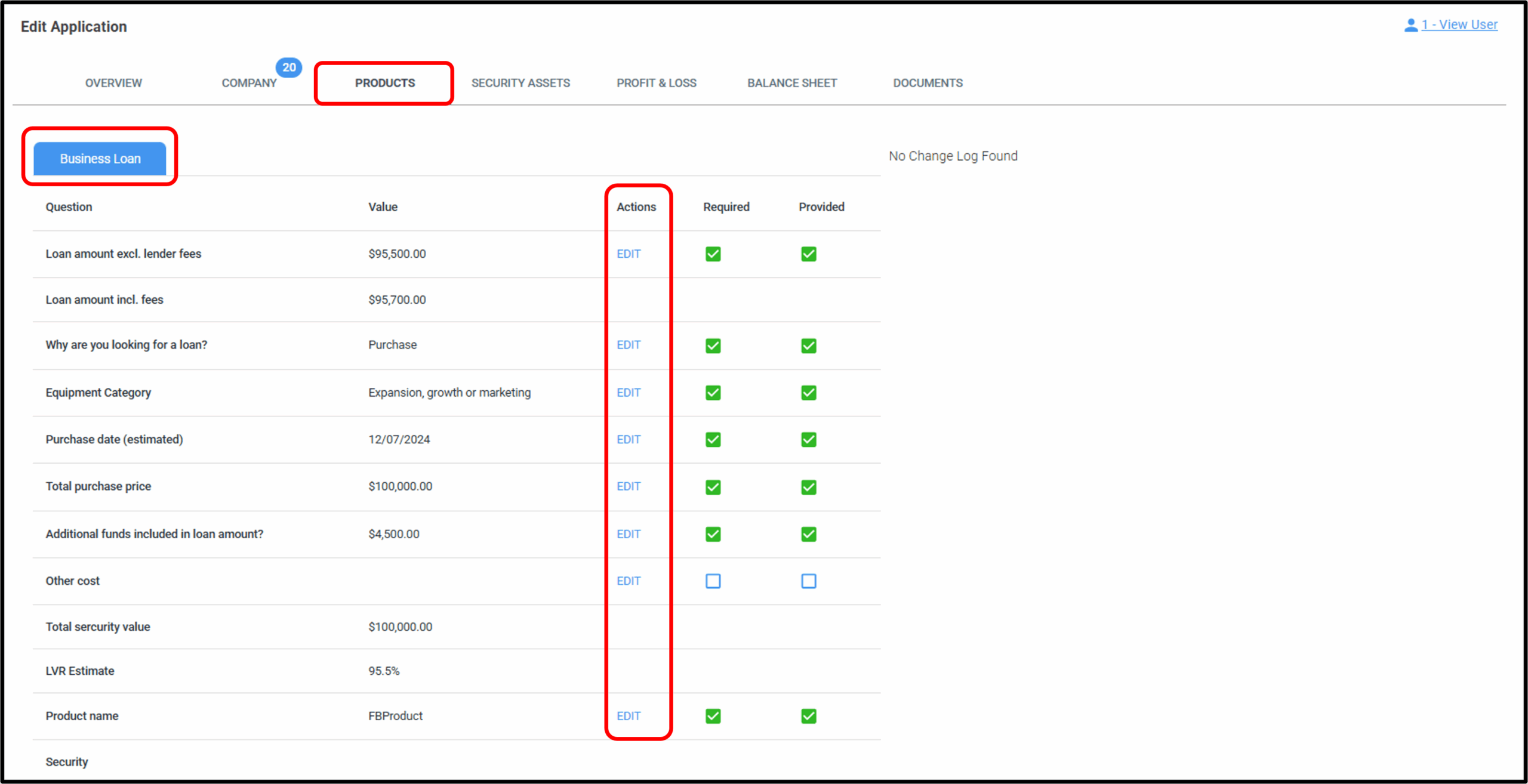
For example: After speaking with the customer, they may want to revise some of the options that were previously selected. This part of the system allows users to update most of those responses directly within the application.
For the Business Loan product, the following questions and response options can be edited by the user in the Marketing Layer > Form Builder > Purpose Business Loan.
- Loan amount excl. lender fees
- Why are you looking for a loan? (Button Select)
- New Purchase
- Refinancing a loan(s)
- What is the purpose of this loan? (Drop-Down Select) – Under the ‘TYPE‘ button, users can choose whether this question can be single choice or multi-select.
- Property purchase
- Buying or hiring equipment
- Expansion, growth or marketing
- purchasing inventory
- Pay suppliers
- Equity release
- Workplace renovation
- Construction
- Working capital
- Pay off non tax debt
- Pay off tax debt
- Trade credit
- Other
- Facility Type? (Drop-Down Select) – Under the ‘TYPE‘ button, users can choose whether this question can be single choice or multi-select.
- Buying or hiring equipment
- Expansion, growth or marketing
- Purchasing inventory
- Pay suppliers
- Workplace renovation
- working capital
- Pay off non tax debt
- Pay off tax debt
- Trade Credit
- Other
- Equipment Category
- Buying or hiring equipment
- Expansion, growth or marketing
- Purchasing inventory
- Pay suppliers
- Workplace renovation
- working capital
- Pay off non tax debt
- Pay off tax debt
- Trade Credit
- Other
- Purchase Date (estimated)
- Total purchase price
- Additional funds included in loan amount?
- Other Cost
- Capitalised
- Deducted
- Waive
- Product Name
- Any other suitable Home Loan product
- Interest Rate (Rate change type)
- Discount
- Increase
- Rate Change %
- Comparison Rate
- Annual Fees (Process)
- Capitalised
- Deducted
- Waive
- Monthly Fees (Process)
- Include in Repayments
- Deducted
- Waive
- Establishment Fees (Process)
- Capitalised
- Deducted
- Waive
- Lenders Mortgage Insurance
- Estimated government fees and charges**
- Term of loan in years (1-20)
- Payment Frequency
- Weekly
- Fortnightly
- Monthly
1e. Construction Loan
In the Application menu, a user can edit the Construction Loan application by choosing the ‘EDIT‘ option under the ‘Actions‘ column.
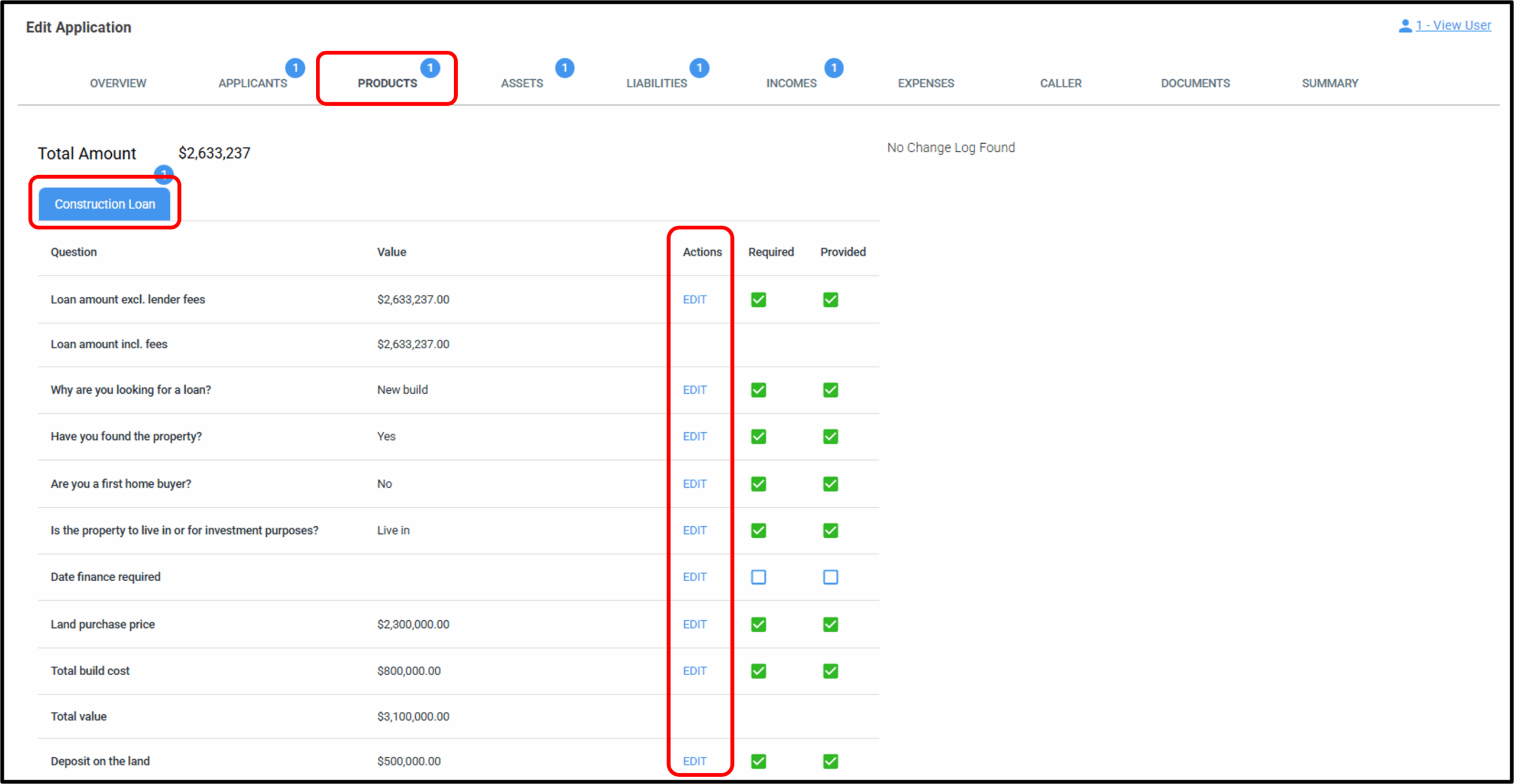
Overview:
Construction lending is supported through a standalone, purpose-built module. The module includes its own workflow and functionality designed specifically for construction loans.
Module Mapping:
In this section of the system, users can modify nearly all of the responses within the application. The editable fields of the Construction Loan module are:
- Loan amount excl. lender fees
- Why are you looking for a loan?
- New Build
- Structural Renovation
- Have you found the property?
- Yes
- No
- Are you a first home buyer?
- Yes
- No
- Is the property to live in or for investment purposes?
- Live in
- Investment
- Date finance required
- Land Purchase Price
- Total Build Cost
- Deposit on the land
- Deposit on building
- Additional funds included in loan amount?
- Other Cost
- Capitalised
- Deducted
- Waive
- Product Name
- Any other suitable Construction Loan product
- Security
- Repayment Type
- Principle & Interest
- Interest only
- Rate Type
- Fixed
- Variable
- Interest Rate (Rate change type)
- Discount
- Increase
- Rate Change %
- Comparison Rate
- Annual Fees (Process)
- Capitalised
- Deducted
- Waive
- Monthly Fees (Process)
- Include in Repayments
- Deducted
- Waive
- Establishment Fees (Process)
- Capitalised
- Deducted
- Waive
- Estimated government fees and charges**
- Term of loan in years (1-50)
- Payment Frequency
- Weekly
- Fortnightly
- Monthly
Additional Controls can be found in the Risk Layer > Configuration > Construction Loan Options.
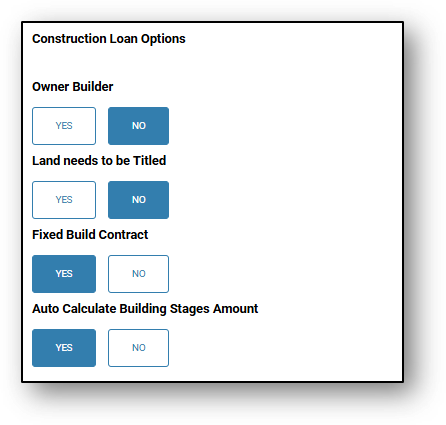
NOTE: There is also a default condition that can be used for construction loans that’s available already in the system. Select Assessment > Staff, and then:
Construction conditions to apply with progress payments made upon agreeable progress valuation.
1f. Reverse Mortgage/Home Equity Release
Home Equity Release/Reverse Mortgage:
Available to homeowners, usually 60 or older, allows them to access the equity in their home without having to sell it or make regular loan repayments.
How it works:
-
The homeowner borrows against the value of their home, either as a lump sum, regular income stream, line of credit, or a combination.
-
The loan is typically repaid when the home is sold, the borrower moves into permanent care or passes away.
-
The most common form is a reverse mortgage, but home reversion schemes and equity release agreements are also available in some markets.
Pros:
-
Access to cash without selling or downsizing.
-
No regular repayments required (for most products).
-
Flexibility in how funds are received (lump sum, income, or both).
Cons:
-
Interest compounds, meaning the debt grows over time.
-
Reduces equity in the home, leaving less for heirs.
-
May impact government benefits or aged pension eligibility.
-
May include fees, conditions, or limits based on age or property value.
1g. Credit Card
In the product menu, a user can edit the Credit Card application by choosing the ‘EDIT‘ option under the ‘Actions‘ column.
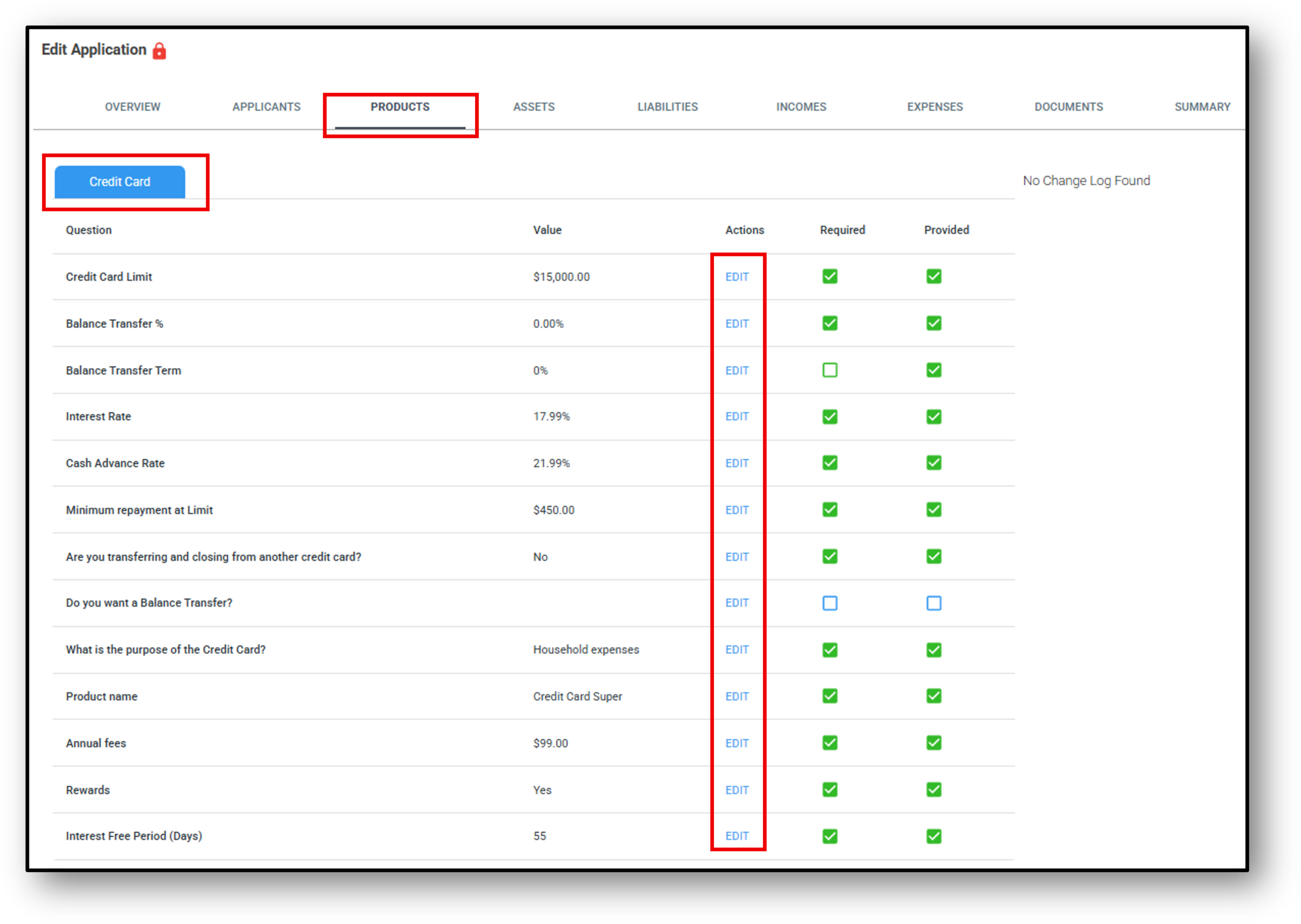
Example: After speaking with the customer, they may need to revise some of the options they previously selected. This part of the system allows users to update most of those responses directly within the application.
For the Credit Card product, the following questions and response options can be edited by the user:
- Credit Card Limit
- Balance Transfer %
- Balance Transfer Term
- Interest Rate (Rate change type)
- Discount
- Increase
- Rate Change %
- Cash Advance Rate
- Minimum repayment at Limit
- Are you transferring and closing from another credit card?
- Yes
- No
- Do you want a Balance Transfer?
- Yes
- No
- What is the purpose of the Credit Card?
- Credit Card for general use
- Household expenses
- Other
- Product Name
- Any other suitable Credit Card
- Annual Fees (Process)
- Capitalised
- Deducted
- Waive
- Rewards
- Yes
- No
- Interest Free Period (Days)
1h. Deposit Account
In the product menu, a user can edit the Deposit Account application by choosing the ‘EDIT‘ option under the ‘Actions‘ column.
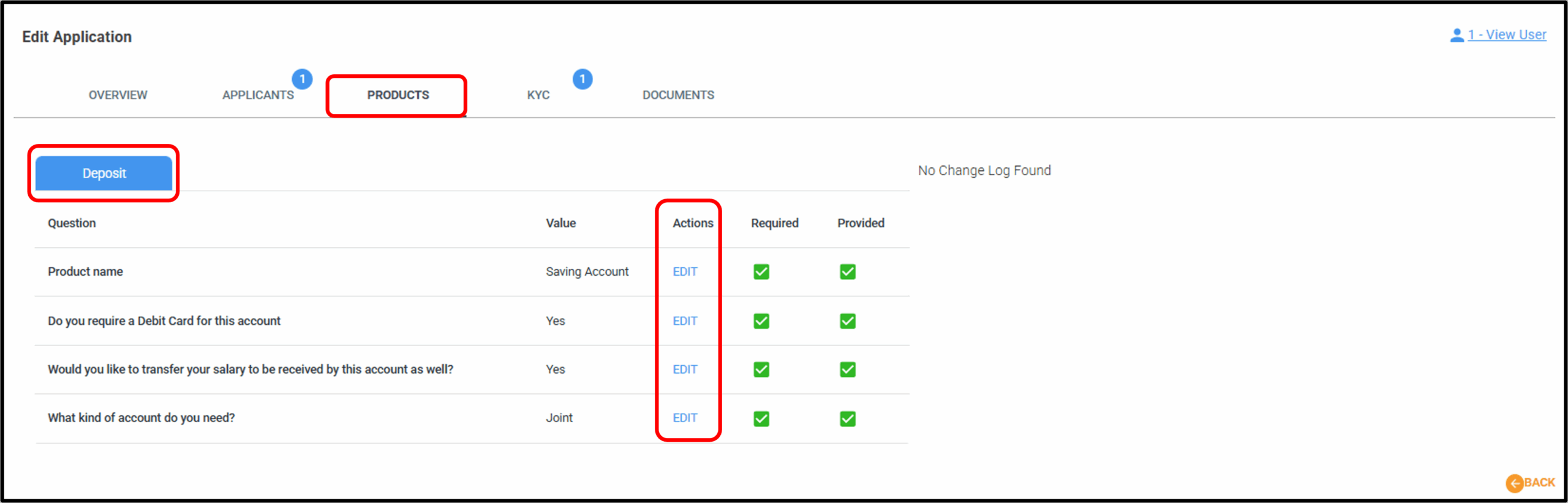
Example: After speaking with the customer, they may need to revise some of the options they previously selected. This part of the system allows users to update most of those responses directly within the application.
For the Deposit Account product, the following questions and response options can be edited by the user:
- Product Name
- Any other suitable account
- Do you require a Debit Card for this account
- Yes
- No
- Would you like to transfer your salary to be received by this account as well?
- Yes
- No
- What kind of account do you need?
- Joint
- individual
1i. Term Deposit
In the product menu, a user can edit the Term Deposit application by choosing the ‘EDIT‘ option under the ‘Actions‘ column.
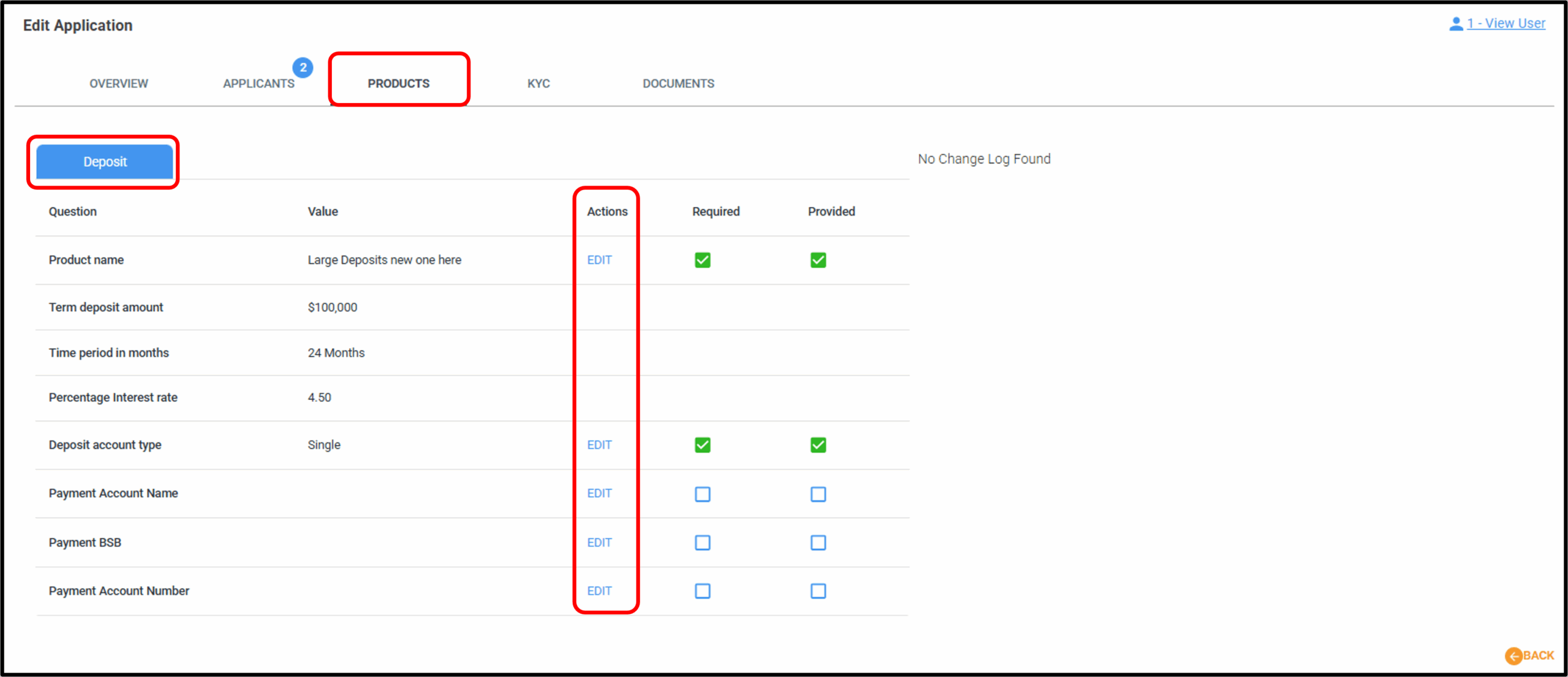
Example: After speaking with the customer, they may need to revise some of the options they previously selected. This part of the system allows users to update most of those responses directly within the application.
For the Term Deposit product, the following questions and response options can be edited by the user:
- Product Name
- Any other suitable Term Deposit
- Deposit Account Type
- Single
- Joint
- Payment Account Name
- Payment BSB
- Payment Account Number
2. Product Suitability
Product Suitability tab – This is a standard tab that appears across all loan types (exc. business loans). The specific questions within the tab will vary depending on the product type.
NOTE: For multi home loans the product suitability questions appear at the bottom of the products page
The “Product Suitability “sub tab below refers to the Responsible lending (RG 209) question set.
The responsible lending obligations involve:
- making reasonable inquiries about a consumer’s financial situation, and their requirements and objectives,
- taking reasonable steps to verify a consumer’s financial situation, and
- making a preliminary assessment (if you are providing credit assistance) or final assessment (if you are the credit provider) about whether the credit contract is ‘not unsuitable’ for the consumer.
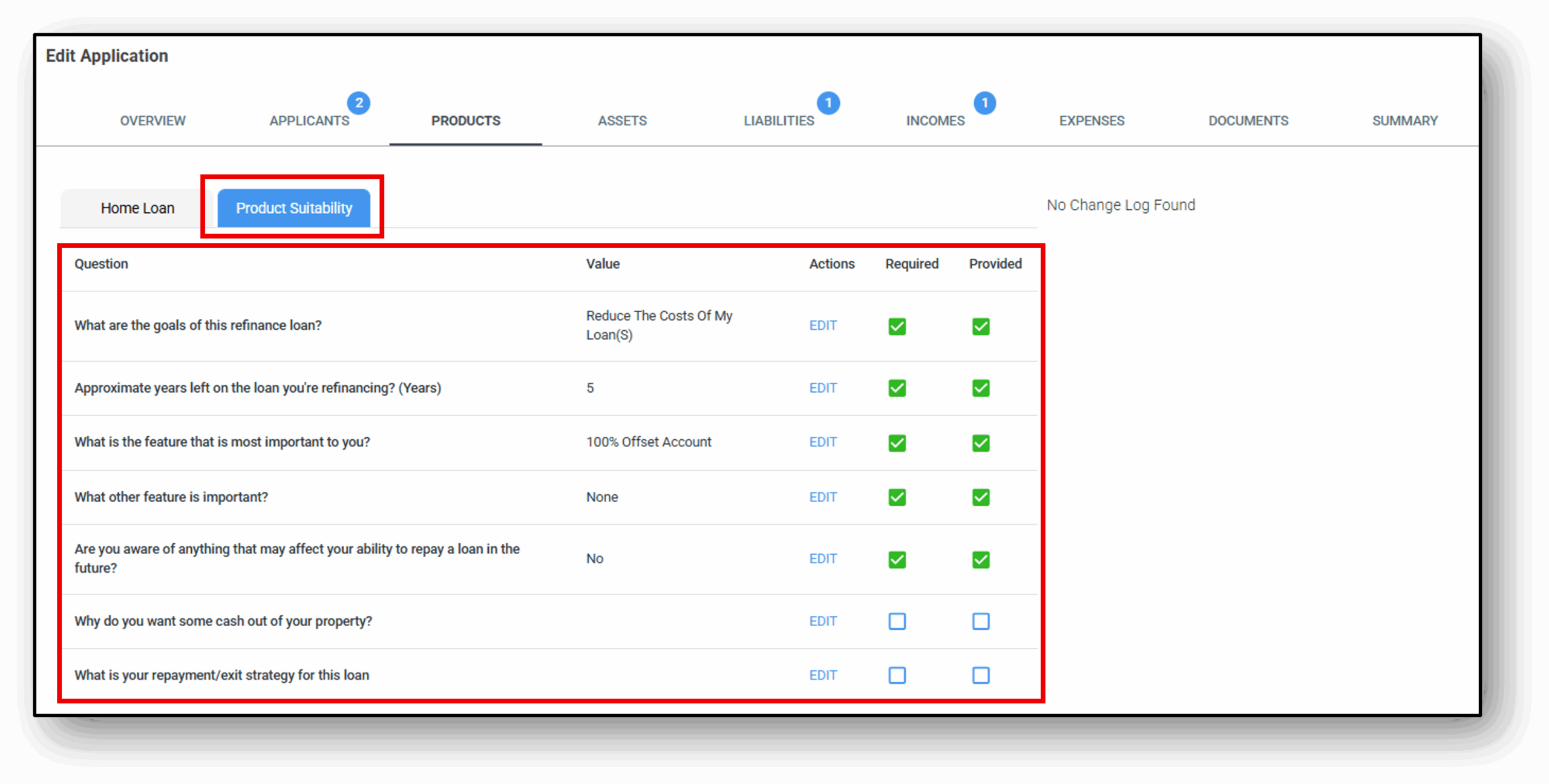
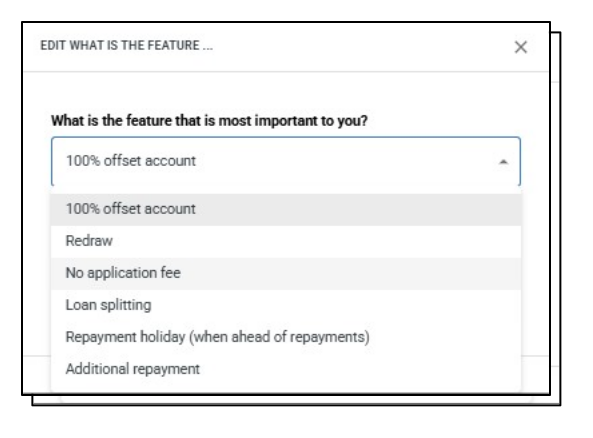
Users are able to manually update when a requirement has been met or uncheck/check whether a question should be mandatory (required). Users can also edit the options available in the drop down menu as we can see here from the below image. After selecting the new item, simply save and it will be updated.
3. Edit
Product Tab
The product tab displays the application loan and product details including the ability to change the product, discount interest rates and waive fees.
You can edit the application form by clicking on ‘Edit’. This will open a pop-up window showing the details that the customer entered during the application process, enabling you to amend the selected options.
Loan Amount (purchase)
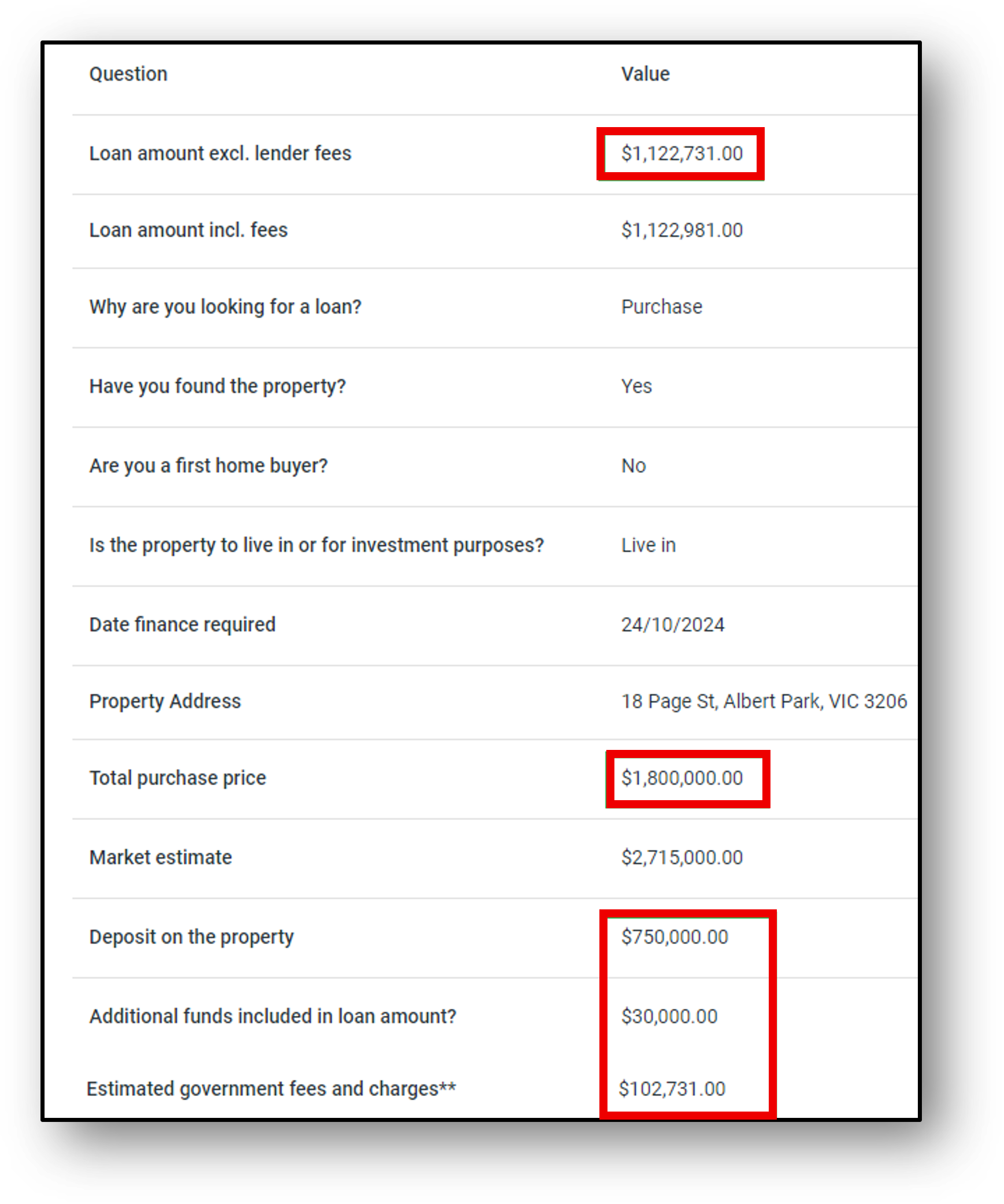
The loan amount, excluding lender fees for purchase, is automatically calculated using the following funds position formula:
(Total purchase price + Estimated government fees and charges) – (Deposit on the property + Additional funds included in the loan amount)
For example: $1,800,000.00 + $102,731.00 – $750,000.00 + $30,000.00 = $1,122,731.00
Loan amount, including fees = $1,122,731.00 + All fees
Note: When the purchase price is amended, the government costs (e.g., stamp duty) are updated accordingly.
Note: The loan amount can also be amended manually, though this is not recommended.
Product Selection.
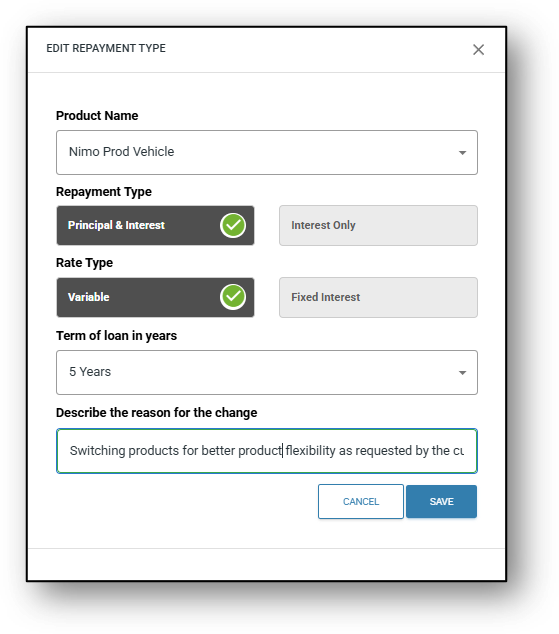
After the application has been submitted, the product type can be amended under the Product Name field. To do this, click the Edit button, which opens a dropdown displaying all products available within the product category.
When a product is changed to a new product type, the interest rate, comparison rate, and fees will be updated accordingly.
Rates and fees can be updated to reflect waivers or discounts. (A change log will be recorded if this occurs.)
Based on the Rate Type and Repayment Type selected, further fields will be displayed for confirmation, including Fixed Terms and Interest-Only Periods.
Note: You will only be able to select products that match the product criteria or parameters (e.g., LVR, loan amount, etc.; please refer to your product matrix).
Purchase, Refinance, Settlement Dates
Entering a date in the date field is essential for reporting and is also vital if the merchant is using Ultracs for their core banking, as this date is mandatory for calculating loan repayments based on Ultracs’ unique repayment formula.
4. Required/Provided
This section displays the applicant’s responses to the loan application form, specifically in relation to the loan product. The user can edit each individual question on the form, and you can also choose between making the question ‘required’ or ‘optional’ for the customer to answer.
- Required – shows whether a question is mandatory. If this field is checked, then the ‘Provided‘ field must be completed, otherwsie it will spawn a blue bubble indicating something is still required. If the required box is unticked, it is optional for this to be provided.
- Provided – shows whether the applicant has answered the question.
- Colour Indicators –
- If both fields are green, it means all mandatory questions have been answered.
- If either field is red, it indicates that required details are still missing.
- If the user wants to update any information, they can do so by clicking the edit icon under the Actions column.
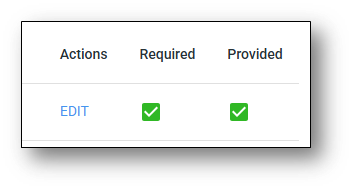
! IMPORTANT: If the user wants to update any information, they can do so by clicking the edit icon under the Actions column.
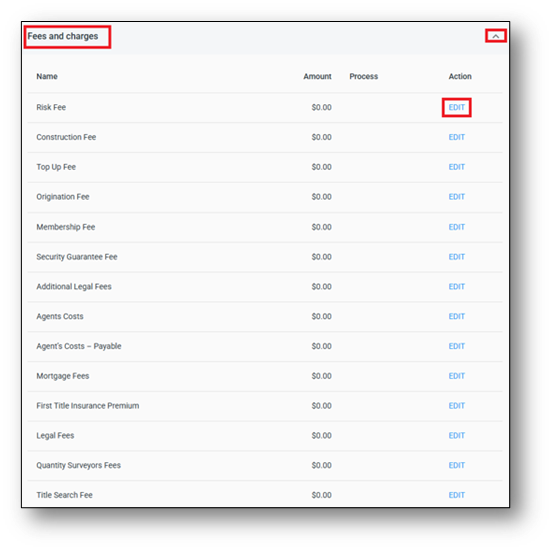
The Fees and Charges section enables the organisation to add fees related to the loan application process. These fees can be capitalised, deducted, or waived based on the preferences of the applicant and the business.
5. Change Log
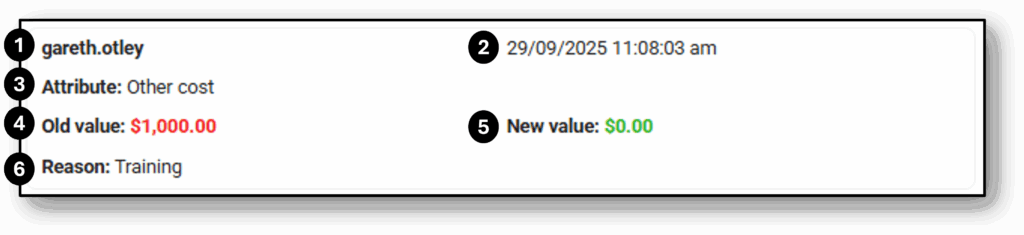
All changes made by the user will be recorded in the change log for tracking and audit purposes. The details recorded in the change log are as follows:
- The User that made the change
- The Date & Time of the change
- The Attribute that was changed
- The previous value before the change, the Old Value (appears in red)
- The new value after the change, the New Value (appears in green)
- The Reason for the change if it’s been provided

Frequenty Asked Questions
1. How Can I split a Loan?
2. How do I add another Loan to the existing one?
3. Why can't I change the product type to a different one for the customer?
If you are trying to change to a different product type for the customer and you can’t see the product being available, it’s likely the product you are looking for doesn’t match with the features and responses selected by the customer. As these questions are NCCP questions, before any changes are made it’s important to have the conversation with the customer first.
If an organisation offers multiple products within a product type, it is important to remember that due to the Target Market determination (TMD), it is likely not all products are suitable matches for the customer. The product selection is based on these criteria, so it’s important to understand if the reason you can’t change product types is either;
-
- Unavailability due to product suitability not aligning with the customers responses to the NCCP questions, or
- Incorrect product setup or a product has been modified from the correct parameters. Often, the cause falls into 1 of the following categories:
-
-
- experimenting in the User Acceptance Testing environment (UAT), as many users are testing the environment, making changes and experimenting,
- signing off the UAT stage ready for production, however incidental product changes have occurred after signing off and prior to copying the environment into production, or
- setting up a brand new product for the first time in either the UAT or the production environment.
-
-
4. What do I do when property is found after the application is submitted as property not found?
We recommend following the below workflow when the property is identified for an application that was originally submitted as ‘Property Not Found‘:
STEP – 1: Submit the application to Assessment and complete the required sections.
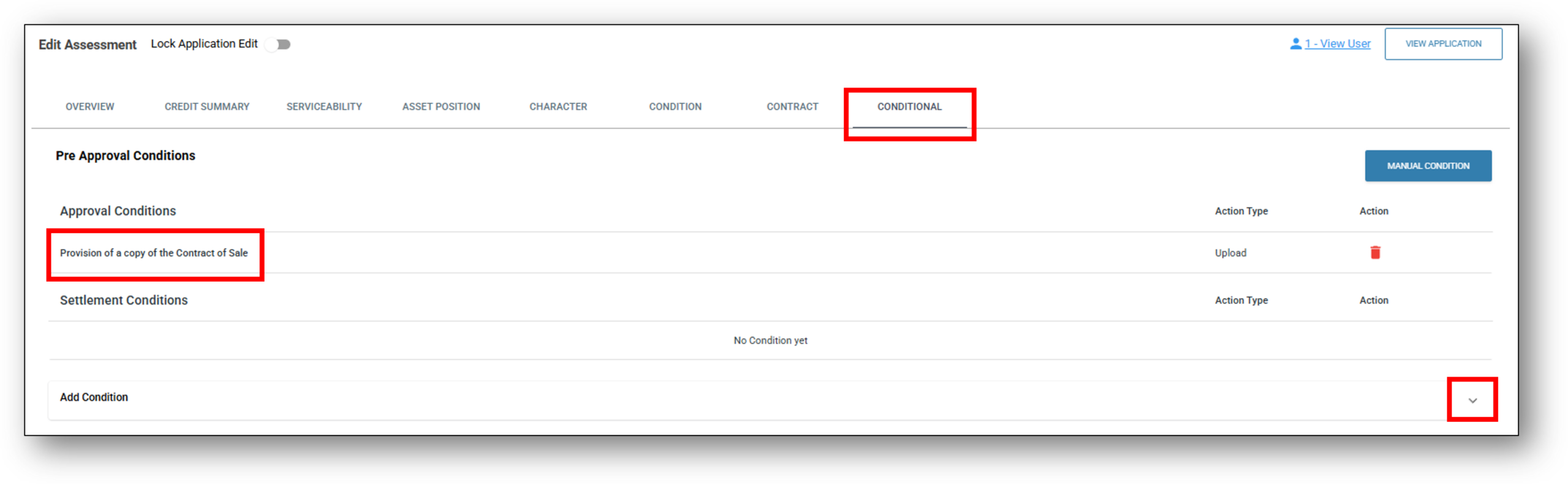
STEP – 2: From the Conditional tab, add the condition: “Provision of a copy of the Contract of Sale.”
STEP – 3: Conditionally approve the loan.
Once the loan is conditionally approved, the Application Overview section will display an “Update Property Address” option.
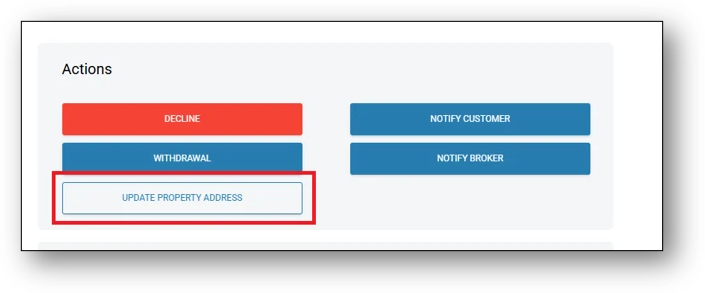
STEP – 4: Use this option to update the property and loan details accordingly.