Administration – Manage Users tab
The Manage Users tab that sits within the Administration layer is where the lender sets up and manages their user access to the environment (Each environment is managed through separate usear access controls for both Production and UAT.
Last updated: 26 October 2026
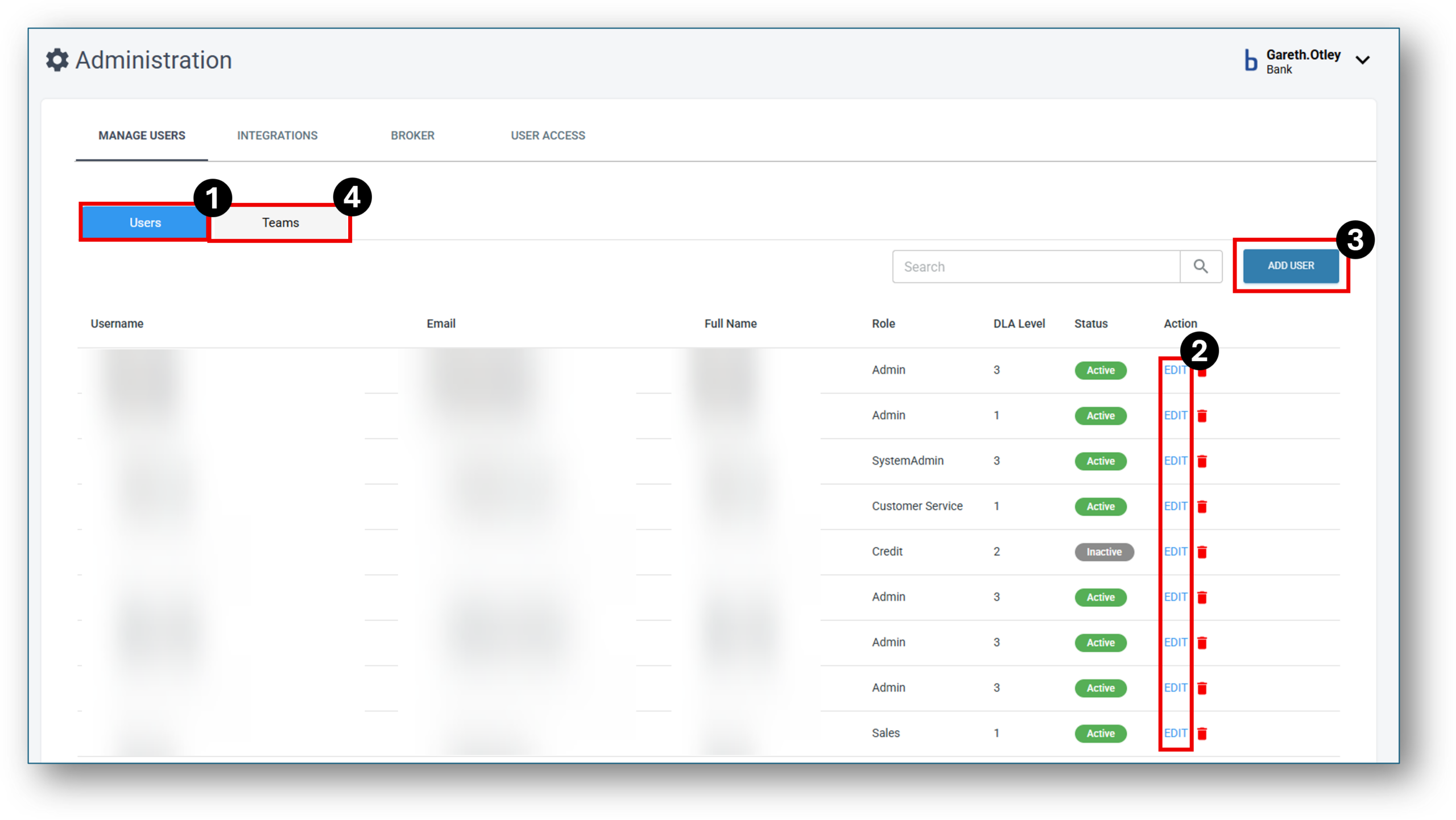

1. Manage Users
When a user clicks on the Administration Layer, the default landing tab is ‘Manager Users’ and the landing sub tab is ‘Users’. Your screen will show a list of all active/inactive users that have access to this environment.
NOTE: Access will likely differ between UAT and Production for the majority of organisations. The access is setup as part of the onboarding stage at Nimo. On the main screen you will see all the users listed under the following columns
- Username: nimo.tester
- Email: naren.naliyanda@nimoindustries.com
- Full Name: Tester
- Role: Admin
- DLA Level: 3
- Status: Active

 IMPORTANT: Nimo does not have access to your production environment. If you need a staff member of Nimo to access your production environment to support with a query, you must provide ‘written authorisation’ before granting access. Immediately after the query is resolved, you must make the access ‘inactive‘ or delete the profile. Making a profile inactive sets the intention, it may be required again in the future.
2. Edit Users
Once a user is created and provided access to the environment, their access can be managed through the ‘Edit‘ user function. Every field can be edited except for the ‘Username’ field. Editable fields include:
- Email address – All communications relevant for applications (when using your own details for test applications), saved applications, resume application links, auto templated responses – especially for the UAT environment will be sent to this email address)
- Mobile number – All communications relevant for applications (when using your own details for test applications), MFA logins, save & resume application links, auto templated responses – especially for the UAT environment will be sent to this mobile number)
- Enable MFA – (turning this on, means access to the environment requires Multi-Factor Authorisation to be completed on every unique access request).
- Full Name – The user’s name that they will login to the system with.
- Role – There are seven role types withinn Nimo, as part of the onboarding process, Nimo will ask you for a list of your users and requirements and set up your access in the UAT initially for you to review. Then upon agreement and sign off, this risk profile will be transferred to your new [production environment where your SuperUser/s will be responsible in managing and maintaining the user access permissions. The seven role types are as follows:
- ADMIN
- SALES
- CUSTOMER SERVICE
- CREDIT
- MARKETING
- SETTLEMENT OFFICER
- SYSTEM ADMIN
- DLA Level – Within each role, the access levels can be assigned to three different user profiles, allowing for further granularity when setting up access across the Nimo platform. For example the following three teams may exist within the Risk department of an organisation, but all 3 teams may require different levels of access (read vs write) and access to different layers of the Nimo platform:
- Credit Risk Team – May need writable access to the risk layer, to manage the credit assessment pipeline and access to the Assessment layer to review live applications.
- Compliance Risk Team – May need read only access to the Application, Assessment & Settlement layers to performa Quality Assurance checks on user compliance as well as acces to the reporting layer
- Internal Audit Team – May need read / view only access to perform reviews of risk management effectiveness.
- Status – Select form either Active / Inactive. The majority of time most users will be set to active. Inactive is a good way to control access quickly and efficiently in a number of scenarios such as:
- Deprovisioning a staff members access for offboarding
- Role or department changes
- Providing Nimo Support staff temporary authorised access to review a support request (providing written authorisatiuon has occurred first).
TIP: Usernames: When requiring to test different profiles, its a good idea to name the username after the role type e.g. gareth.credit for testing a credit role profile or gareth.sales for testing a sales role profile.
3. Add Users
When adding a new user, the following fields need to be filled out:
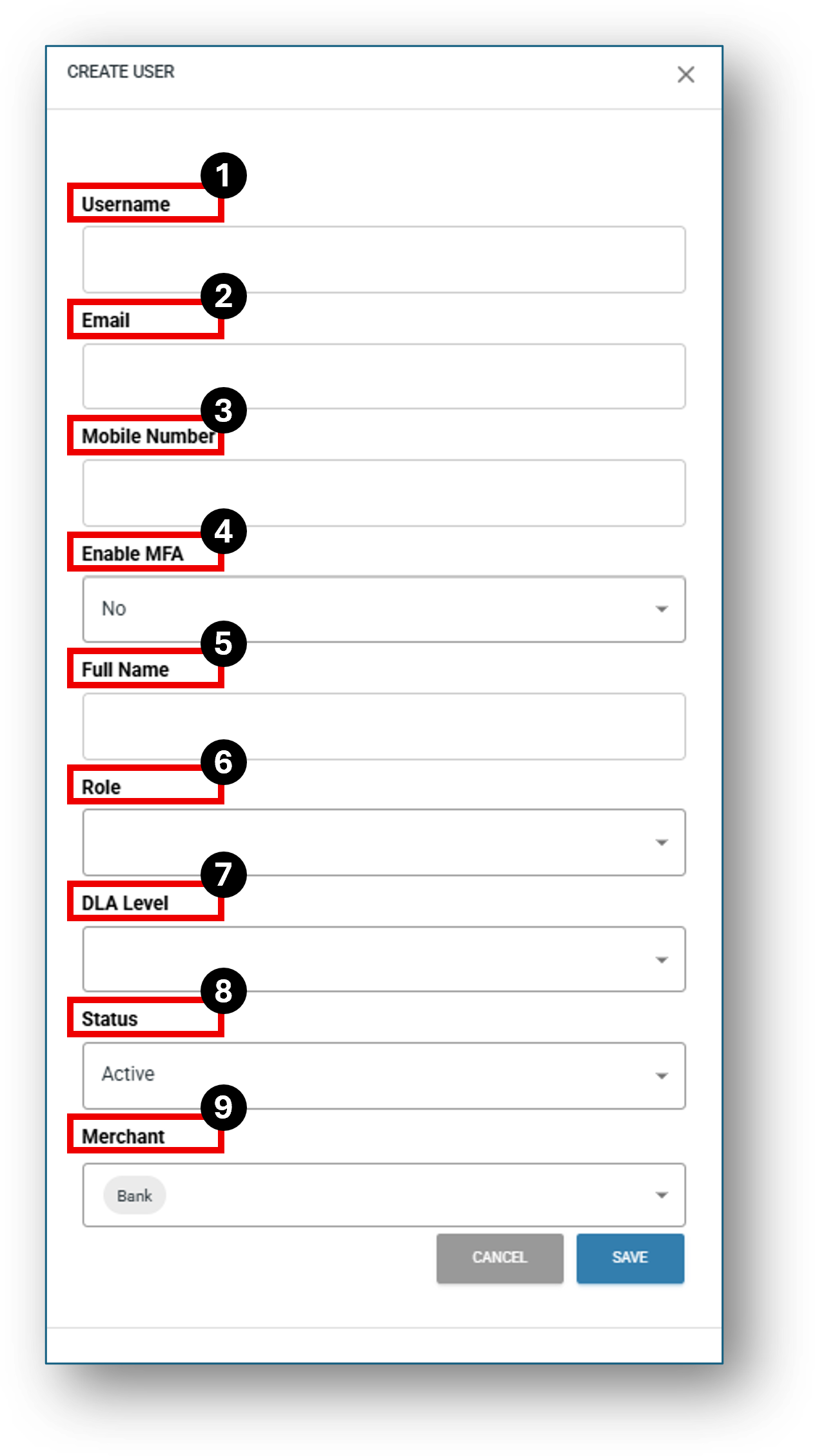
- Username: No spaces or capital letters.
- Email: The users work email
- Mobile Number: The users mobile number to receive MFA authorisation
- Enable MFA: Multi-Factoring authorisation enabled – “Yes” or “No”
- Full Name: The users full name, which is a seachable field.
- Role: One of the available role types
- Admin
- Sales
- Customer Service
- Credit
- Marketing
- Settlement Officer
- System Admin
- DLA Level: Delegated Level of Access – Select from levels 1-3
- Status: Select from Active or Inactive. Active status will appear green in the system and Inactive will appear grey.
- Merchant: Select the merchant the user needs access to if mutiple choices exists. Most commonly this will be the name of your organisation and there will only be the one choice.
4. Teams
TBC with the next release in November 2026
Frequenty Asked Questions
1. What if we rebrand and need to change our 'Merchant' name
The only field that can’t be edited is the Merchant Name. This can be changed in the back end of Nimo’s systems through raising a Jira ticket. We would be happy to help.