Need Further Help?

Select your role below
I'm a Nimo User
If you’re looking for instructions on how to use Nimo, start by using the search bar above to explore Nimo’s support site. Alternatively, use the accordions that relate to your role and navigate through the links to each tab you require further information on.
Sometimes the answer can be found in our FAQ’s section at the bottom on some of the support pages. Be sure to check these out as many have Video instructions available to help guide you through specific processes.
If you can’t find the answer, contact your Nimo ‘Superuser‘ for organisation specific guidance. Your organisation’s Superuser/s receive extra training to learn the Nimo system and may have the answer to your question saving you much needed time.
Keep in mind that Nimo can be configured differently, so some options or screens may appear differently in your organisations setup.
I'm a Nimo Superuser
If you are a ‘Superuser‘ and the matter is of a critical nature, record a Jira Support item and contact your customer support ‘Microsoft Teams’ channel to escalate.
Executive Sponsors
If you are a Executive Sponsor and need to escalate an outstanding item please contact your Relationship Manager.
It's Business Critical
If you are a Superuser or an Executive Sponsor and an item is business critical or you need to escalate an outstanding item, please contact your Relationship Manager or Nimo Executive Sponsor.
Need to lodge a Jira Support Ticket?
Open the link below (Opens in a new window) to tell us how Nimo is not working the way you expect it to work.
How should I categorise my ticket?
Open the link below (Opens in a new window) to tell us how Nimo is not working the way you expect it to work.
What information should I provide in my Jira Support Ticket?
Step 1 – Write your short Summary of the issue requiring support
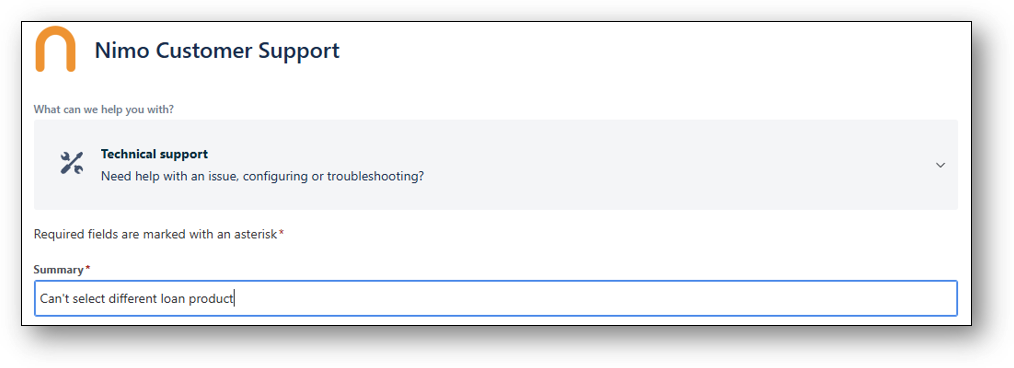
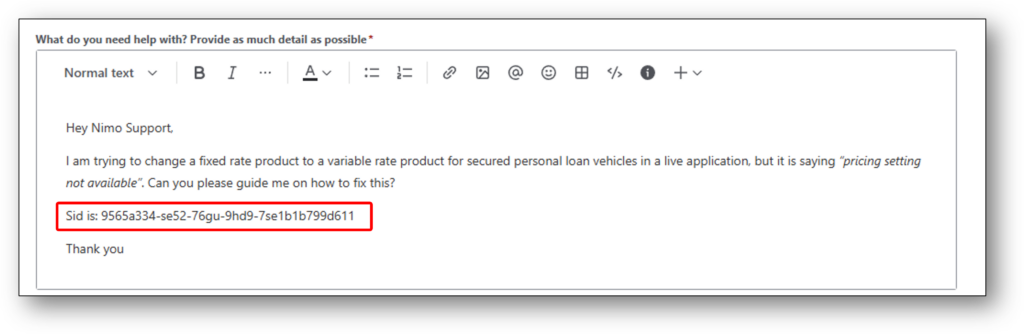
Step 2 – Fill in the details section with as many details as you can, to provide our Support teams clarity to understand the issue you are experiencing. Be as descriptive as you can, about what occurred and what you were trying to do. It may also be necessary to clarify which layer of Nimo you are in when you experienced the issue.
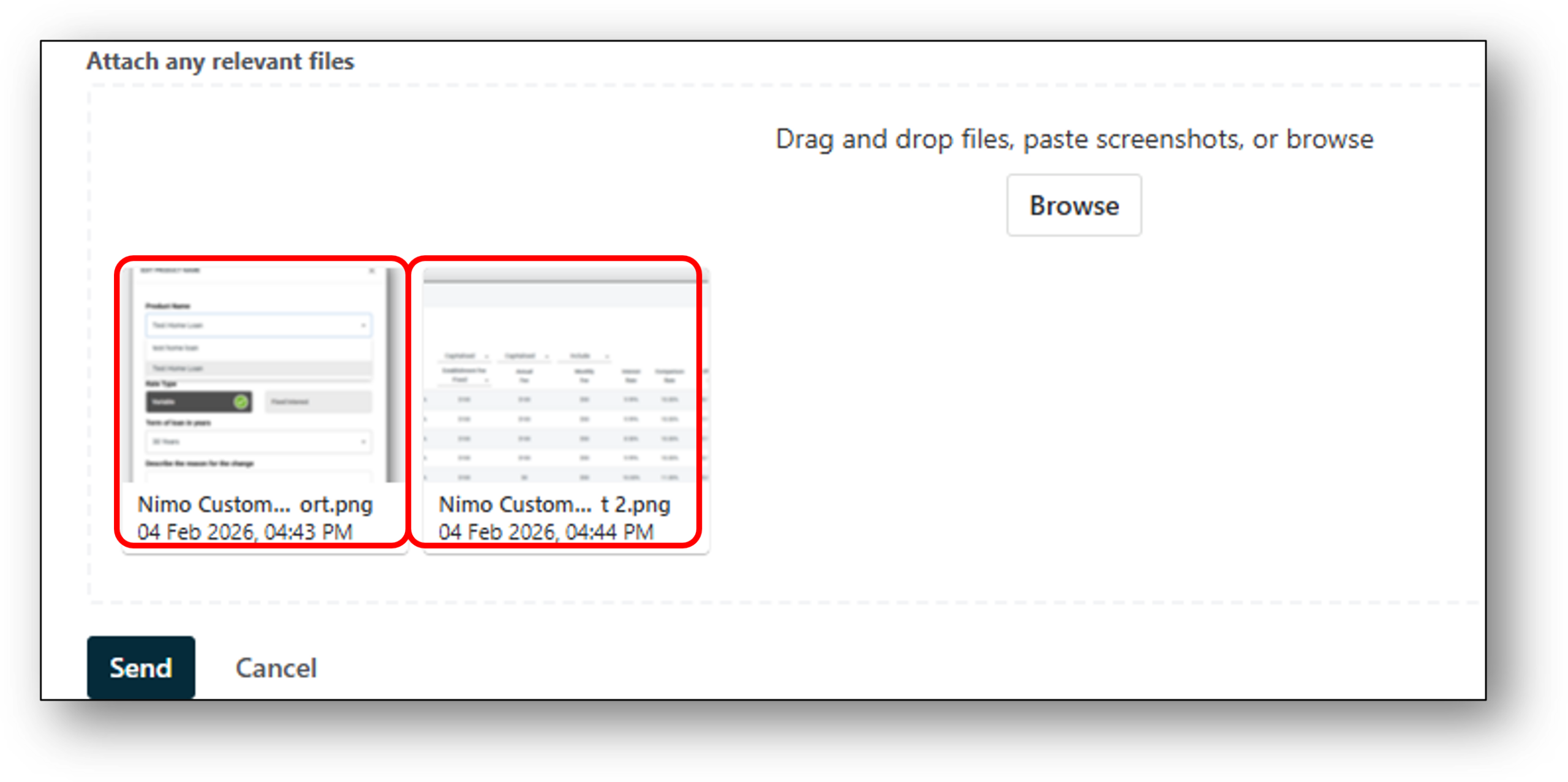
Step 3 – Provide screenshots of the error that has occurred. If it’s to do with something you expected to see or relates to another part of Nimo, please provide screenshots of those sections.
For Example – You are trying to change a product for a customer and the product is not showing in the product tab of the application layer.
Showing a screenshot of the product not being available to select, provides Nimo with an understanding of what you expected to see. Also providing a picture of the pricing table for that product helps us understand if there is an issue with the way the pricing table is setup.
NOTE: If enough detail is not provided, we may need to communicate through the ticket and ask for vital information to help us resolve the issue for you.
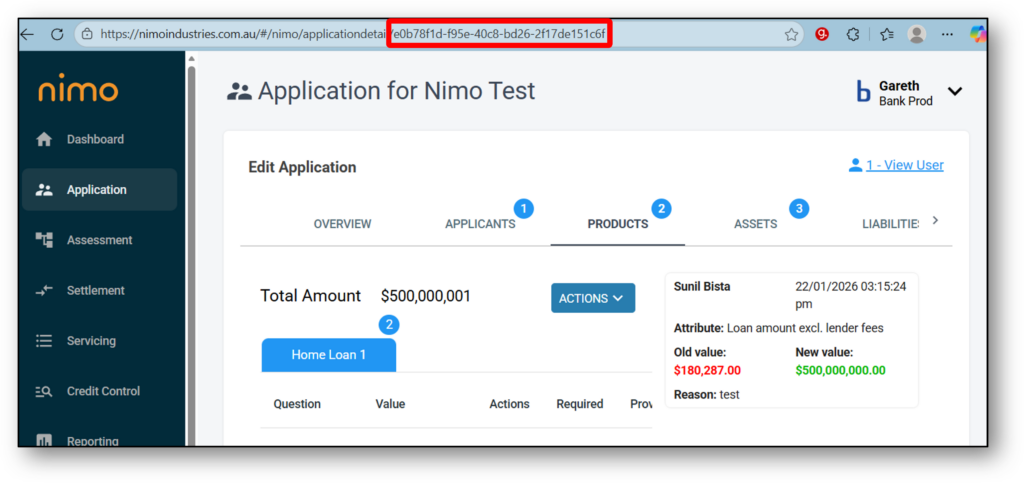
Pro Tip: If your question is regarding a specific Application, you can copy and paste the sort key (SID) into the detailed message, which will enable our support teams to find the application you’re referring to. The SID can be found in the address bar at the top of your application, it’s the unique 32 character key, after the last forward slash in the address.
Test Link