Settlement – Overview tab

This tab provides an Overview of the approved application through the settlement process whether awaiting the manual settlement or an automated response (depending on the solicitor service)
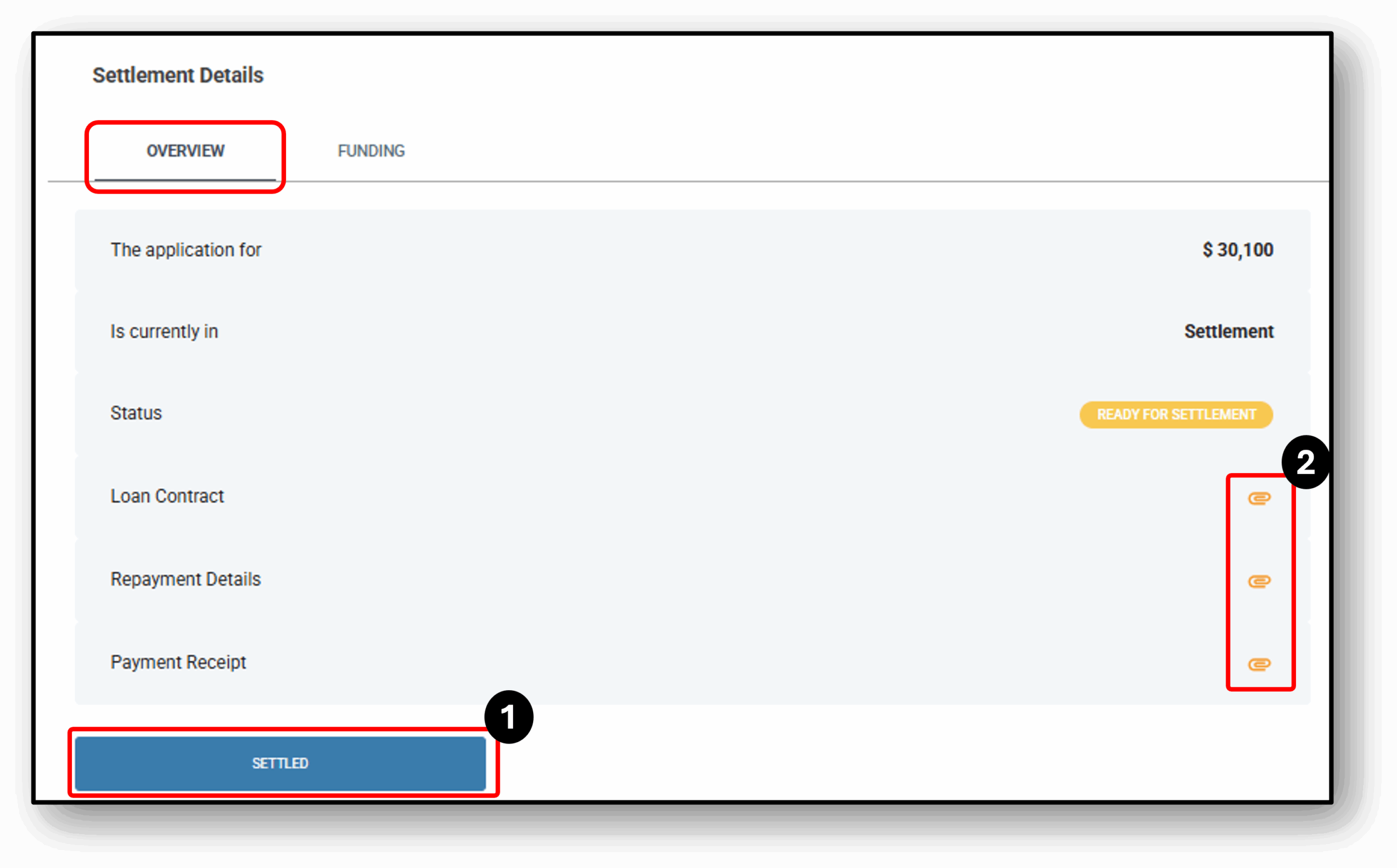

Image of the applicants tab

1. Settled

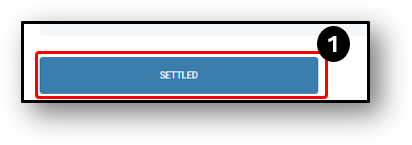
By selecting the blue Settled button, the loan status updates from Ready for Settlement to Payment Made




2. Attachments

All of the relevant Settlement documents are now available.  By clicking on the paperclip, the PDF document will open in a new tab as well as appear in your downloadeds through the browser.

  1. Loan Contract
  2. Repayment details
  3. Payment Receipt

Timeline

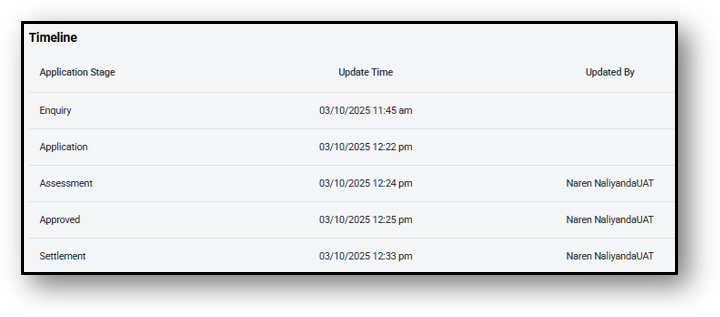
All changes and updates made to the loan application are recorded in the Timeline section. This includes the different stages of the application, the time each update occurred, and the user who made the update.


Frequenty Asked Questions

1. Question 1

Your content goes here. Edit or remove this text inline or in the module Content settings. You can also style every aspect of this content in the module Design settings and even apply custom CSS to this text in the module Advanced settings.

2. Question 2

Your content goes here. Edit or remove this text inline or in the module Content settings. You can also style every aspect of this content in the module Design settings and even apply custom CSS to this text in the module Advanced settings.

3. Question 3

Your content goes here. Edit or remove this text inline or in the module Content settings. You can also style every aspect of this content in the module Design settings and even apply custom CSS to this text in the module Advanced settings.

4. Question 4

Your content goes here. Edit or remove this text inline or in the module Content settings. You can also style every aspect of this content in the module Design settings and even apply custom CSS to this text in the module Advanced settings.

5. Question 5

Your content goes here. Edit or remove this text inline or in the module Content settings. You can also style every aspect of this content in the module Design settings and even apply custom CSS to this text in the module Advanced settings.

6. Question 6

Your content goes here. Edit or remove this text inline or in the module Content settings. You can also style every aspect of this content in the module Design settings and even apply custom CSS to this text in the module Advanced settings.