Servicing – Loan Repayments tab
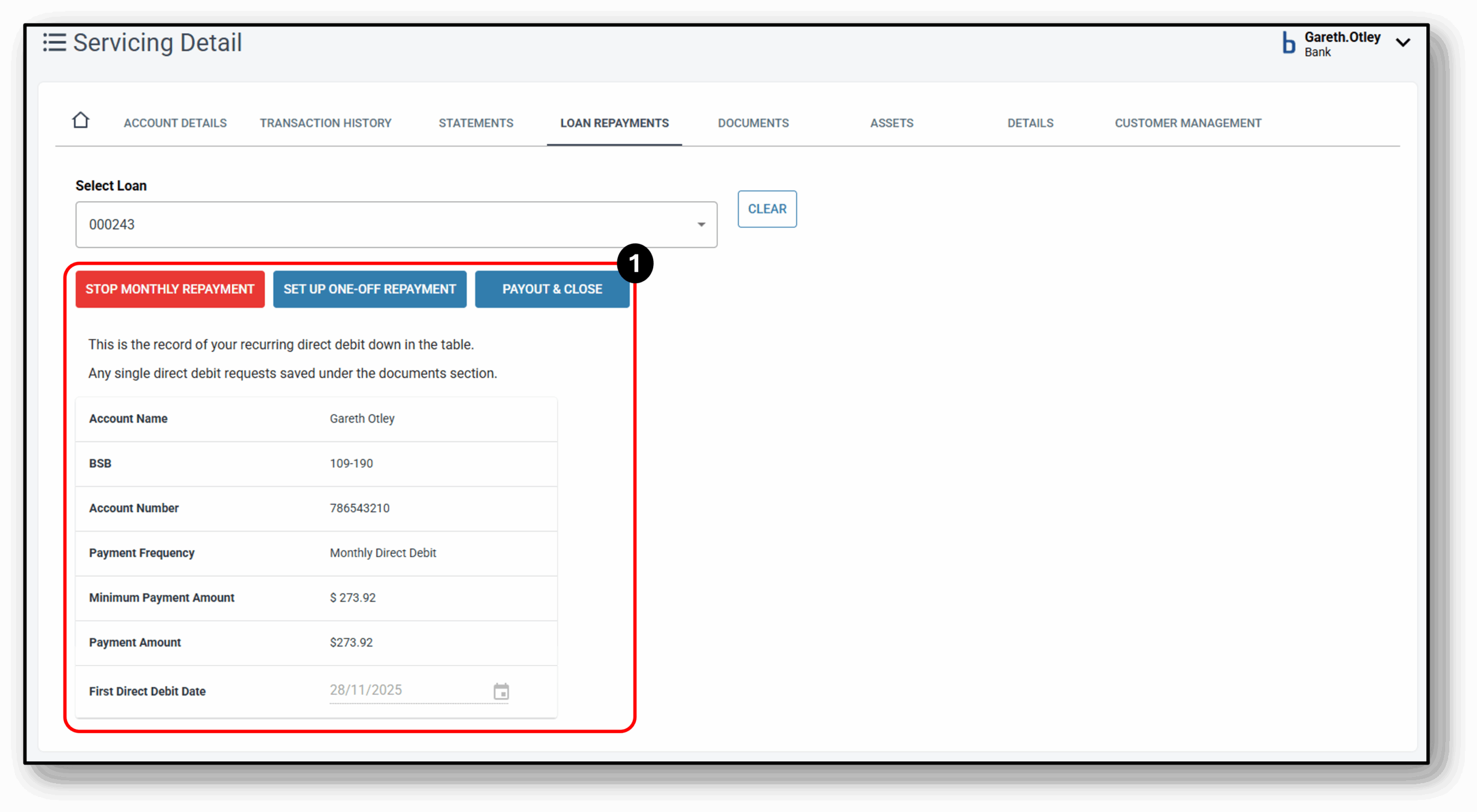
This tab provides the user the ability to setup, modify or delete any recurring Direct Debit repayments that have been setup on the account.

1. Repayment Options
Depending on whether a recurring Direct Debit has already been setup on the account, the options, may differ. If there is not a recurring direct debit setup, users will see the below button.
After clicking the button, the first question will be to select a bank account. If the account the customer wishes to use, is another of their accounts and resides with your organisation, you can select it from the drop-down list.
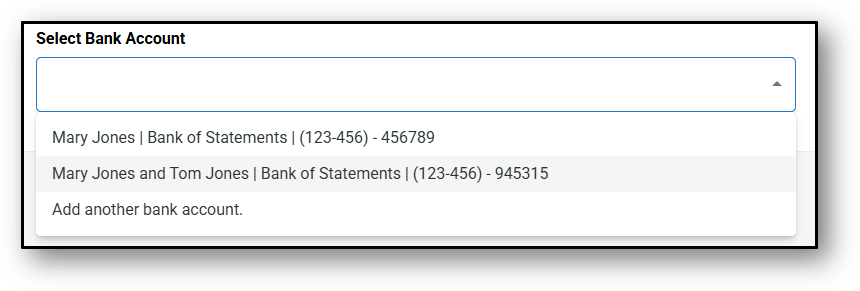
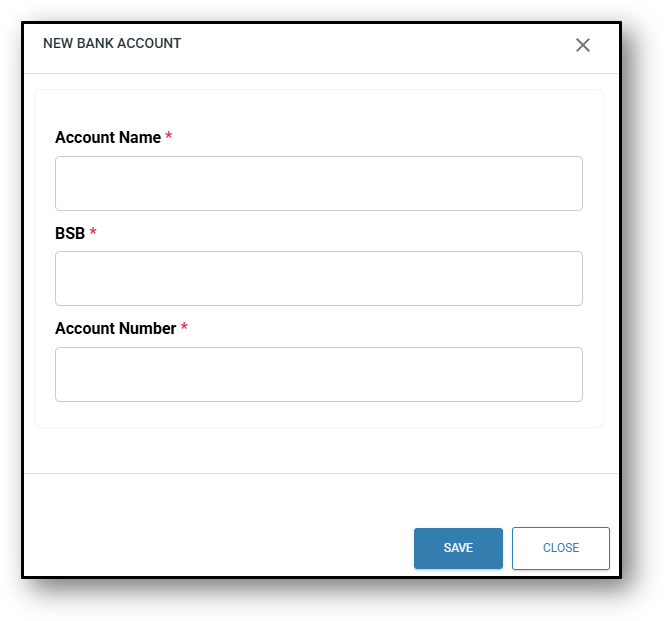
If it’s a bank account with another bank, choose ‘Add another Bank Account’ and fill in the details per the screenshot below.
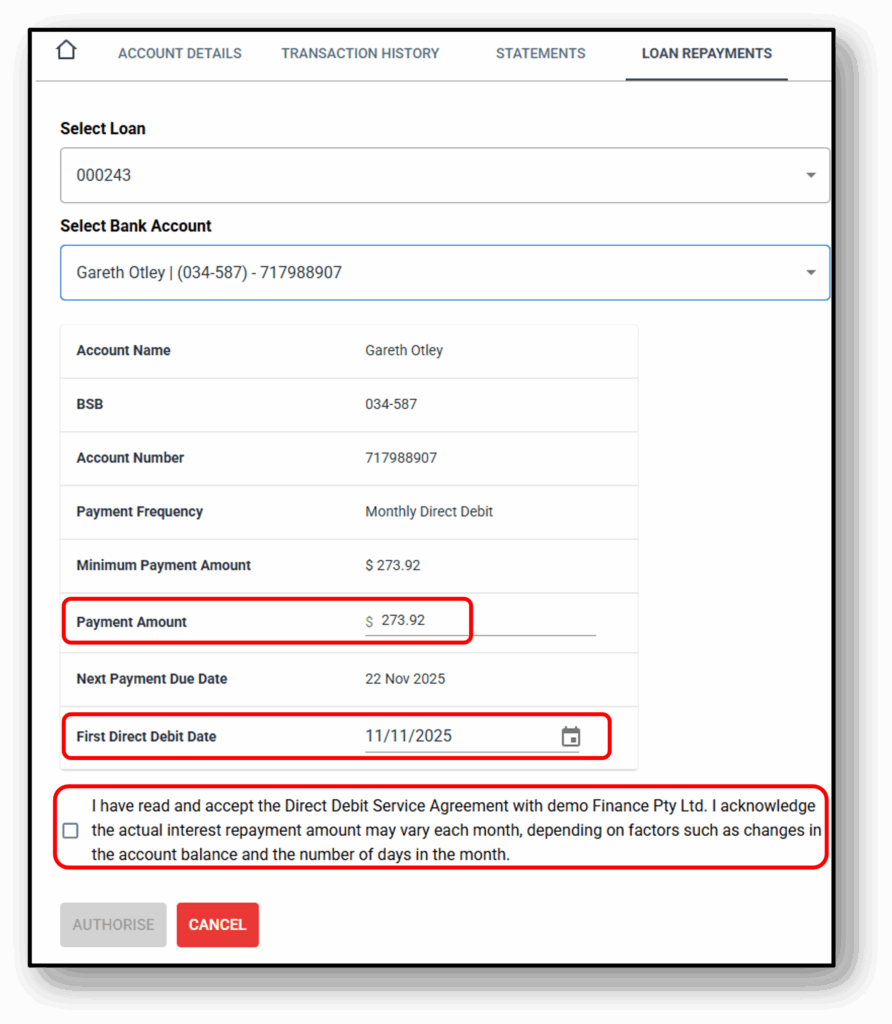
Once the account has been selected, you will need to finalise the last couple of fields before you can ‘Authorise’ the payment:
- Payment Amount (The minimum payment amount will be auto pre-poulated already),
- First Direct Debit Date (The date the first debit will be deducted from the nominated account)
- Acknowledgement (Direct debit service agreement)
Once the Recurring direct debit is setup in the system, the option to setup the payment will now change to ‘Stop Monthly Repayment’.
The other options include setting up ‘one-off repayments’ or Payout & Close’ for the customer. Both payments require similar details to be entered.
NOTE: One-off repayments can be viewed under the ‘Documents’ tab.
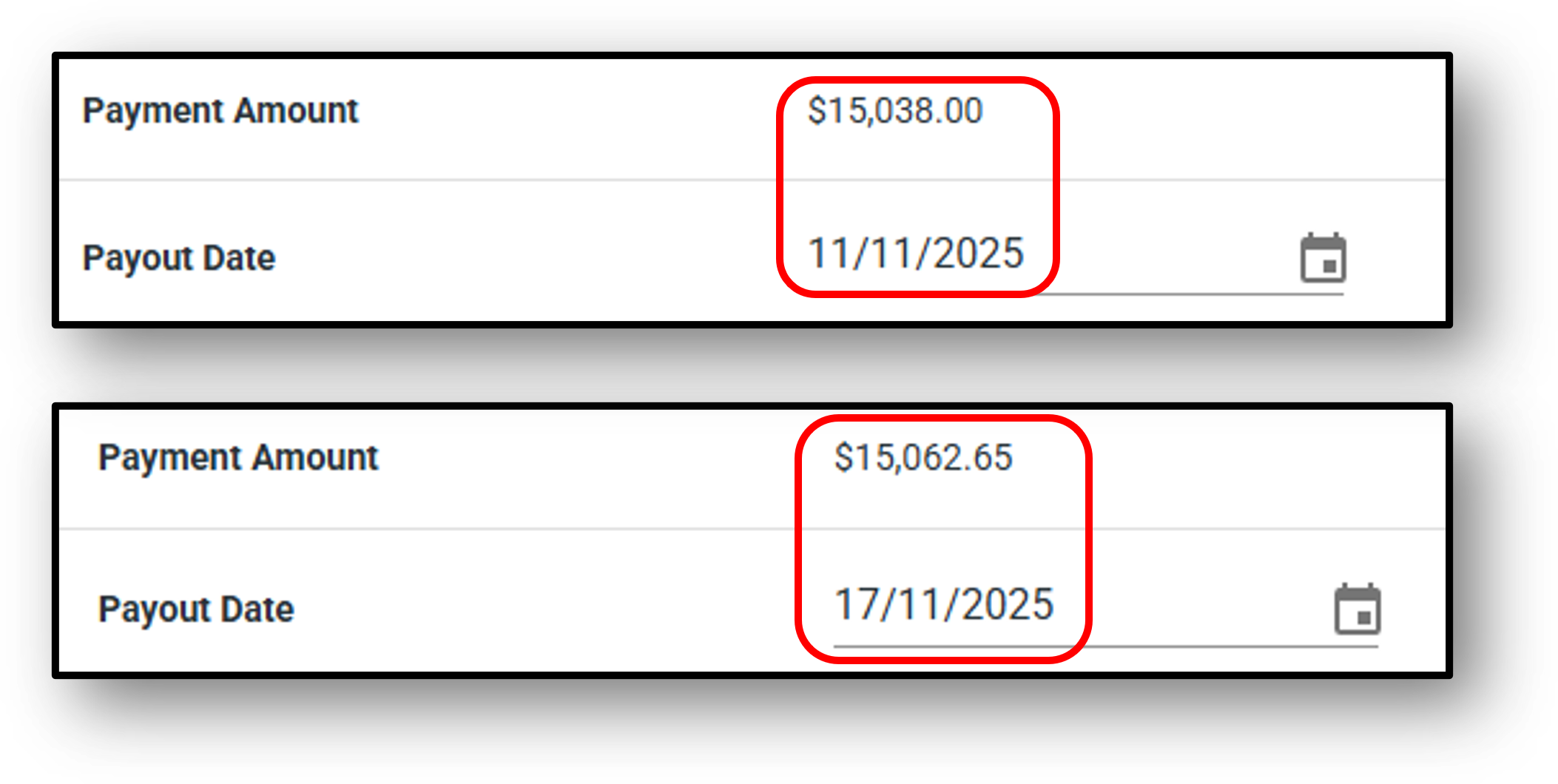
Setting up a final payout figure for the customer can be organised for a up to a week in advance. The system will calculate the payout figure for each of the allowable 7 days in the system. In the example below we can see the same loan with two different payout figures for two different days setup.