Servicing – Home tab
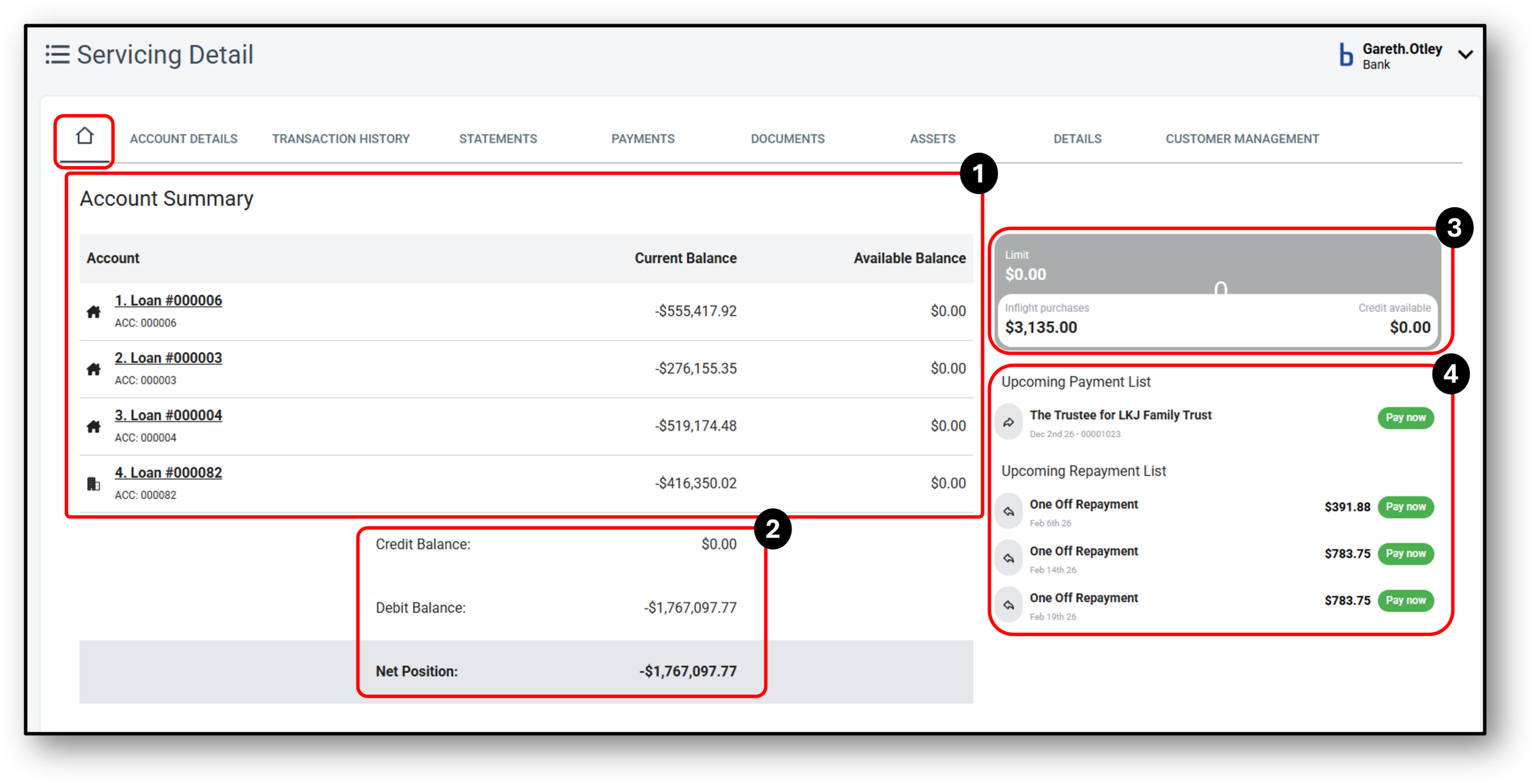
This tab provides an Account Summary of your customers’ core banking for their servicing needs.

1. Account Summary
The Account Summary is the landing tab when entering a customer’s account for either a personal or business customer.
In the centre of the page the user will see a ‘quick balance‘ summary of the customer’s accounts. The layout is as follows:
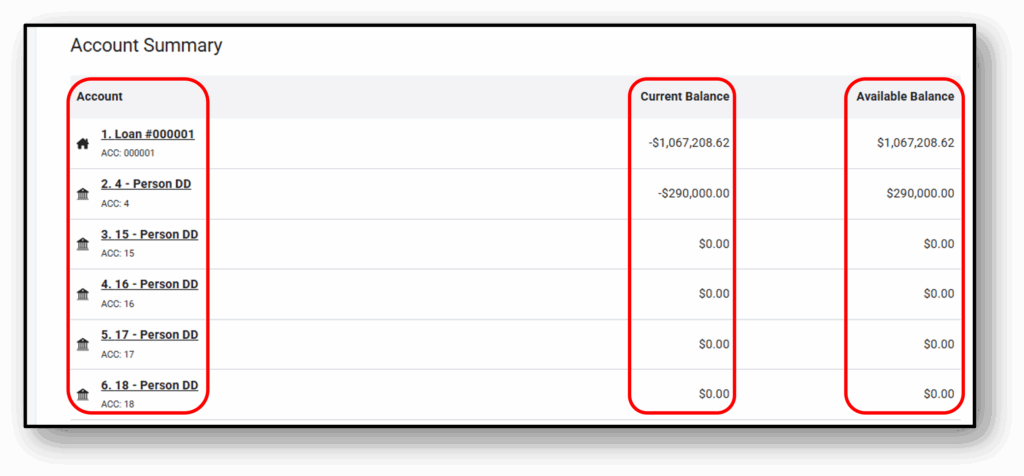
Account Identifiers: On the left-hand side is the account number and name of the account. There will also be an icon to represent the account type as listed in the table further below.
Current Balance: In the middle column, you will see the current balance of each account. If this is a loan account that hasn’t been disbursed, then the balance will show as $0 until it has been disbursed. After disbursement the balance will appear as a negative amount, represented by a ‘minus’ sign.
Available balance: The last column shows the available balance (credit) for the customer to use in that account.
| Icon Type | Description | ||
 |
House – represents a home loan |
||
 |
Building – represents a business loan |
||
 |
Person – represents a personal loan |
||
 |
Building with columns – represents a membership, savings or transaction account (Incl. term deposit) |
||
| No icon – represents a car loan | |||
2. Net Position
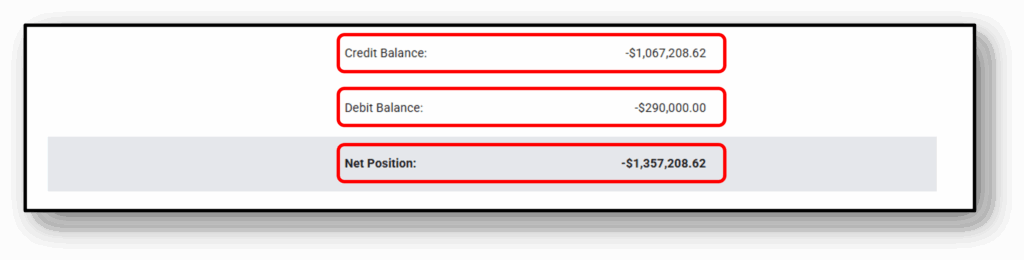
The net position shows the customers overall financial position with your organisation calculating all of the account balances above in the quick balance snapshot.
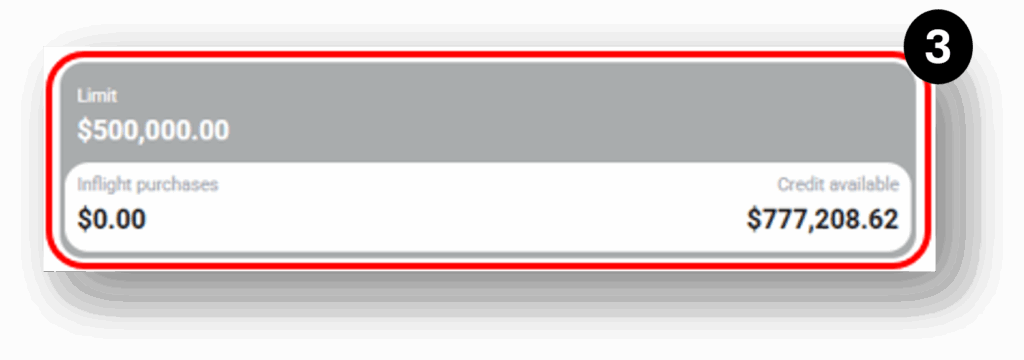
3. Credit Available
This section provides a snapshot of the customer’s available credit and their approved limit across all accounts, including any ‘In-Flight’ purchases. The approved limit may differ from the available credit depending on the status of your customer’s loans, and if the loans have or haven’t been disbursed yet.
4. Upcoming Payments/Repayments
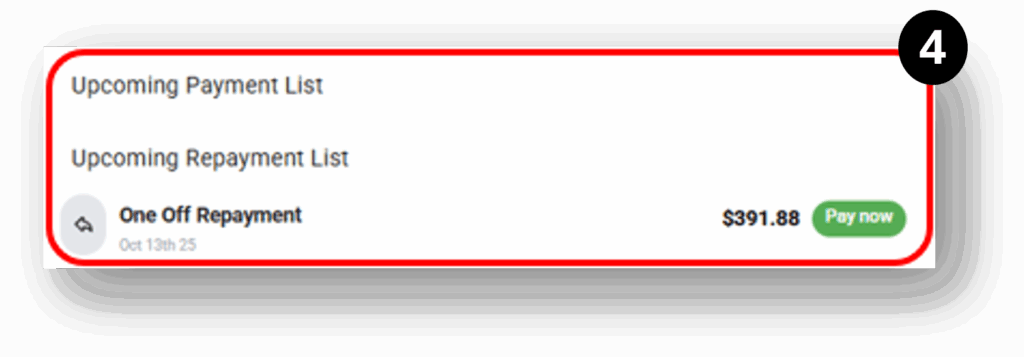
This section shows any upcoming payments/repayments that are scheduled to be processed from the customer’s accounts.
The payment type will be listed in bold (e.g. Monthly Direct Debit, One Off Repayment etc.). The due date appears directly underneath, along with the payment amount. The user is also presented with an option to make the payment immediately on behalf of the customer.