
Servicing – Documents tab
This tab provides the user the ability to view or delete any documents related to the account. Any one-off repayments will also create a document that will appear under this tab.
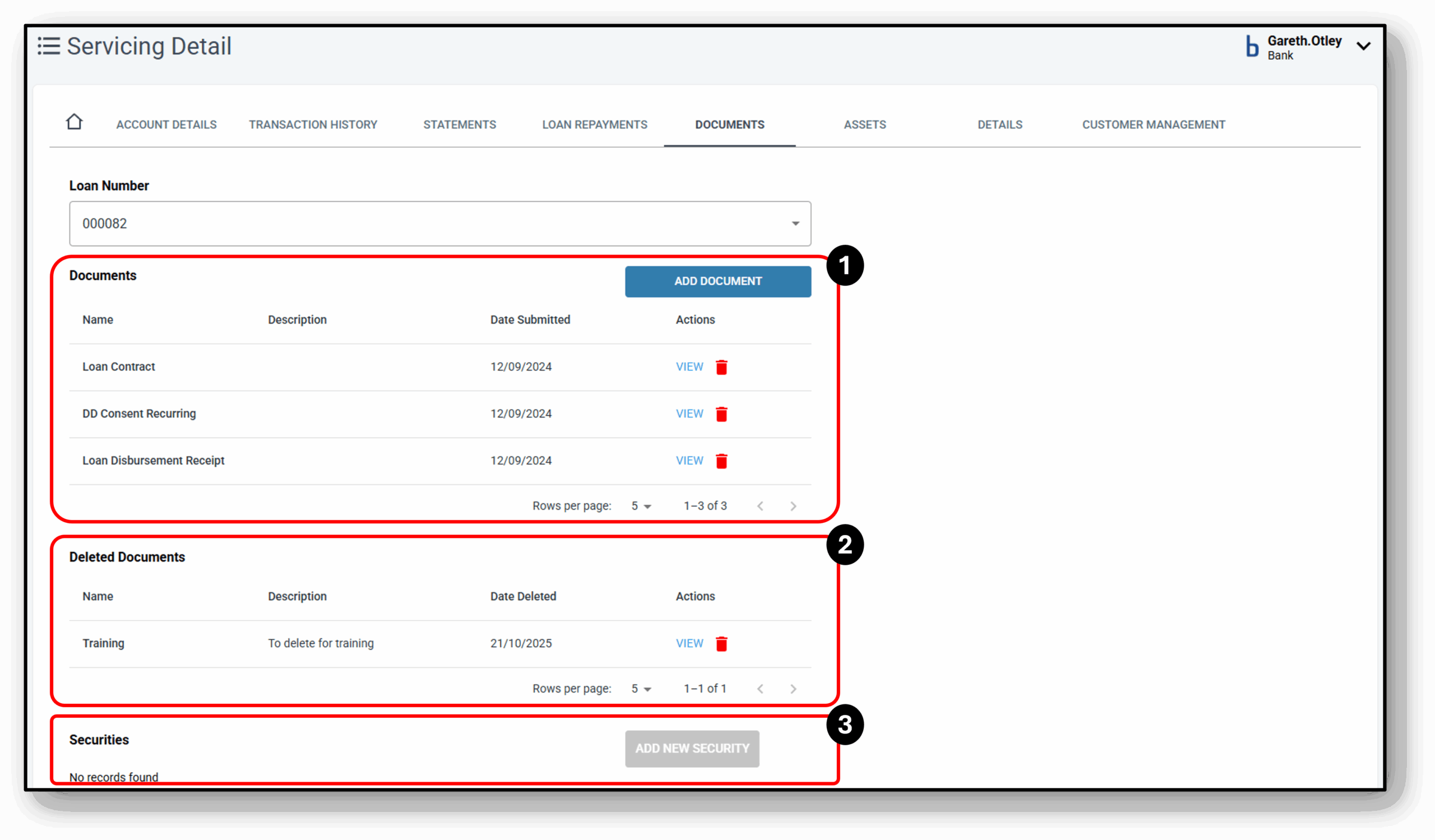

1. Documents
The first section on the documents screen is the existing document section. Any time a new document is created it will appear here. An example of this would be setting up a one-off repayment, once the repayment is setup, a document will automatically be created and will appear in the below section. Users can also delete any documents no longer required or they can view them as well. Viewing them will download the document and if required this can then be resent to the customer.
The last option here is to add another document here if needed.
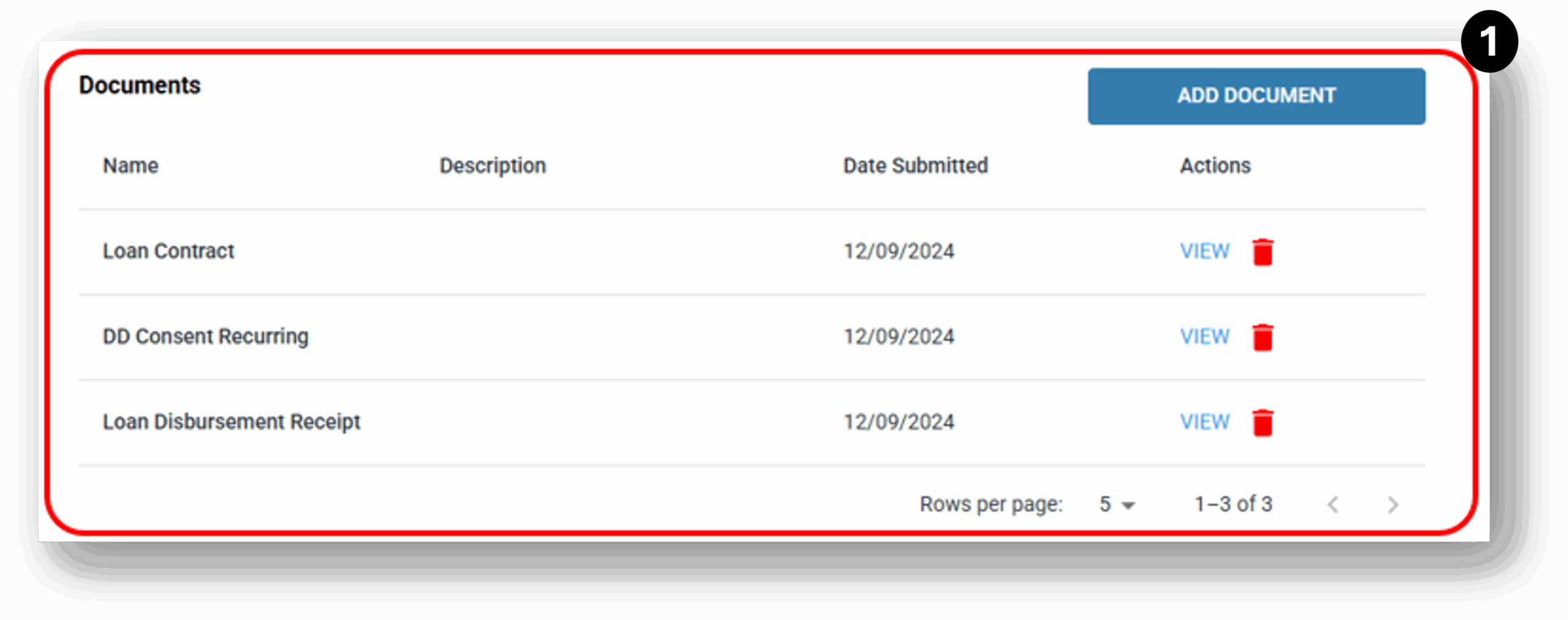
The last option here is to add another document here if needed.

The file name will be the document name e.g. ‘Loan Disbursement Receipt’ or ‘Loan Contract’. The description field can be used if further clarification is required. Once you have the document you can upload or drop it in the drop field. Allowable parameters for files are the following:
Types: PDF, PNG, GIF, JPG, JPEG, MOV & MP4
Size: Up to 200mb
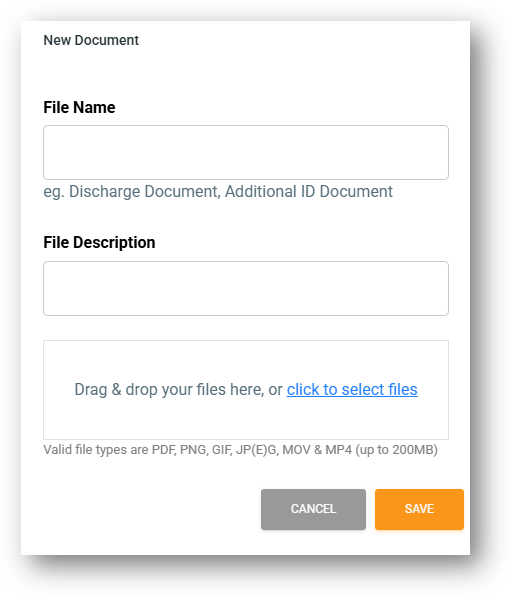
2. Deleted Documents
The second section on the documents screen is the deleted document section. Any time a document is deleted it will appear here. This allows you to see an audit trail of previous documents, An example of this would be deleting an old direct debit document if you were changing the account or the cycle of the repayment. once the documents is deleted, it will sit in this section but if further deleted from here it will no longer be available. Users can still view and download these documents whilst they are housed in this section.
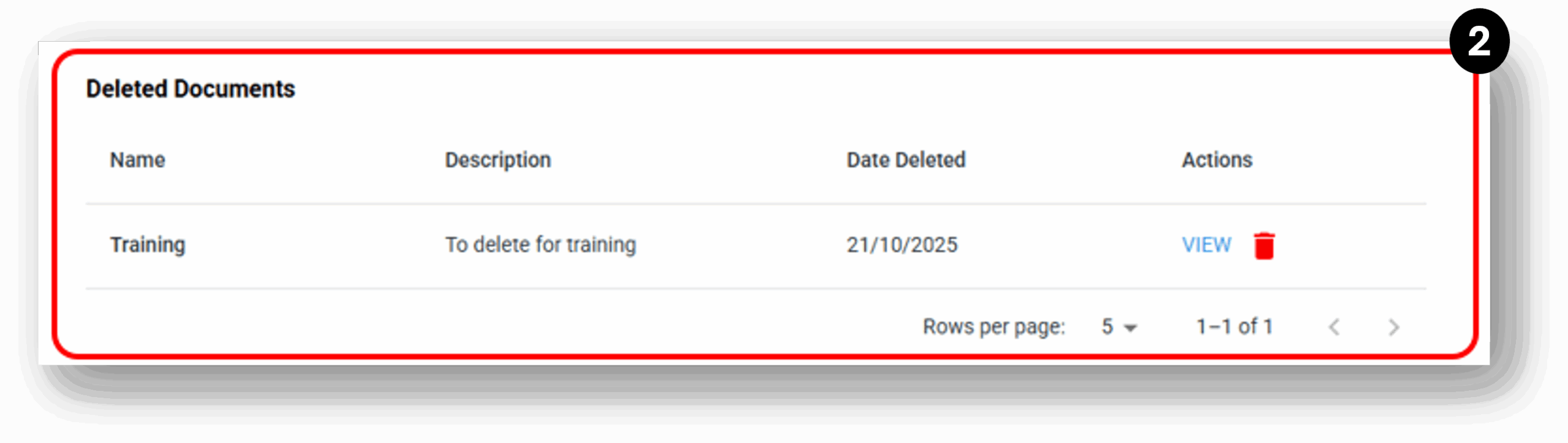
3. Securities
The last section on the documents screen is the securities section. This section will only be applicable to loans that require securities to be added. Most likely the security has already been added, if a customer had a change in security or had a ‘new’ security to add, this is where the security documents would be uploaded by the servicing team.

Frequenty Asked Questions
1. Can I recover a deleted document if I delete it from the deleted document section?
No you can not unfortunately. However you could re-add the document if you have the original