
Servicing – Assets tab
This tab provides the user with the ability to view, add and help manage any purchases as Assets that are related to the account.

1. Add Purchase
To help manage purchases and invoices when servicing a loan, Staff members (and customers) can manage their loan invoices through the assts tab by adding a purchase into the system. By clicking the ‘ADD PURCHASE’ button, staff can upload an invoice on behalf of the customer. This is efffectively the same process for the customer through their internet banking portal.
Step 1: Click Add Purchase
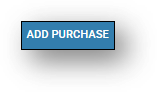
Step 2: Drop the file in the box, or select the file from where you have saved it (if the customer has emailed it to you). Next the document will be scanned and pre-populated as an asset with all the details from the invoice.
Step 3: The asset can now be accessed and managed for further servicing through the View Purchases button.
2. View Purchase
For further Asset servicing, staff can click on the ‘View Purchases’ button. This will bring up the following screen:
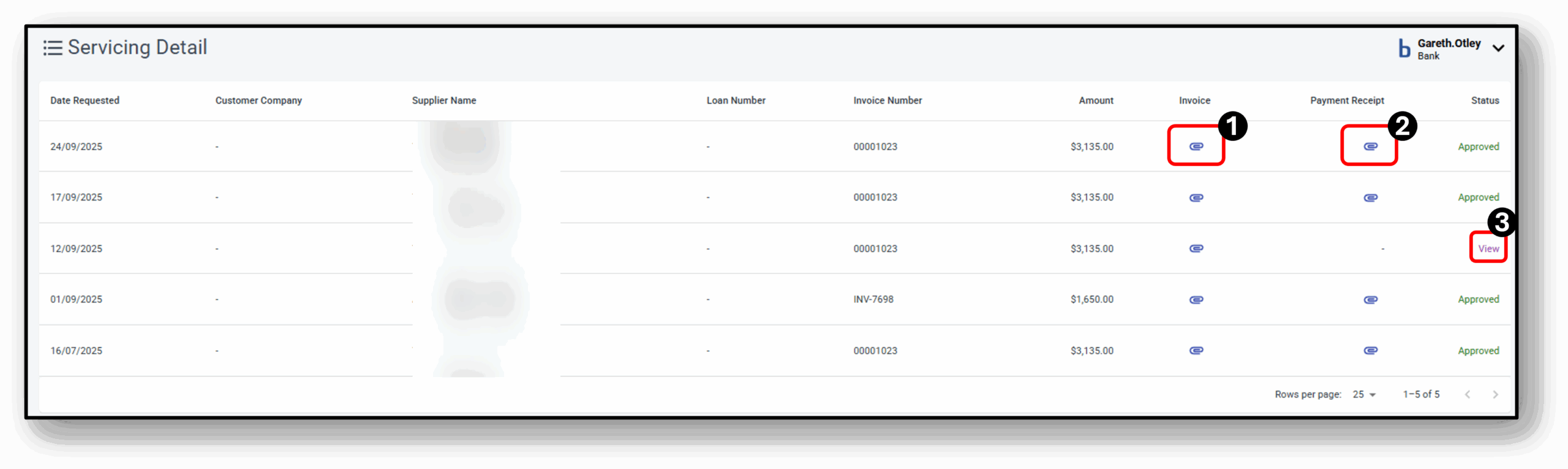
From this area, staff can complete a number of actions including downloading any invoices, payment receipts or view any current invoices that have been added but not yet paid.
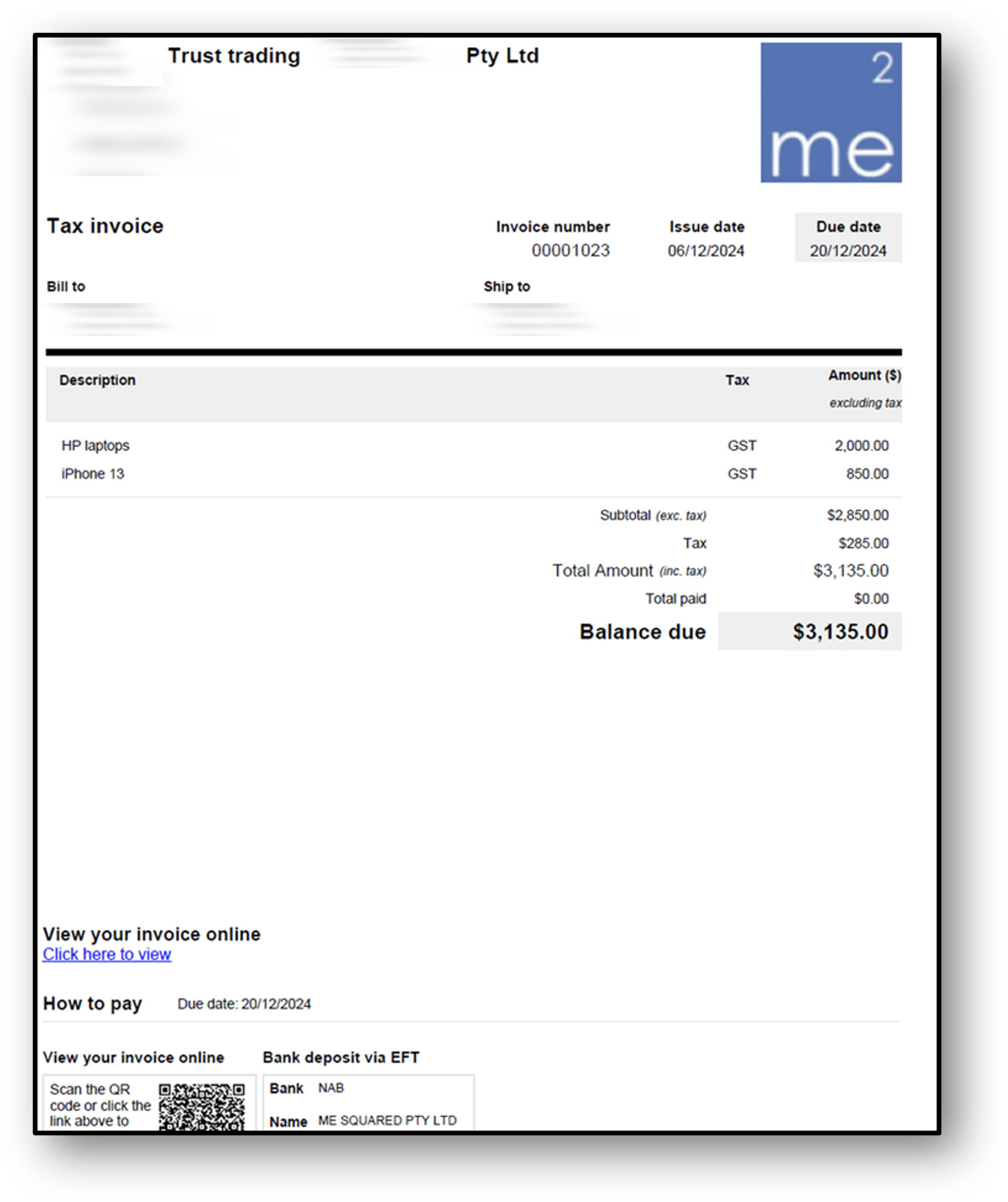
1. Downloading Invoices (click on the Paperclip)
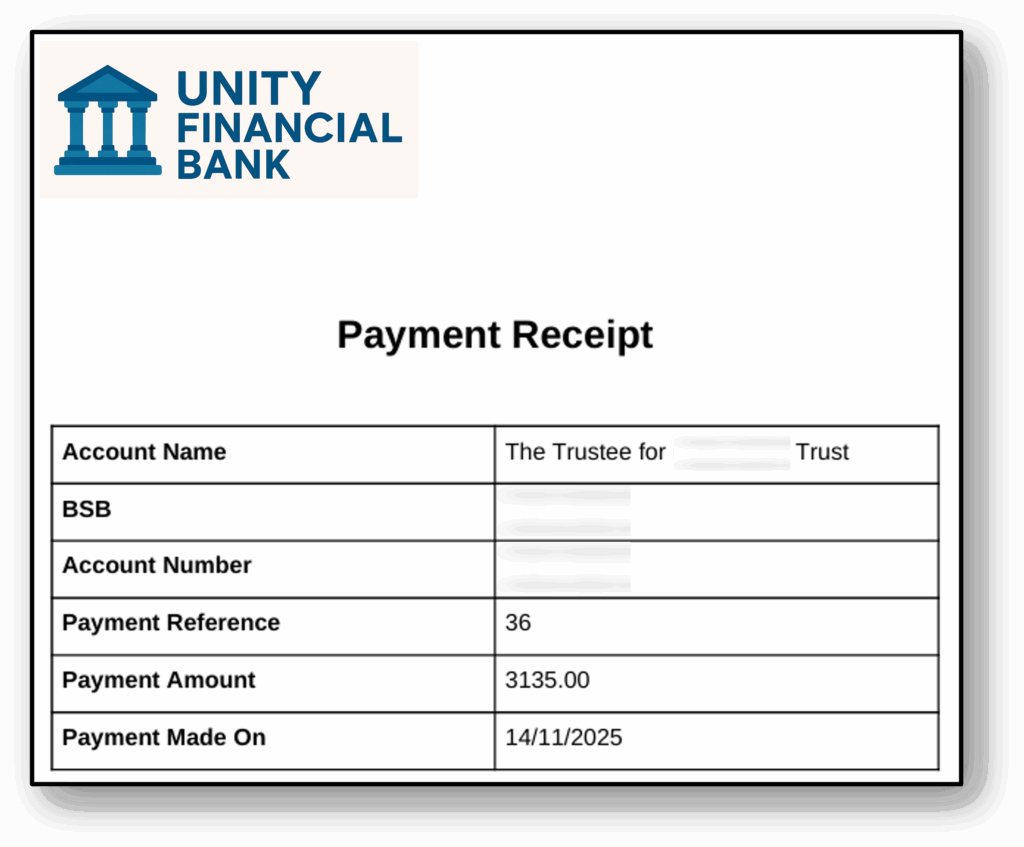
2. Downloading Receipts (click on the Paperclip)
2. Viewing in-flight Invoices (click on ‘View’)
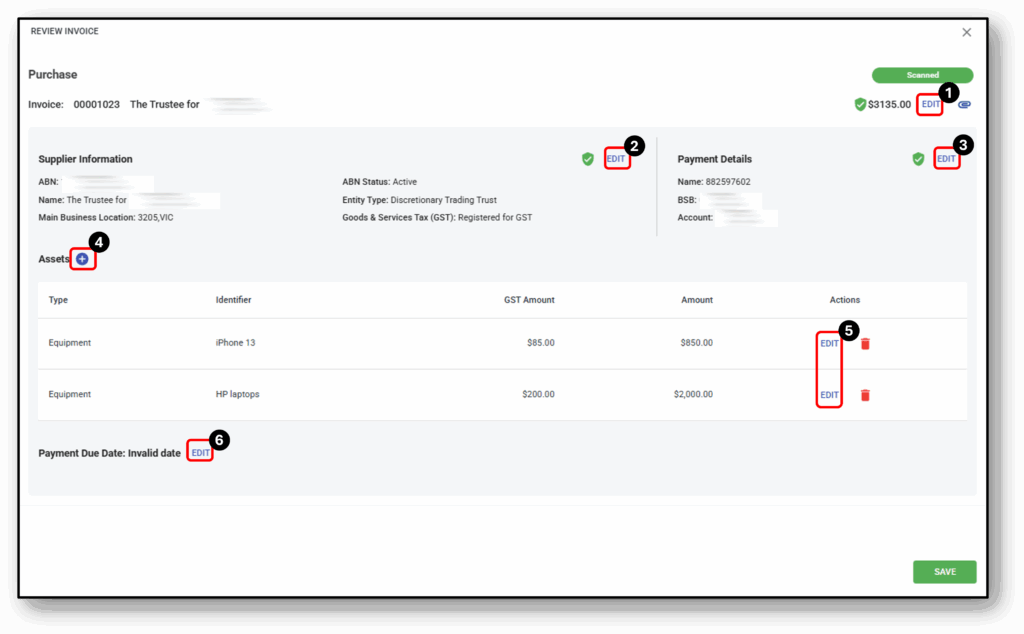
The Review Invoice section is used to also manually update any of the invoice details if they weren’t captured on the document or if they need to be changed. The staff member can edit the following details:
- Invoice amount – Can edit the amount here or review a copy of the full invoice to reference details.
- Supplier information – The key details of the supplier
- Payment Details – The account details the payment for the invoice is due to be processed against.
- Adding (further) assets – If the invoice is multiple pages, this functionality can be used to group the assets to appear on one invoice.
- Editing the asset type – Staff members have the ability to edit the asset data that was captured from the invoice. Options to edit asset information is listed below:
- Payment due date – Staff can set a due date for the payment to be processed.
Editing the asset type
Asset type: ‘Property’ or ‘New Property Purchase’
-
- Identifier Type: Title – Volume and Folio, Other
- Identifier: Open text field
- Purchase Price – Number field
- Address – Address Lookup used
Asset type: ‘Vehicle‘
-
- Identifier Type: PPSR/Other
- Identifier: Open text field
- Purchase Price – Number field
- Vin – Open text field
- Rego – Open text field
- State – Select from all Australian State or territories
Asset type: ‘Equipment’
-
- Identifier Type: PPSR/Other
- Identifier: Open text field
- Purchase Price – Number field
3. View/Edit Asset
Editing asset details:
To update the asset details and further manage the asset, users can click on the right-hand side ‘View’ option aligned with the asset. When you click on the view option it will open the following Asset details screen:
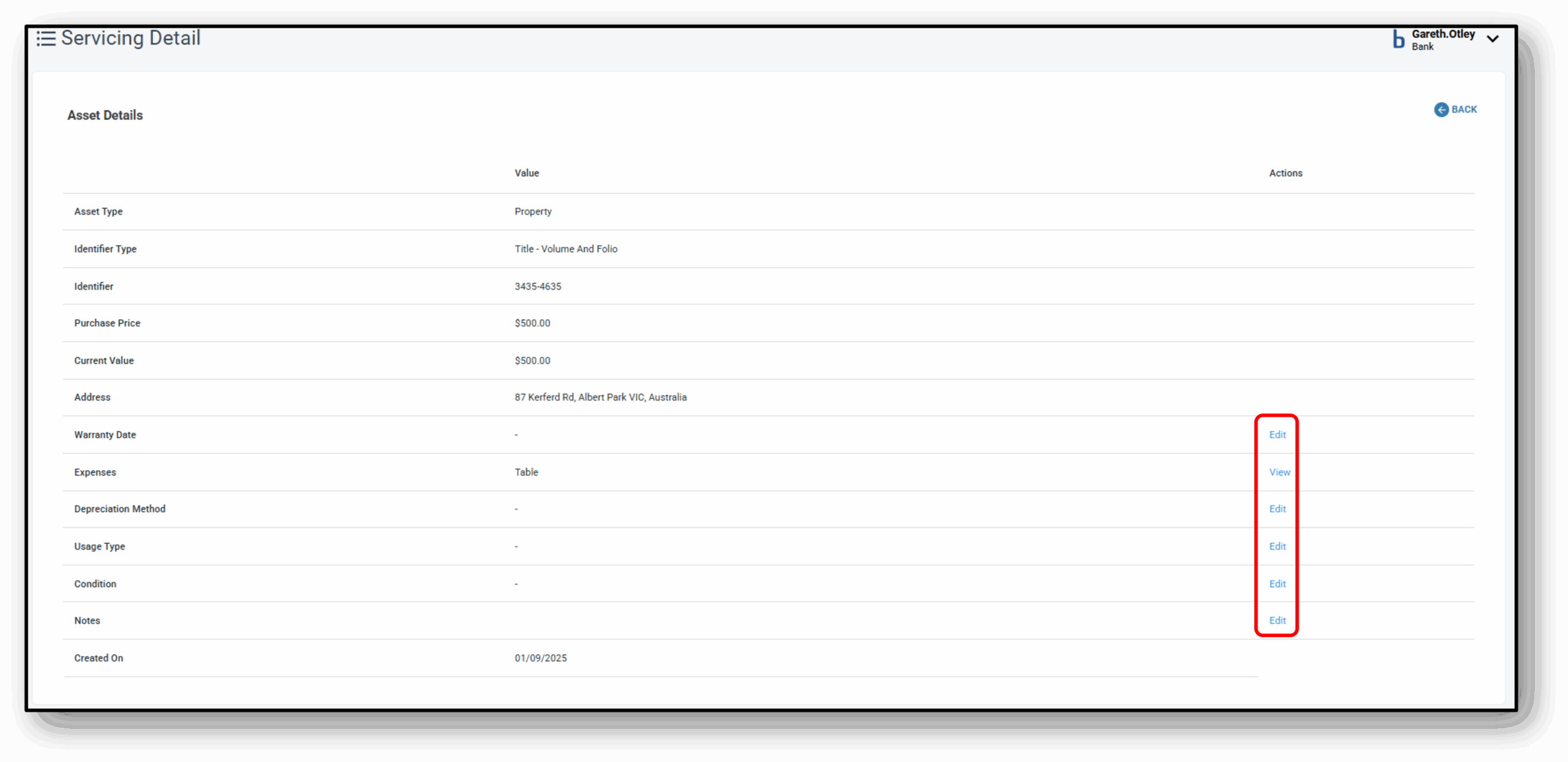
From here, users will be able to update the following asset details:
- Warranty Date – Add the warranty coverage date of the asset
- Expenses – Add the amount of the asset to the expense table
- Depreciation Method – Choose between 4 different methods:
- Straight Line – calculates an average decline in value over a period)
- Units of Production – calculates an equal expense rate to each unit produced)
- Double Declining Balance – the declining balance method assumes an asset is valuable in its earlier years & loses value in the coming years. The double declining balance is a more accelerated depreciation.
- Sum of the years digits: The sum of years determines depreciation at a rate faster than the straight-line method but less than the declining balance method. It yields higher depreciation expenses in the early years and declines later. It’s useful when an asset loses most of its value toward the beginning of its useful life.
- Usage Type – Hours, KMs, Other
- Condition – New, Good, Fair, Poor, Written Off
- Notes – An editable text area to provide further notes about the asset.
Frequenty Asked Questions
1. What if the invoice I'm trying to upload allow me to upload it?
If the document doesnt upload for any reason, you will then be givenm the choice to manually edit the details of the invoice and create the invoice