Risk – Pricing tab
The Risk Pricing tab allows users to create, modify & delete Risk-based pricing rules. Risk Based pricing ensures interest rates reflect the borrower’s risk profile without manual intervention. Pricing rules enable uniform application across all eligible loans.

1 - Add New Pricing Rules
Add the new pricing rule to a Module:
Select the ‘Add New Pricing Rules’ button to begin. You will be prompted with the Risk Pricing Details page (See image below) and to name your new Pricing Rule.
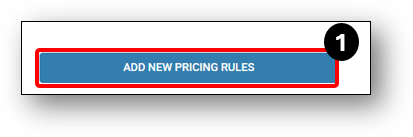
- Click on the Module (e.g. Purpose Vehicle Loan),
- Select the question that you are modifying (e.g. ‘Why are you looking for a vehicle loan?),
- Then the choice to that question ‘Purchase’ or ‘Refinance’,
- Then ‘Edit’,
- Next, click on the Adjustment drop-down field and select whether you are making a ‘Discount’ or ‘Adding’ to the Interest rate,
- Then select the amount of the increase/decrease to apply to the interest rate, and
- Finally, click the ‘Update‘ button. The Green tick will signify that a field or fields have been updated in these modules.
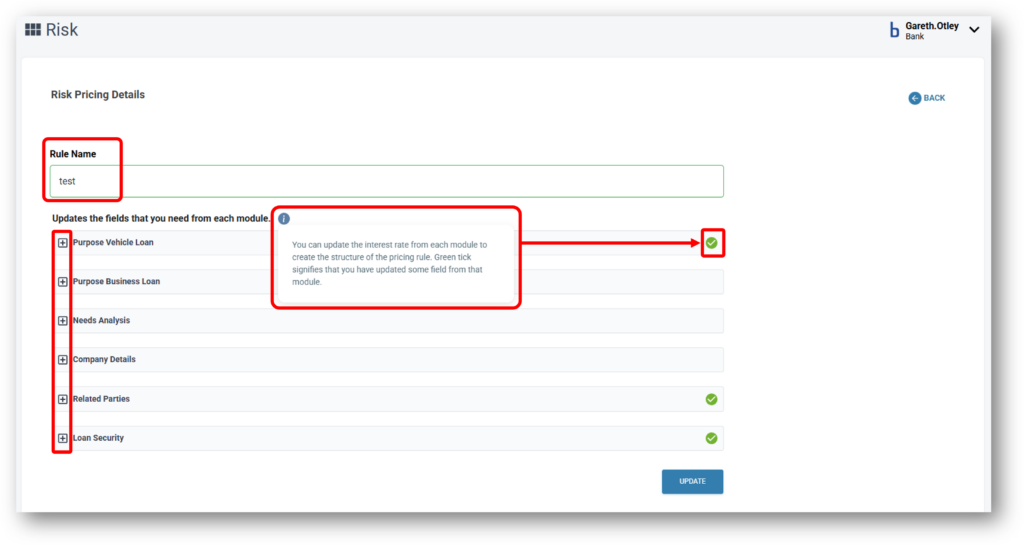

Adding a Risk-Based Pricing rule to your Product:
1. Navigate to the Marketing layer,
2. Then to the Product tab,
3. Select a Vehicle or a Business product on which you wish to apply Risk based pricing to,
4. Scroll to the Risk Pricing section and click on Edit (See image below).
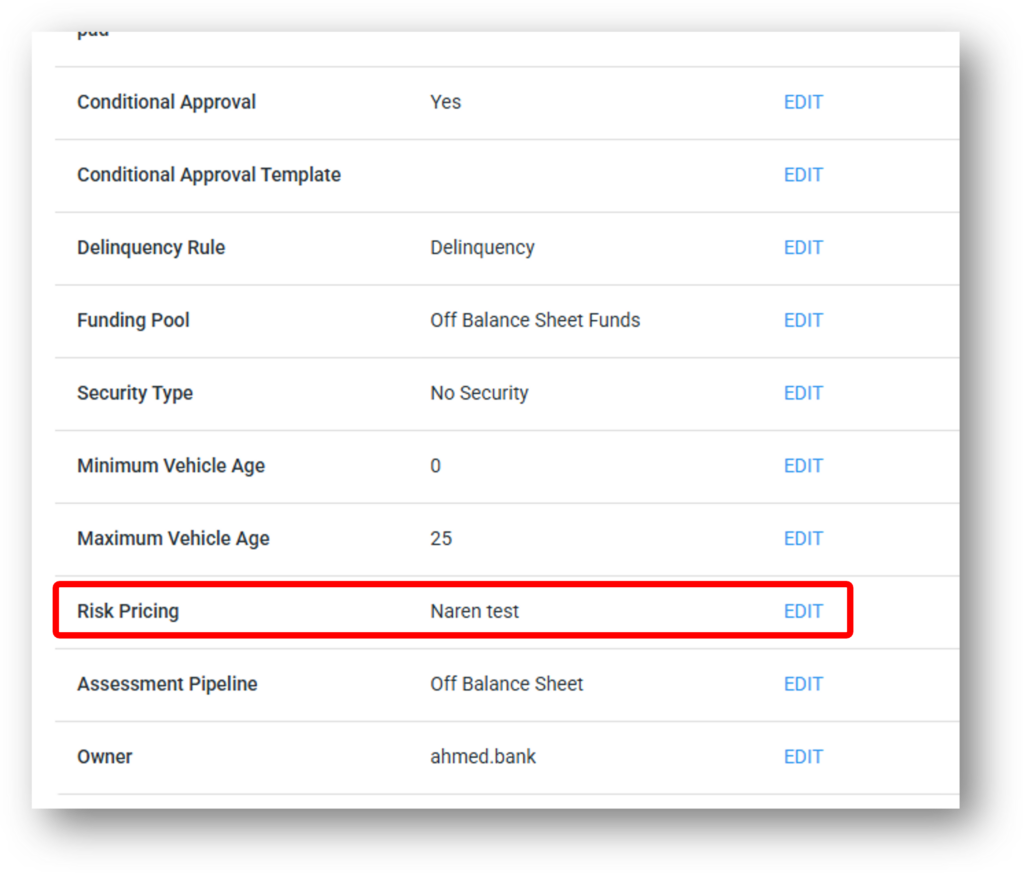
5. Select your newly created Risk Pricing rule, describe the reason for the change (which will leave an audit note) and click Save (See image below).
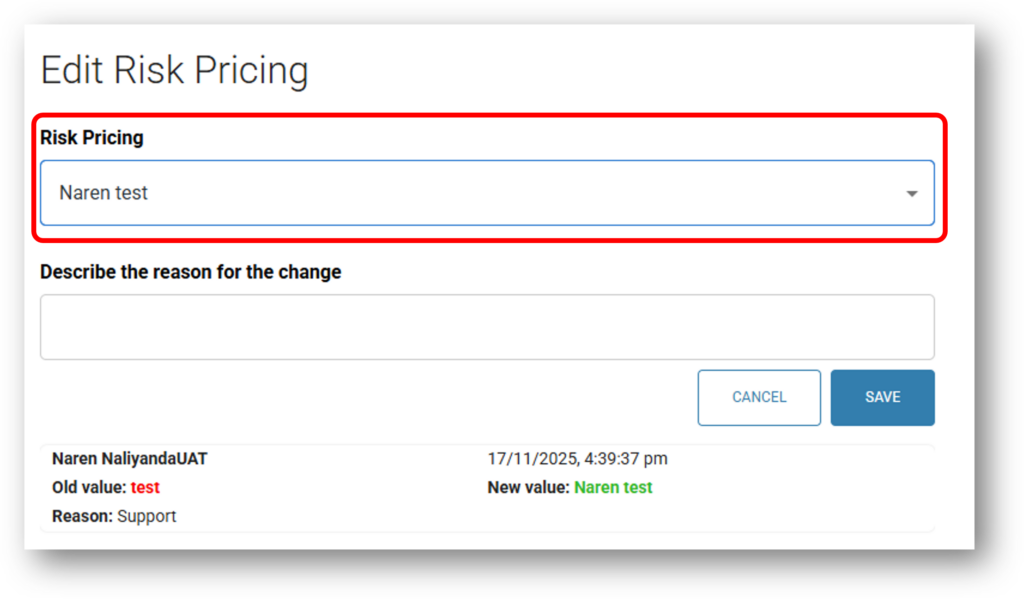
This will apply the configured risk based rules when the respective questions are answered in the customer application form and would automatically add or discount the rate on top of the base interest rate.
E.g: For a scenario where for the question ‘Why are you looking for a Vehicle Loan?’ Risk Rate is set to Discount 0.5% and the base interest rate is 8.00% for the loan product selected, the overall Risk based interest rate would be 7.50%. To verify if Risk pricing is correctly applied to the Interest rate after the application is submitted:
- Navigate to the Application,
- Select the Product tab,
- Scroll down to Interest Rate,
- Click Edit. You should see the summary of all the risk rules applied to your base interest rate.
Configure Risk-Based ‘Pricing Change Rules’ to be applied at different stages:
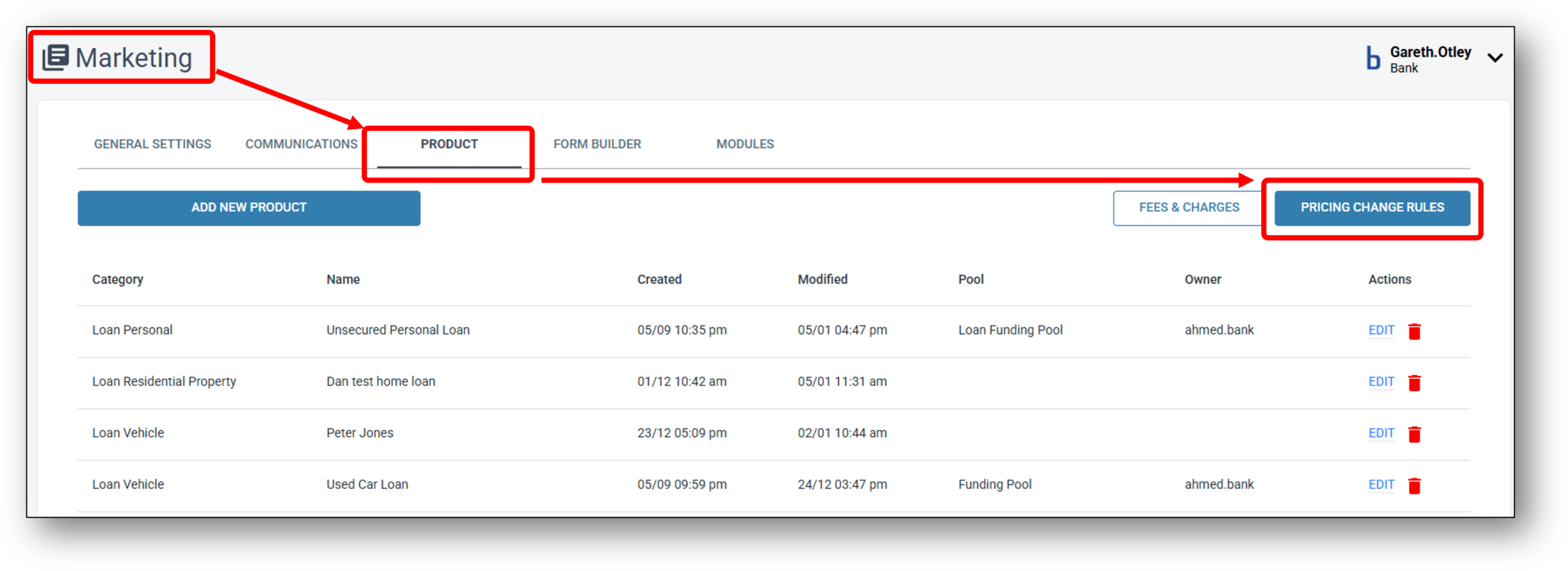
Risk Based Pricing can also be applied at different stages of the application process through a set of available rules that can be toggled on/off. To configure and apply these settings:
- Navigate to the Marketing layer,
- Select the Product tab,
- In the top right-hand side, click the ‘Pricing Change Rules’ button,
- Apply the ‘Pricing Changes Rules’ to take effect at either the Enquiry – 1, Application – 2, or Assessment – 3 stage of an application (See image below for reference).
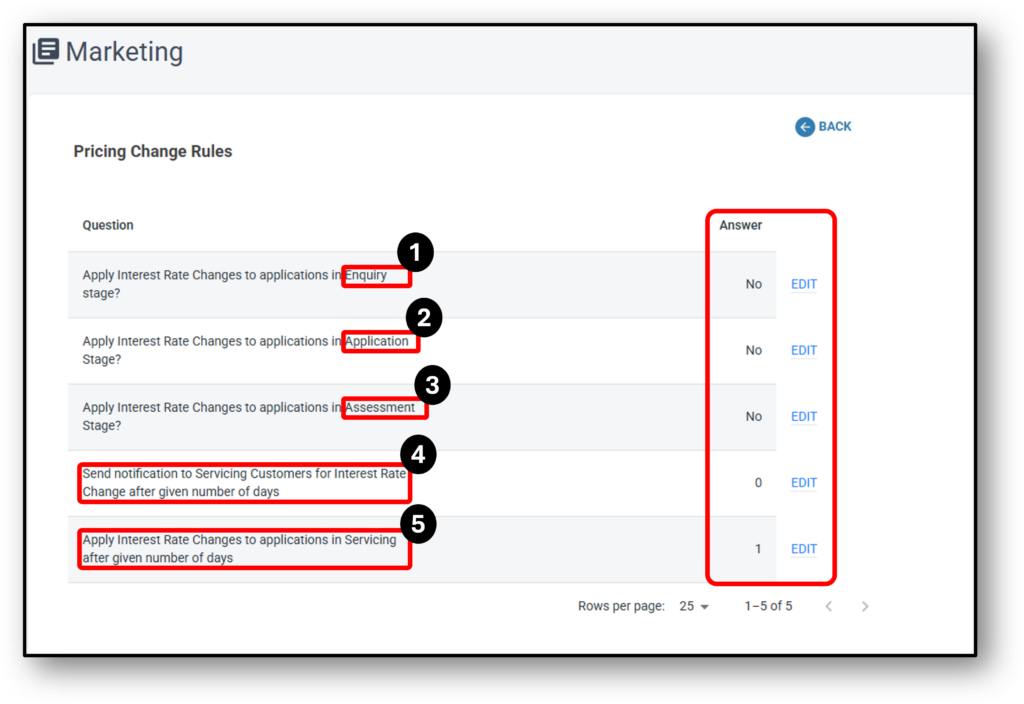
Interest rate configurations for Servicing customers:
Referring to the image above, Servicing teams can also apply changes to an Interest Rate – 5, and Send Notifications – 4 to customers at a set amount of days by editing the respective fields on the right-hand side.
Points to Note:
1. Ensure that any questions inside modules within which risk-based pricing is applied in the Risk layer are positioned in such a way that they appear before the Product Selection page for optimal Risk price calculation.
E.g. In Risk Pricing, there’s a Risk rule set up for one of the questions inside the Related parties module. So, inside the form builder respectively, lenders need to ensure that the ‘Related Parties’ module should be positioned before the ‘Products Selection’
module (see image below).
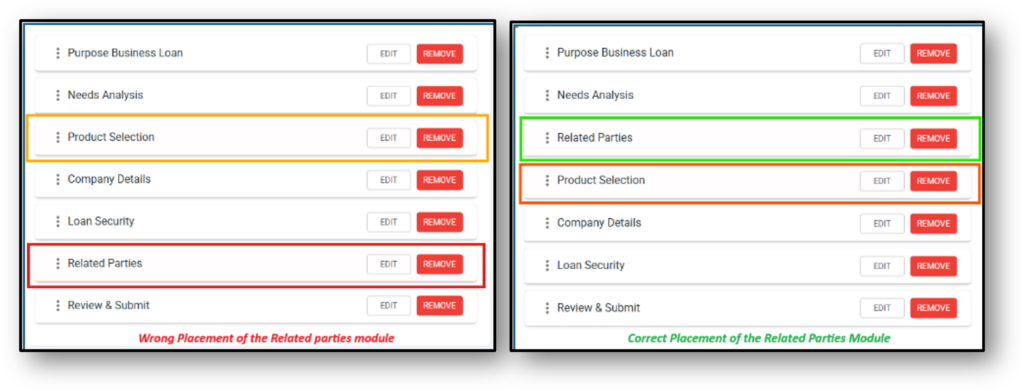
2. In case of multiple Related parties involved, the system will compare and apply the higher risk rate to the base interest rate.
E.g: Base interest rate = 10.00%
Risk Rate calculated for Related Party 1:
for Question: Your relationship with the applicant
Risk rate = +0.2% for Director
for Question: Are you an existing customer?
Risk rate = +0.3% for Yes
Total risk rate for Related Party 1 = 0.5%
Effective interest rate = 10.5%
Risk Rate calculated for Related Party 2:
for Question: Your relationship with the applicant
Risk rate = -0.2% for Guarantor
for Question: Are you an existing customer?
Risk rate = -0.3% for No
Total risk rate for Related Party 2 = -0.5%
Effective interest rate = 9.5%
Since the new rate in case of Related Party 1 is higher, the system will consider 10.5% as the new and effective interest rate
3. In case of multiple Loan Securities involved, the system will compare and apply the lower risk rate to the base interest rate.
E.g: Base interest rate = 10.00%
Risk Rate calculated for Loan Security 1:
for Question: Property type
Risk rate = +0.2% for Apartment/Unit
for Question: Registration State
Risk rate = +0.3% for Yes
Total risk rate for Loan Security 1 = 0.5%
Effective interest rate = 10.5%
Risk Rate calculated for Loan Security 2:
for Question: Property type
Risk rate = -0.2% for Apartment/Unit
for Question: Registration State
Risk rate = -0.3% for Yes
Total risk rate for Loan Security 2 = -0.5%
Effective interest rate = 9.5%
Since the new rate in case of Loan Security 2 in lower, the system will consider 9.5% as the new and effective interest rate
2 - Edit/Delete Existing Rules
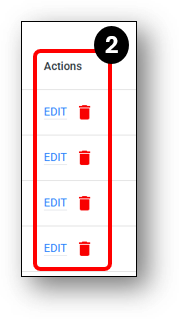
After Clicking the edit Button associated to the rules, the Risk-Pricing Details page will open.
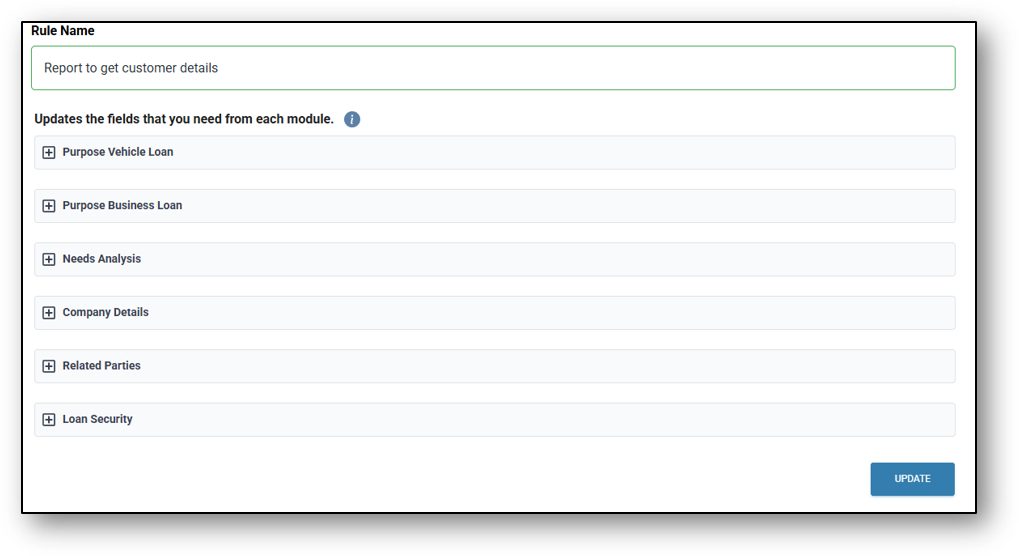
To change the existing pricing rule:
- Click on the Module (e.g. Purpose Business Loan),
- Select the question that you are modifying (e.g. ‘Why are you looking for a vehicle loan?),
- Then the choice to that question ‘Purchase’ or ‘Refinance’,
- Then ‘Edit’,
- Next, click on the Adjustment drop-down field and select whether you are making a ‘Discount’ or ‘Adding’ to the Interest rate,
- Then select the amount of the increase/decrease to apply to the interest rate, and
- Finally, click the ‘Update‘ button.
NOTE: For Date type fields, you can configure the duration in Months. For example: If you want to configure a discount rate of 0.5% For purchases less than a year, you can input the duration as 13 Months