Risk – Conditional tab
The Conditional tab allows the lender to select all of the Conditional approval conditionals they would like to be available for a loan.
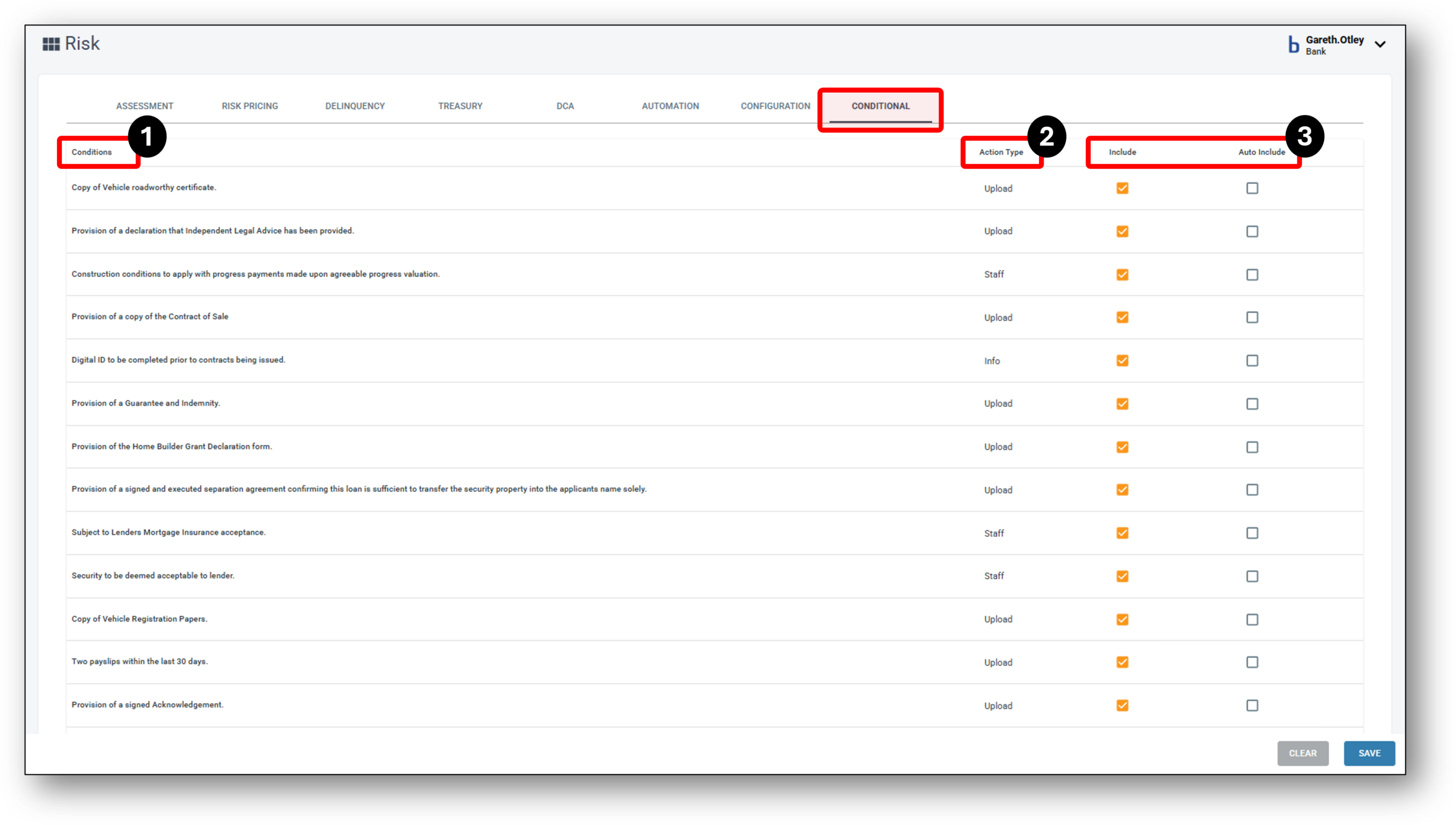

1 - Conditions
Conditional Approval is a stage in the loan application process where an application is approved subject to certain conditions being met. Here’s a brief overview of how it works:
- Application Process: The application goes through various stages: enquiry, application, assessment, conditional approval, approved, settlement, and complete.
- Adding Conditions: During the assessment stage, conditions can be added to the application. These conditions can be manual or pre-filled and may require actions such as document uploads by the customer or staff.
- Conditional Approval Stage: Once conditions are added, the application status moves to “Conditional.” A Conditional Approval PDF is generated, and the customer can upload the necessary documents via the Customer Portal. Once all documents are uploaded, the application can be fully approved.
- Types of Conditions:
- Upload: Requires the customer to upload documents.
- Staff: Requires merchant staff to upload documents.
- Info: For display purposes only, no action required.
- Compliance Requirements: In some cases, such as joint applications, additional compliance requirements may be necessary, like confirming that each applicant has been spoken to independently.
- Templates and Errors: Conditional approval templates are used to standardize the approval documents. Errors in templates, such as missing fields, can occur and need to be addressed.
- Completion of Conditions: Conditions can be completed by uploading required documents or, in some cases, by other means if no document is involved.
- Approval and Settlement: Once all conditions are met, the application can move to the approved stage and then to settlement.
Step-by-Step Instructions: Using the Conditional Configuration Feature
Step 1: Navigate to the Conditional Tab
- Go to the Risk layer on left hand panel.
- Click on “CONDITIONAL” to access the conditions settings.
Step 2: View the Global List of Conditions
- The screen displays a comprehensive list of predefined conditions such as:
- Copy of Vehicle roadworthy certificate
- Provision of a declaration that Independent Legal Advice has been provided
- Digital ID to be completed prior to contracts being issued
Step 3: Select Conditions to Include
- In the “Include” column, tick the checkbox for each condition you wish to include in the application list.
- Only the included items will be available for select in the application
Step 4: Auto-Include Essential Conditions
- To have a condition added automatically every time (without manual selection), tick the checkbox under the “Auto Include” column.
- This is ideal for conditions that are always required, such as:
- Building Insurance Certificate
Step 5: Save & Apply Changes
- Ensure your selections are saved so they are applied to future workflows or templates.
NOTE: You still need to press the SAVE button in the Application Layer Conditional tab to save the selected conditions, even if they have been auto included.

Below, you’ll find a complete list of Nimo’s out of the box ‘Conditional Approval’ conditions that lenders can choose to have available for each loan.
Conditions |
Action Type |
| Copy of Vehicle roadworthy certificate. | Upload |
| Provision of a declaration that Independent Legal Advice has been provided. | Upload |
| Construction conditions to apply with progress payments made upon agreeable progress valuation. | Staff |
| Provision of a copy of the Contract of Sale | Upload |
| Digital ID to be completed prior to contracts being issued. | Info |
| Provision of a Guarantee and Indemnity. | Upload |
| Provision of the Home Builder Grant Declaration form. | Upload |
| Provision of a signed and executed separation agreement confirming this loan is sufficient to transfer the security property into the applicants name solely. | Upload |
| Subject to Lenders Mortgage Insurance acceptance. | Staff |
| Security to be deemed acceptable to lender. | Staff |
| Copy of Vehicle Registration Papers. | Upload |
| Two payslips within the last 30 days. | Upload |
| Provision of a signed Acknowledgement. | Upload |
| Copy of non-borrower declaration from applicants partner/spouse. Note: the current assessment assumes an equal split of household expenses. Other percentage splits may affect the pre-approval. Please download from the documents tab. | Upload |
| Subject to evidence of funds to complete the purchase being provided. | Upload |
| Subject to a satisfactory valuation being completed. | Staff |
| Provision of a signed and dated exit strategy letter. | Upload |
| Provision of a statutory declaration from <NAME> confirming a non-refundable gift of $<AMOUNT> is to be provided to you. | Upload |
| Provision of a Certificate of Independent Legal Advice. | Upload |
| Provision of an ATO Notice of Assessment confirming lodgement of the required Tax Return and ATO portals confirming an acceptable tax status. | Upload |
| Provision of Independent Legal and Independent Financial Advice in regards to this loan. | Upload |
| Subject to nominated debt/s being paid out and closed prior to/at settlement. | Staff |
| Confirmation that funds to complete settlement have been provided to the solicitor’s trust account or alternatively debited from a transaction account held. | Upload |
| Satisfactory employment check to be conducted. | Info |
| Confirmation of Odometer Reading. | Upload |
| Copy of warranty invoice. | Upload |
| Evidence of Private Sale Invoice. | Upload |
| Copy of signed privacy policy noting Lender. | Upload |
| Specific Security Agreement to be lodged on the Personal Properties Security Register at settlement. | Staff |
| Provision of a Conditional Approval from the relevant state authority prior to the application being unconditionally approved. | Upload |
| Provide confirmation that the sale of the existing <INSERT ADDRESS> property is to settle prior to, or simultaneously with, this new purchase. | Upload |
| Evidence of Dealer Sale Invoice. | Upload |
| Provision of the required customer verified ID. | Staff |
| A copy of the HIA/MBA standard fixed price build contract including plans and inclusions is to be provided with an acceptable progress schedule. | Upload |
| Attach evidence of the spouse’s income in addition to a signed Statement of Position being provided to confirm they are financially independent. Signed privacy declaration provided to enable these documents to be sourced. | Upload |
| Provision of a Council approved plans prior to loan funding. | Upload |
| Subject to FHOG approval. | Upload |
| Provision of a Certificate of Currency (Insurance) noting the lender as an interested party. | Upload |
| Copy of Medicare card. | Upload |
| Provision of the required Dealer invoice/car registration documentation. | Upload |
| Satisfactory residential check to be conducted (contact name; number and relation to applicant to be provided). | Info |
| Provision of a a signed Accountant’s letter confirming <COMPANY> is trading profitably or not at all. If this entity is the trustee of a trust, the same is to be confirmed of the trust. | Upload |
| Comprehensive vehicle insurance noting the financial institution as the interested party. | Upload |
| Provision of a signed Guarantee and Indemnity document prior to settlement. | Upload |
2 - Action Type
Nimo has the ability to apply conditions at either the Approval or Settlement stage of the loan lifecycle. At each stage, the user can choose between three Action types of conditions:
Action Type
- Upload: Customer is required to upload a document (In Customer portal).
- Info: For display purposes only, no action required and can still approve loans with ‘info‘ conditions
- Staff: Requires merchant staff to upload documents (In Merchant Portal).
3. Include & Auto Include
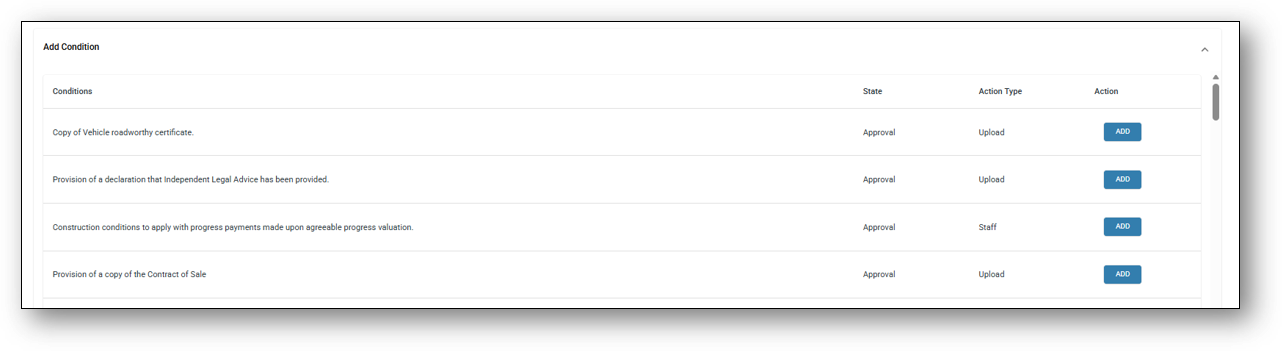
Selecting the ‘Include‘ checkbox means the condition will be available to select from in the Assessment layer under the Conditional tab. If the condition has been selected to be included, staff will be able to select the condition in the ‘Add Condition’section (see image below).
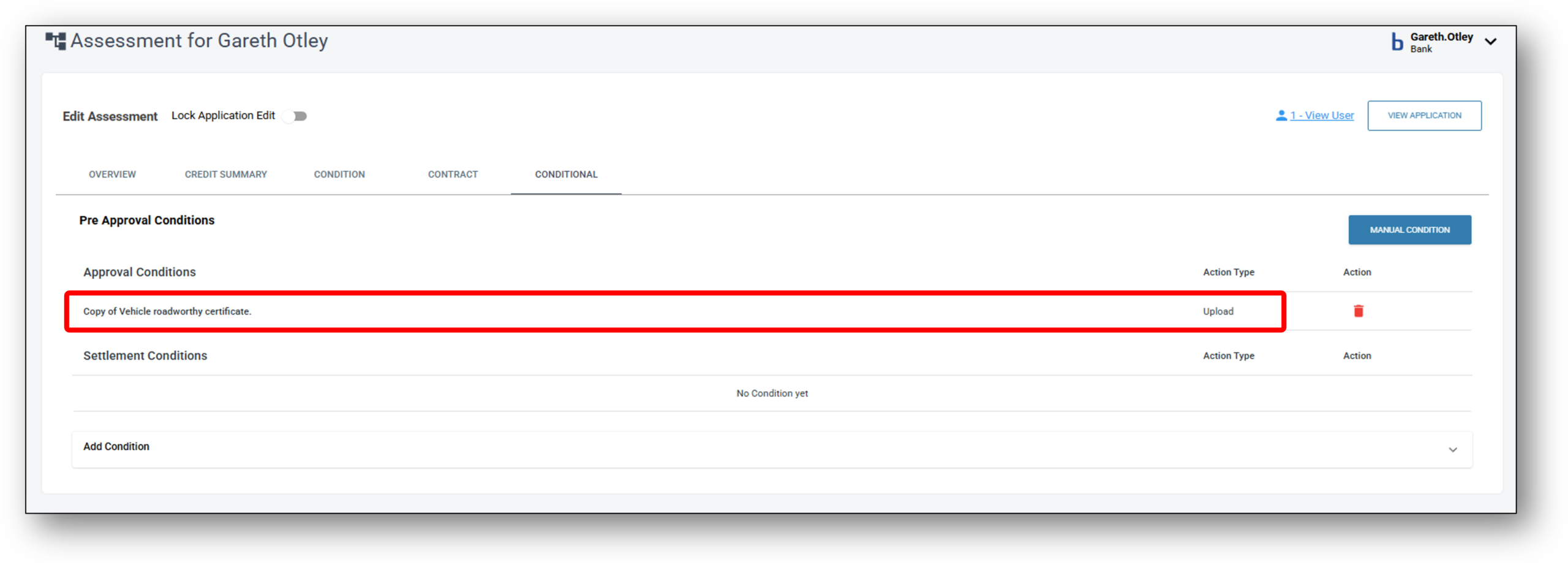
Selecting the ‘Auto Include‘ checkbox (Image 1 below) means the condition will be automatically included in the ‘Approval Conditions’ section in the assessment layer under the Conditional tab (Image 2 below). If the condition has been auto-included and it is no longer required, the user can easily delete the condition by clicking on the rubbish bin icon next to the condition.
Image 1:

Image 2: