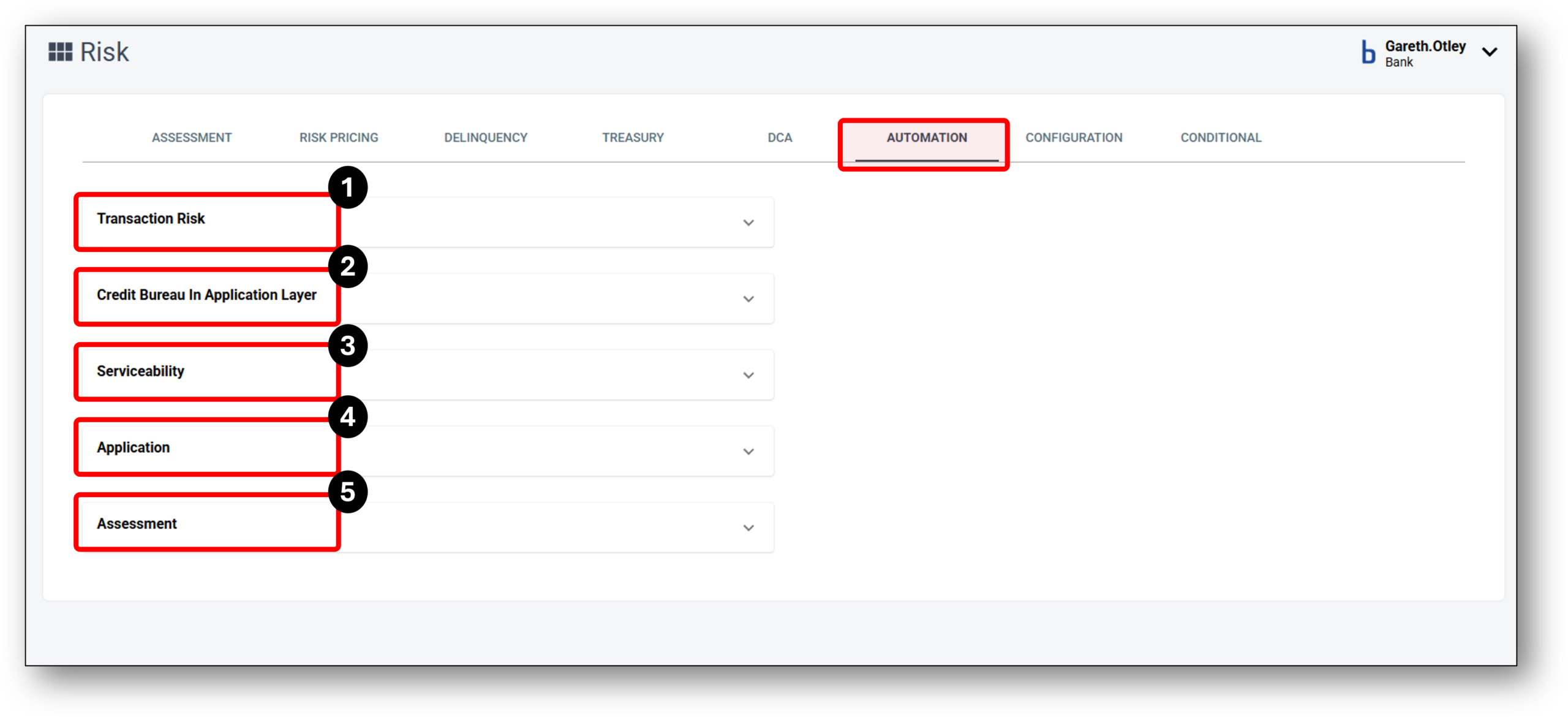
Risk – Automation tab
The Automation tab is where Nimo houses it’s automation features that are available to be set accross different stages of the Loan Origination process.

1 - Transaction Risk
illion Transaction Risk Score
The Transaction Risk Score combines data features using a traditional modelling technique, logistic regression. This linear modelling technique has been an industry standard for decades, supporting Transaction Risk Score to ensure it remains robust over time. Every data feature that is used in the score calculation has been validated by credit experts to ensure that the feature’s contribution to a score follows a logical trend.
The Transaction Risk Score-ML combines data features using a Machine Learning technique called Extreme Gradient Boosting, or XGBoost for short. This approach can better identify non-linear trends in applicants’ transaction patterns. While Transaction Risk Score-ML has been shown to deliver superior business outcomes over Transaction Risk Score for some credit providers, this benefit comes at the cost of reduced model interpretability. Transaction Risk Score-ML will be updated periodically into the future to further improve its power.
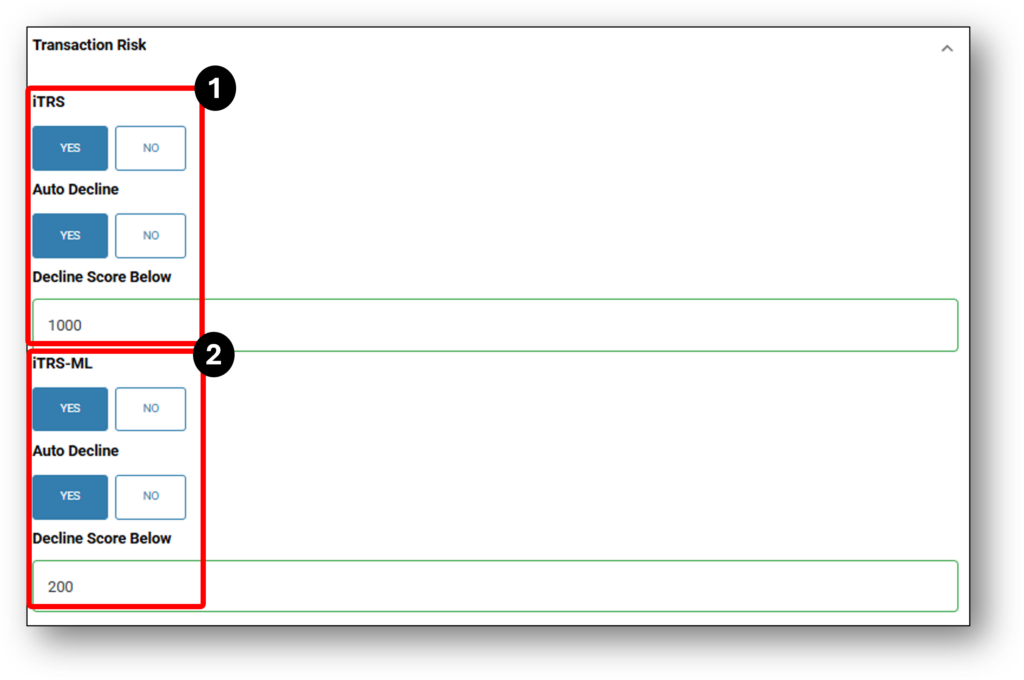
Below is an application showing when iTRS is enabled. The scores will be hyperlinked for further information breaking down the score.
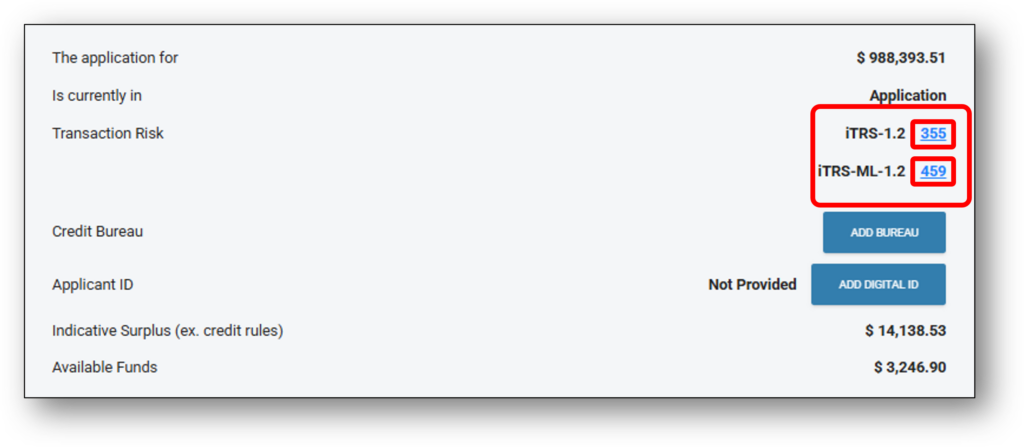
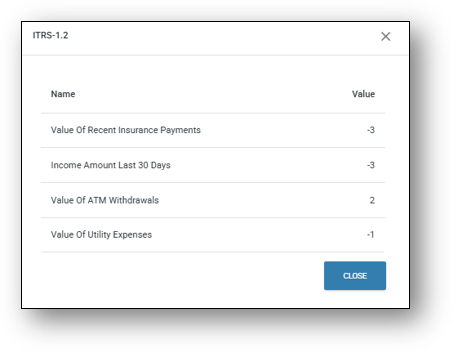
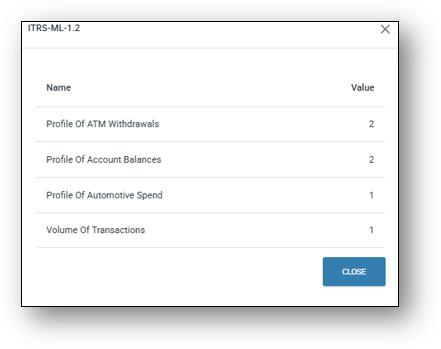
After clicking on the scores, users will open a dialog box giving a breakdown of the scores. The image on the left is the iTRS – 1.2 score and the image on the right is the iTRS Machine Learning score. Both of these can be set to apply auto decisioning decline outcomes to applications that return scores below specified thresholds.
2 - Credit Bureau in Application layer
Bureau Check refers to a credit check that is used to identify a customer’s credit score, defaults, undisclosed directorships, and other information that is relevant to determining whether the customer is eligible for credit under the lender’s credit guidelines or policy rules. If you want to use this function, please follow thes steps below.
Credit Bureau in Application Layer – The Nimo platform includes the ability to run the credit bureau in the Application Layer. This feature allows lenders to perform a preliminary credit bureau check on a customer’s application inputs before the application is submitted to the Assessment Layer. This enables early identification of potential risks and reduces processing time for ineligible applications.
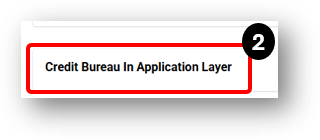
After selecting this accordion, the the option to turn on the Credit Bureau in the application layer will be available
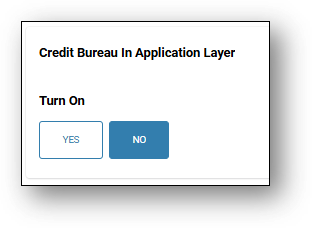
After opening the accordion, simply select ‘YES’, which will then present the auto-decline option to the lender (doesn’t have to be used as part of turning on this feature)
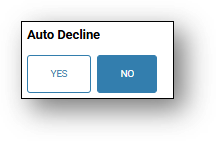
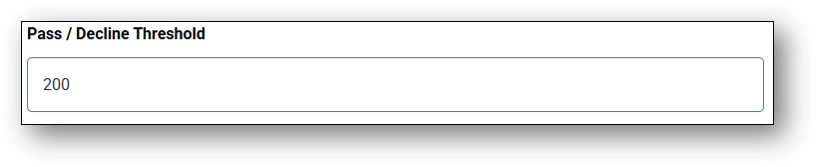
If you are turning on the auto-decline feature there will be a space to enter a score to set the auto-decline rule up. In the image below, the score has been set at 200. Enabling this feature will change the status of such applications to ‘decline’ and
trigger a decline notification. A new communication section has been added for auto declines based on credit score. The communication can be found in the Marketing Layer > Communications > Credit Score Decline Application
Note: Scores will differ between credit bureau’s and the below score is just for demonstration purposes
Once you have selected to use the function make sure to scroll down and SAVE.
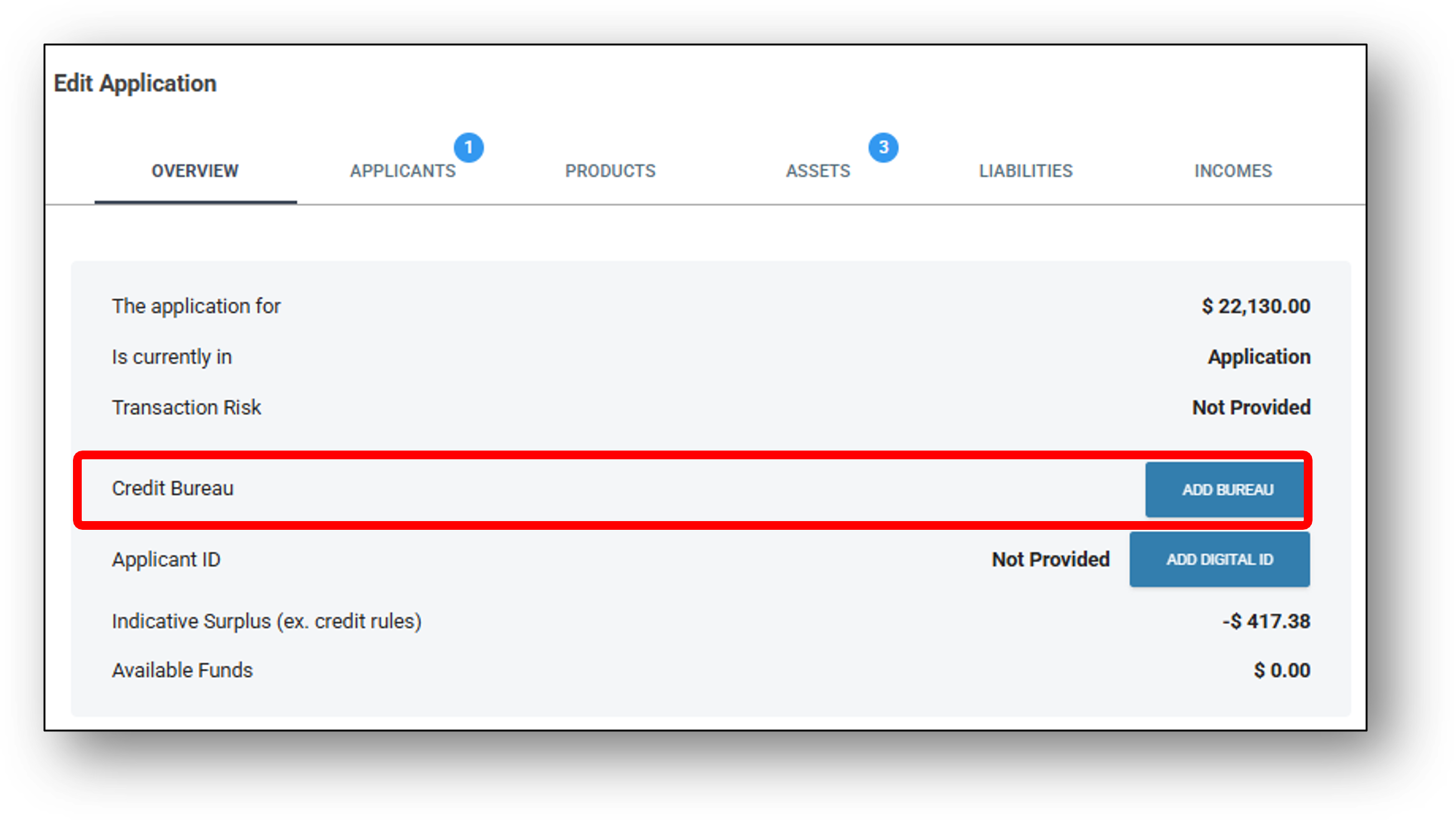
Credit Bureau’s available:
- Illion – Negative Credit Bureau
- Illion – Comprehensive (Positive) Credit Bureau (CCR)
- Illion – Commercial Credit Bureau
- Equifax – Credit Bureau
- Equifax – Commercial Credit Bureau
3. Serviceability
Loan serviceability provides the details of the customer income position based on the assessment pipeline ruleset.
The Serviceability settings determine whether the business requires applicants to address any shortfall between their assessed repayment capacity and the proposed loan repayments. This is part of ensuring the borrower can reasonably afford the loan.
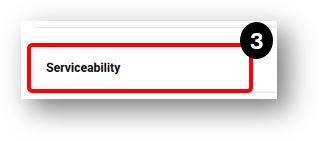
To use this feature, simply expand the accordion and select ‘Purchase Required Shortfall’.
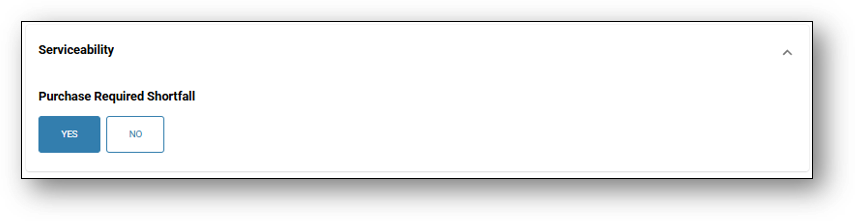
Purchase Required Shortfall
-
Yes – If the applicant’s assessed income and expenses show they cannot meet the proposed repayment amount (shortfall), they must provide evidence that the shortfall will be covered, for example, through savings, additional income sources, or asset sales , before the application can proceed.
-
No – The system will not require the applicant to cover or justify any calculated shortfall. Applications can proceed even if serviceability criteria are not fully met.
4. Application
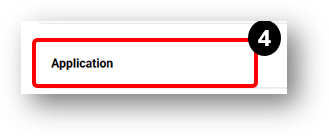
The Assessment Auto Submission setting determines whether loan applications are automatically sent for assessment once all required information is completed, without requiring manual submission by a business user.
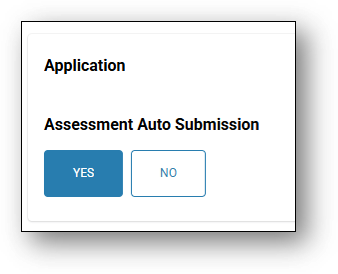
Assessment Auto Submission
-
Yes – The system will automatically forward the application to the assessment stage when all mandatory fields, documents, and eligibility checks are complete. This reduces manual intervention and speeds up processing.
-
No – Applications will remain in the current stage until a business user manually submits them for assessment, allowing additional review or edits before assessment begins.
5. Assessment
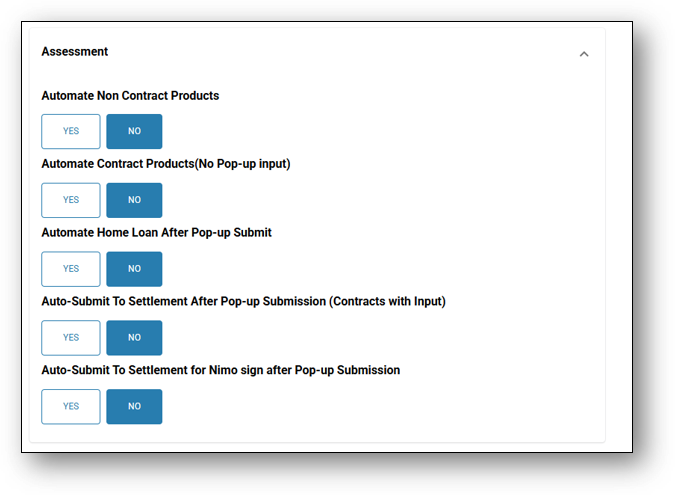
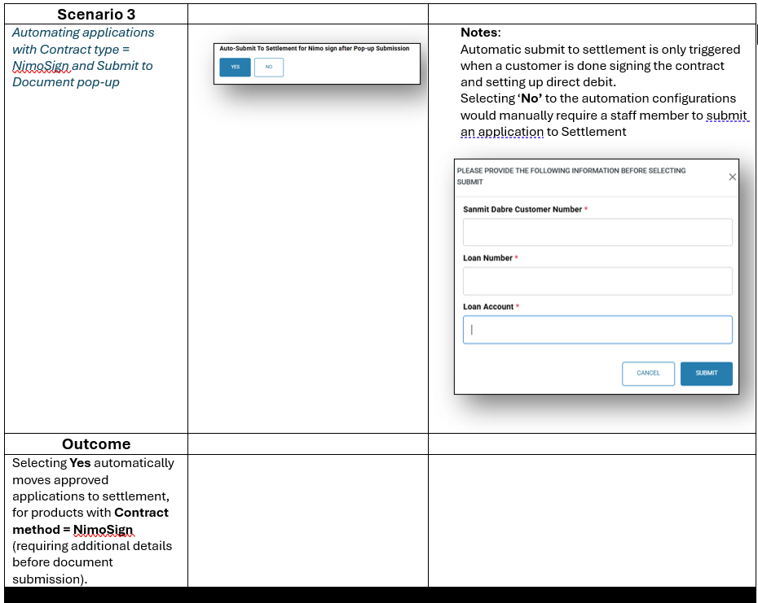
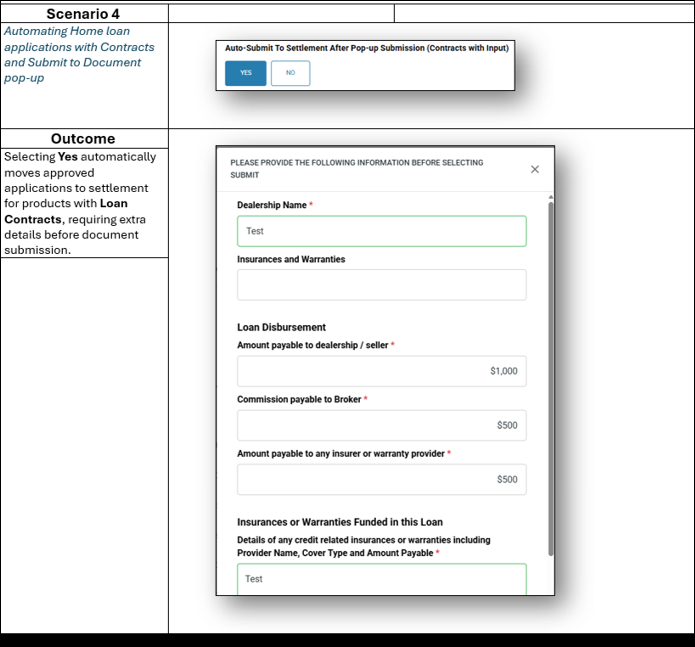
To help save time at the Assessment stage, Nimo has five automation features (See image below) that can be switched to save time and reduce manual work.
Assessment Automations:
- Automate Non Contract Products
- Automate Contract Products (No Pop-up input)
- Automate Home Loan after Pop-up Submit
- Auto-Submit to Settlement After Pop-up Submission (Contracts with Input)
- Auto-Submit to Settlement for Nimo sign after Pop-up Submission
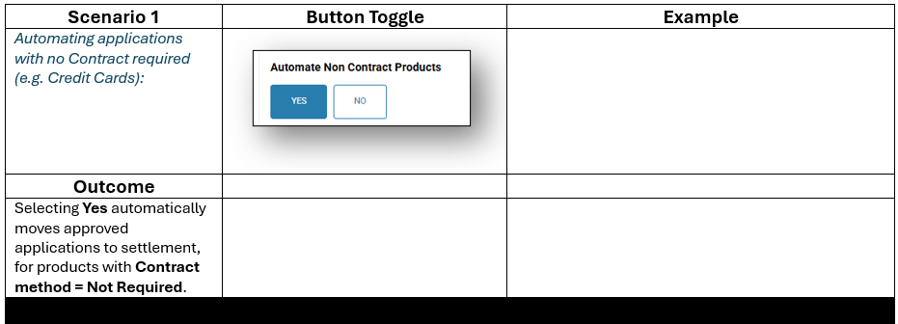
1. Automate Non Contract Products
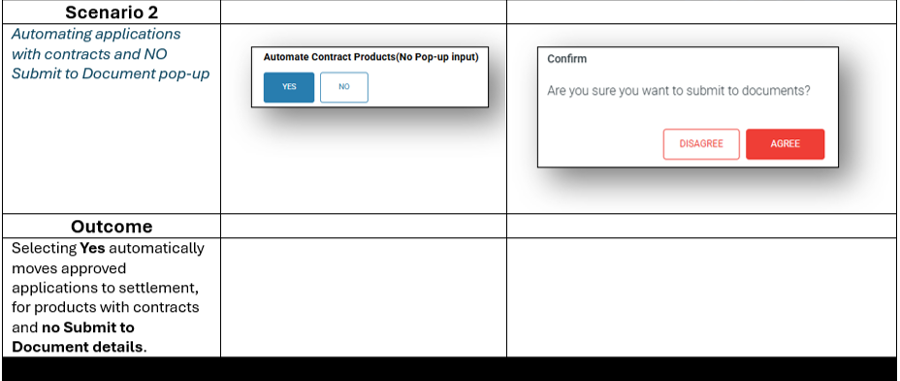
2. Automate Contract Products (No Pop-up input)
3. Automate Home Loan after Pop-up Submit
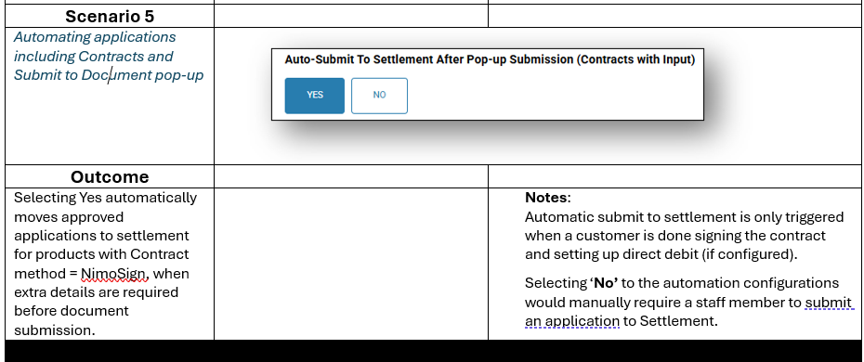
4. Auto-Submit to Settlement After Pop-up Submission (Contracts with Input)
5. Auto-Submit to Settlement for Nimo sign after Pop-up Submission