Servicing – Account Details tab
This tab provides an Account Details of your customers core banking for their servicing needs.

2. Statements
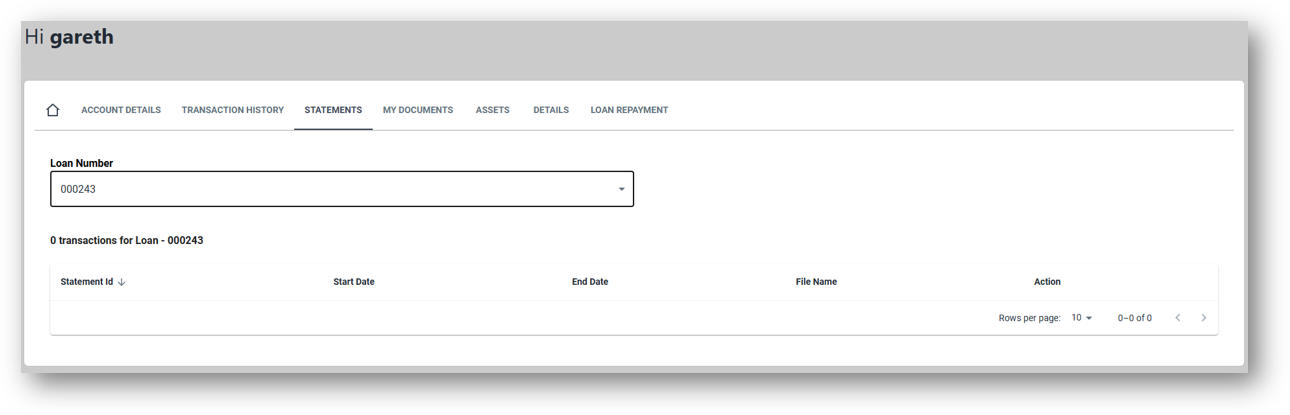
The statements tab will allow the user to view the statements for each of the customers accounts. The user can click the ‘View’ link under the action column to download a copy of the statements. This can then be sent to the customers email. The statements will be ordered from most recent to oldest on the screen. All of the columns can be sorted in ascending or descending order if required. The columns are:
- Statement ID (Statement number)
- Start Date (The first day of the statement period)
- End Dcate (The last day of the statement period)
- Filename (The name of the stetemented PDF document that will be downloaded)
- Action (Allows the user to download the statement for that period)
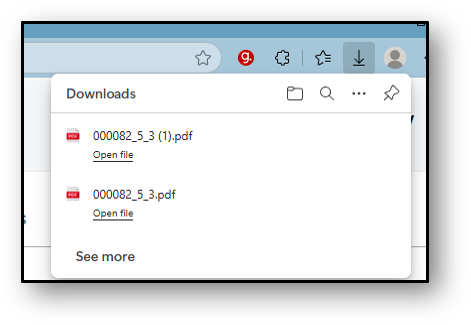
To download a statement, simply click the ‘view’ link under the action column and the download will begin (If your browser is setup to show notifications, you’ll will see the download begin to download).
Frequenty Asked Questions
1. What appears on a customers bank statement?
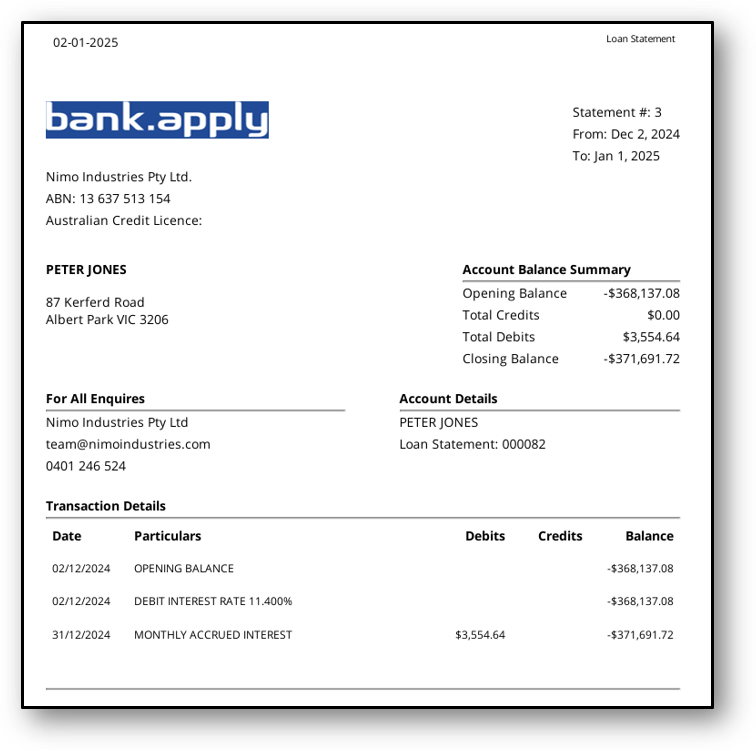
Underneath your organisations header you will see the customer/organisations details, including the name and addres of the account holder. On the top right, you can see the statement number for this account and the statemented period (From & To). Underneath the statement period you can see the Account Balance Summary for the statement period (opening Balance on the ‘From’ period, Total Credit & Debits in the period and the closing balance on the ‘To’ period). Directly underneath the balance summary is the account and contact details for the customer followed by the transaction details. If it’s a loan account you will also see a debit rate notification appear in the transaction list.