Assessment – Asset Position tab
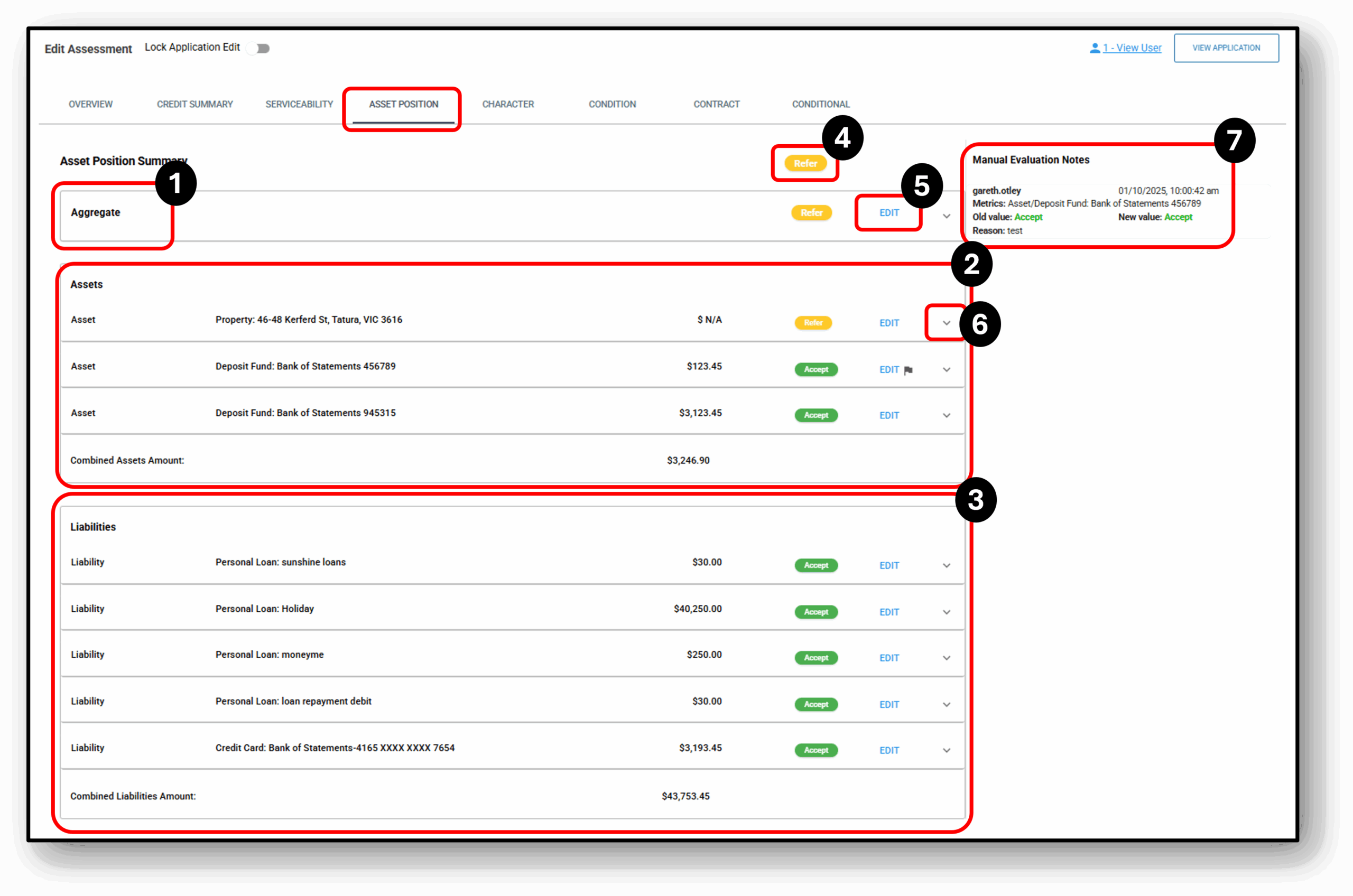
This section provides an ‘Asset Position‘ summary across both Assets and Liabilities from the information provided on the applicants application. Any areas requiring manual review are indicated by the word “refer,” highlighted in yellow.

Overview
The Assets Position tab checks if the information provided by the customers through their application aligns with the company’s established lending guidelines or policies. The information in this section is pulled through from both the Assets and the Liabilities tabs from the Application layer
1. Aggregate
Aggregate Section
This section provides a consolidated view of both the applicant’s assets and liabilities.
-
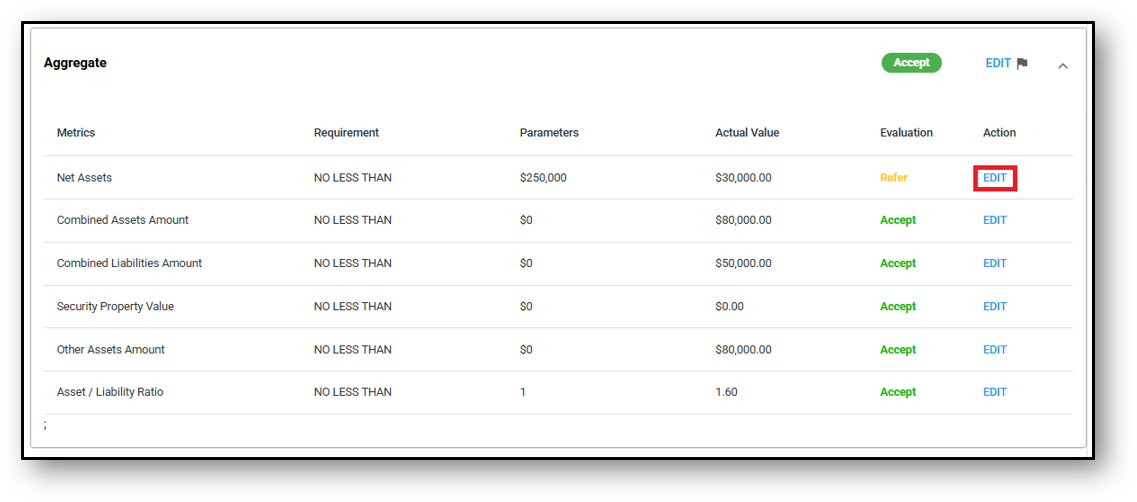
Metrics – Displays the values of the credit policy being assessed.
-
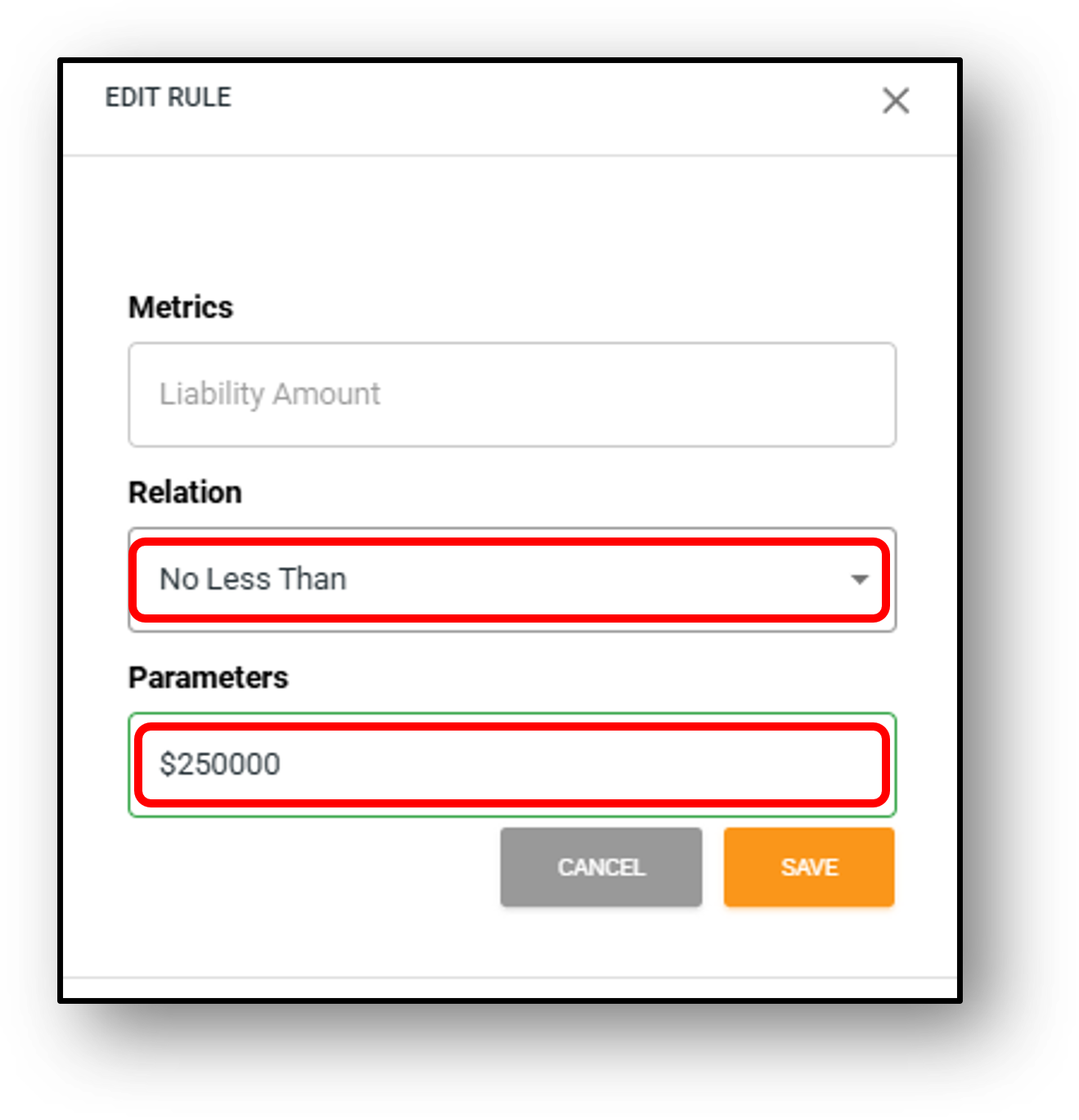
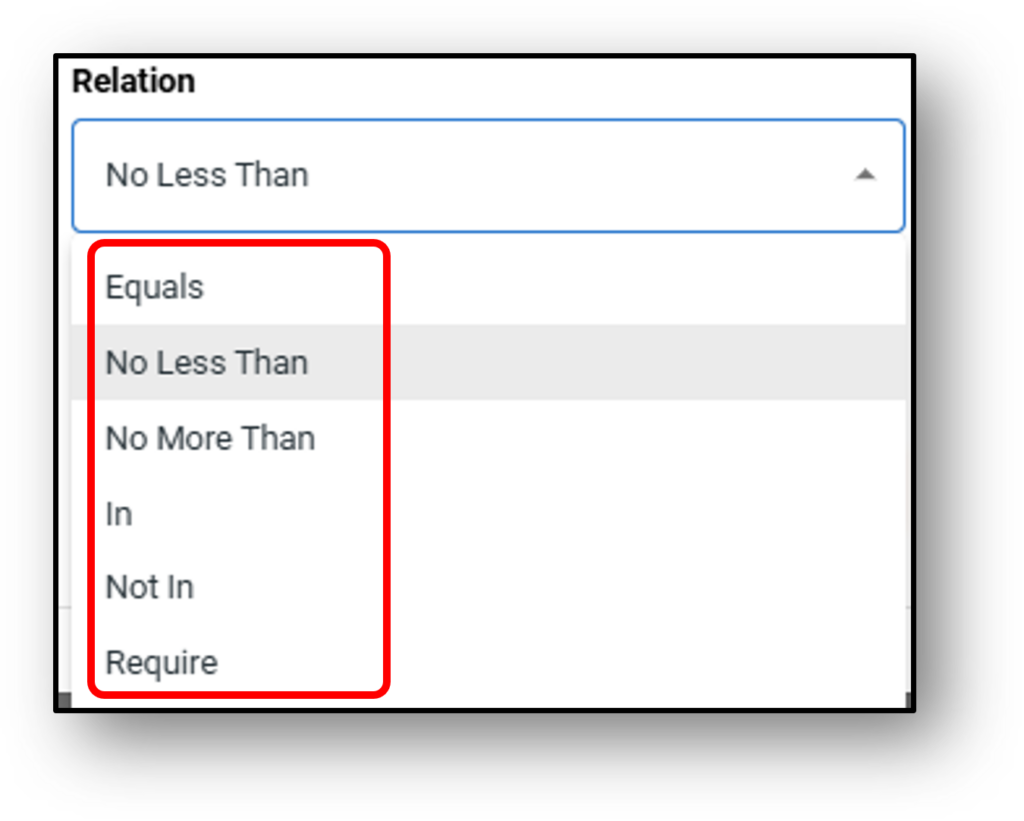
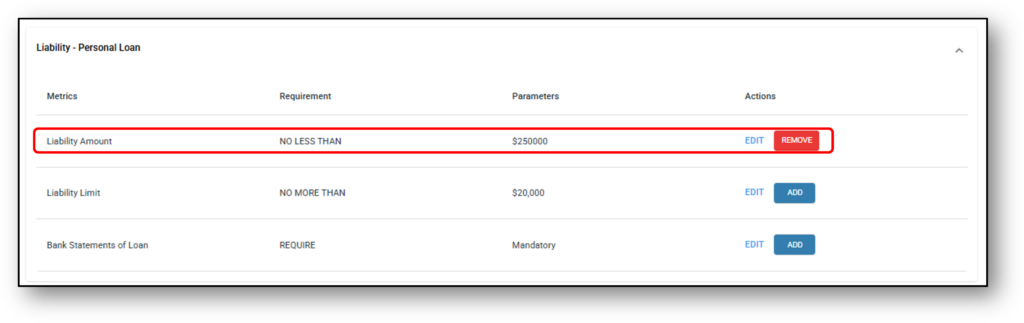
Requirements – refers to the credit guidelines or policy rules. This section can be found in the assessment pipeline for a specific product, which can be accessed by going to the management layer, selecting assessment, then selecting the desired product from the category list and clicking on the “edit” button to add/set/remove rules as per credit policy.
-
Parameter – Refer to the conditions for a rule. For example, in the image below, figures show that the net asset position can be “No LESS THAN” $250,000. If the customer’s net asset position is less than $250,000 then the application is referred or the credit manager with the correct delegation who can override the system’s decision to accept, decline, exclude, or refer the application. In this image we can see the ‘Actual Value’ is $30,000 and will therefore need to be referred for decisioning.
-
Actual Value – Refers to the amount of information that is shown, collected, or inputted on the customer application or retrieved via bank statements.
-
Evaluation – Refers to comparing the set guidelines or policy rules against the actual amount and determining whether the amount is within the guidelines or policy rules or not, and outputting either an “accept” or “refer” decision.
-
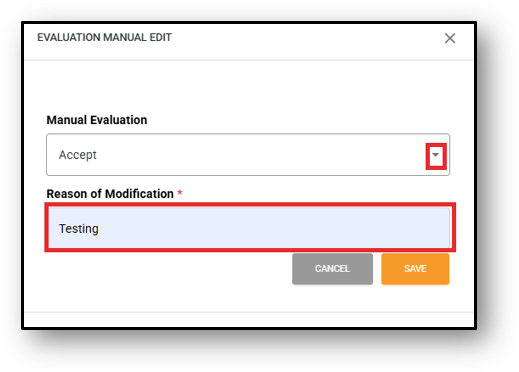
Action – Refers to the decision made by the credit manager, which can be to “accept,” “decline,” or “exclude” the application. (All assessment rules can be overwritten)
When overriding an evaluation, a reason will be required and will be recorded for auditing.
2. Assets
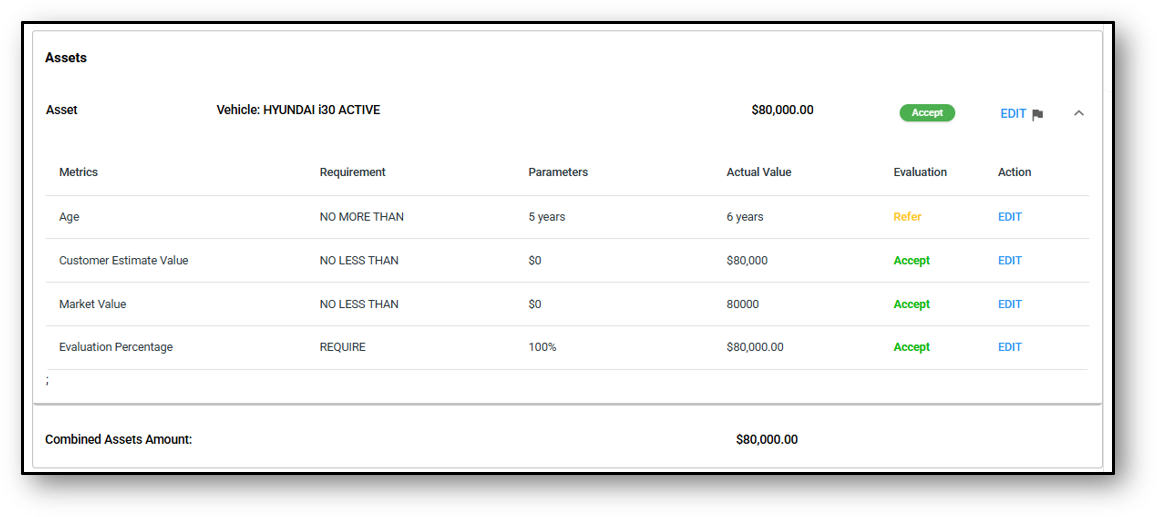
Assets Section
This section shows the Assessment ruleset and the auto-decisioning result on the customers asset holdings. Each lenders rulesets will be different and tailored to their credit policies. For a list of the different available rules sets, please visit the Assessment Pipeline and Rulesets page.
3. Liabilities
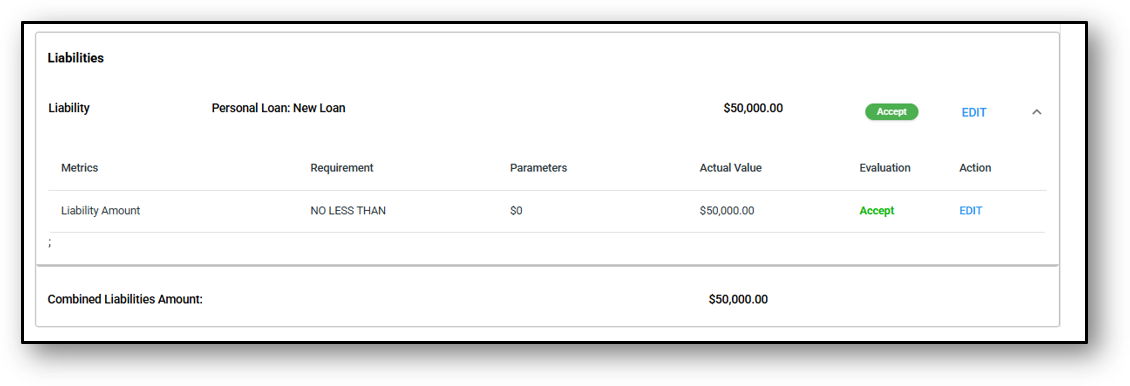
Liabilities Section
This section shows the Assessment ruleset and the auto-decisioning result on the customers Liabilities. Each lenders rulesets will be different and tailored to their credit policies. For a list of the different available rules sets, please visit the Assessment Pipeline and Rulesets page.
4. Refer
Your content goes here. Edit or remove this text inline or in the module Content settings. You can also style every aspect of this content in the module Design settings and even apply custom CSS to this text in the module Advanced settings.
5. Edit
Your content goes here. Edit or remove this text inline or in the module Content settings. You can also style every aspect of this content in the module Design settings and even apply custom CSS to this text in the module Advanced settings.
6. Dropdown arrow
Your content goes here. Edit or remove this text inline or in the module Content settings. You can also style every aspect of this content in the module Design settings and even apply custom CSS to this text in the module Advanced settings.
7. Manual Evaluation Notes
Your content goes here. Edit or remove this text inline or in the module Content settings. You can also style every aspect of this content in the module Design settings and even apply custom CSS to this text in the module Advanced settings.